
Google Opal will shut down on November 17, 2026. The official FAQ says this includes Gems made by Labs. Projects will not migrate automatically. Saved files will remain in Google Drive, but interactive workflows will stop running; prompt text can still be recovered from downloaded files. As of November 2, there is time to prepare copies and a replacement.
This guide is for people already using Opal. Its goal is to preserve a readable description of an app, its supporting material and a reference example. This is an editorial preparation plan based on Google’s documentation, not a claim that every workflow has been tested in another service. You do not have to rebuild an entire app in one evening: first protect the parts that would be hardest to reconstruct.
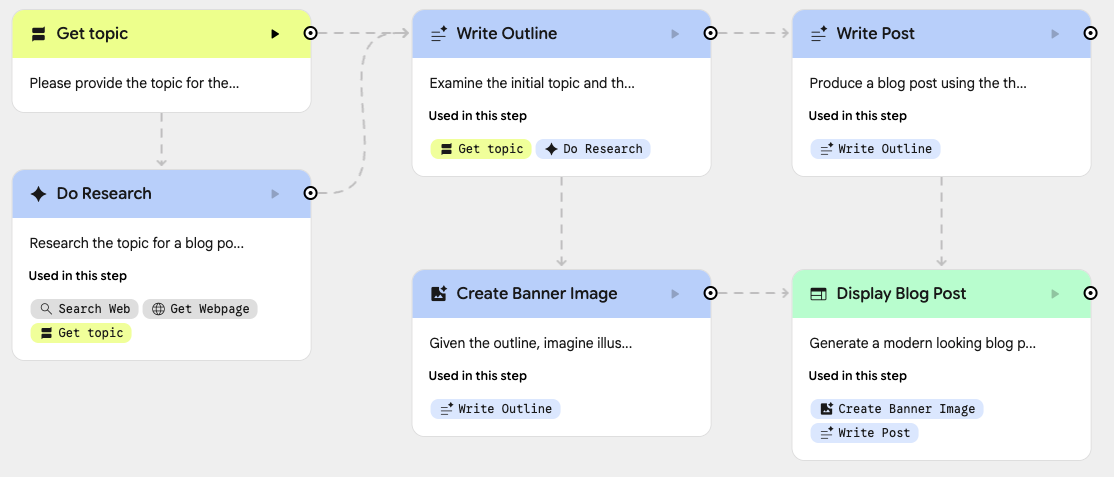
The cover diagram is an official demonstration example from Google Opal documentation, with its original English labels.
First identify what you actually created
Do not confuse regular Gemini Gems with Google Labs mini-apps. Google’s skills announcement describes automatic migration of regular Gems into skills, while explicitly excluding Gems by Google Labs. Skills are saved instructions for repeat tasks in Gemini; they are not a promise to recreate an arbitrary Opal workflow automatically.
Open your workflow and describe what it does from start to finish. Does it need only one text instruction? Or does it collect several inputs, invoke different tools, create images and build a separate page? The answer determines the scope of the move. Choose the destination service after writing that short description, rather than letting a product name stand in for an understanding of the task.
Step 1. List the projects that matter
Start with three groups: daily necessities, occasional tools and experiments that can stay archived. For each important project, record its name, owner, link, users and last successful run. Avoid spending the first evening on dozens of trials if one workflow prepares a document you need every working day.
- Mark projects whose outputs other people depend on. Assign an owner and identify a temporary manual process for them.
- List the documents, images and examples required for the workflow to behave as expected.
- Identify material you own and material available only through someone else’s link. Archive only what you have permission to copy.
- Write one sentence per workflow: “It receives… and should produce…”. This becomes a testable requirement for the replacement.
Step 2. Save the files and inspect the copy
Look for saved projects in Google Drive under My Drive → Opal. The Drive download instructions explain that, on a computer, you can select a file, right-click and choose Download; use Ctrl on Windows or Command on a Mac to select multiple files. If downloading someone else’s file is unavailable, its owner may have restricted that action.
We recommend a separate archive folder for each important project. After downloading, open the copy in a plain-text editor and confirm it contains project data rather than an error page or an empty file. Keep the original unchanged and make a second copy for inspection or editing. A familiar file extension alone does not establish that a backup succeeded.
Keep a list of required input materials and permitted output examples with the archive. Record the date and a brief note about whether the workflow was working. For a critical process, keep another copy in a separate location you can access. Do not put passwords, access tokens or personal information into a shared prompt document.
Step 3. Record the logic, not just the main prompt
Open the workflows you need and copy the instructions you want to retain. The Opal editor documentation distinguishes input, generation and output steps, along with supporting assets. A selected step’s settings appear in the sidebar, and prompts can reference other steps and tools. Those dependencies are an important part of understanding the workflow before rebuilding it.
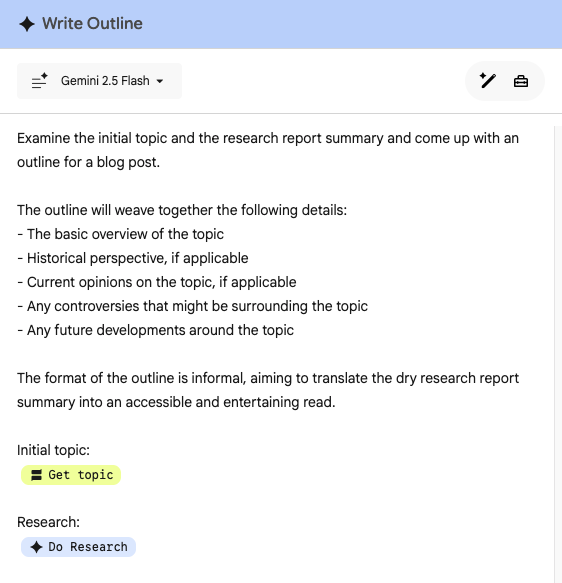
Take your own screenshot of the overall flow and separately save the text of the relevant steps. For each, record what it receives, what it should return and which step uses the output next. Translate a reference to an earlier step into ordinary language. For example, “use the approved outline from stage two” is more useful to a new tool than an unexplained internal identifier.
For a “topic → research → outline → text → formatted page” workflow, the saved article is only one output. You also need the source-selection rules, outline requirements, completion condition and final document format. If a stage was manual, label it as manual. Do not describe automation that the original process never actually performed.
A template for documenting the move
The following is our working template. It is plain-text documentation, not an import file for Opal or AI Studio. Fill it with your own information and give it to the person or tool helping rebuild the process. A simple workflow may need only one page.
Workflow name:
Problem it solves:
Who uses it:

Input data and accepted formats:
Required reference material:

Step 1 — action, instruction, expected result:
Step 2 — what it takes from step 1, what it adds:
Step 3 — final output format:

Where a person must decide:
What to do when information is missing:
What to do when a tool returns an error:

Reference input example:
Criteria for an acceptable result:
Unacceptable actions or mistakes:

Who can access the replacement:
Archive location and date checked:
Step 4. Choose the first part to rebuild
For reusable conversational instructions, check skills in your Gemini account: Google describes invoking them with a slash and a name, and adding reference files. For experiments with model behavior, Google AI Studio lets you try prompts, configure parameters and tools, and obtain code for further work with the Gemini API.
Our practical selection rule is to build the smallest version that performs the necessary task. One text-preparation step can initially become a saved instruction. A process involving research, several files and publication is better described as separate stages, then joined after testing. Do not assume another platform will infer the original connections, permissions or error-handling rules.
Before choosing, compare account requirements, regional availability, limits, potential costs and how data is stored. For multi-step automation, our n8n, Make and Zapier comparison can also help you define requirements. It is not a promise that those products can import an Opal workflow directly.
Step 5. Test the replacement with three examples
Use an ordinary request, a request with missing information and a case where proceeding without clarification could produce a wrong result. Compare the replacement with the criteria you wrote down instead of demanding identical wording. If inputs contain numbers, names or links, verify those separately from the quality of the prose.
- Are all required input fields preserved, without inventing missing information?
- Can the output be opened in the intended application, and does it meet the agreed format?
- Does the process stop or ask for clarification when a person needs to decide?
- When a tool fails, is the problem visible, and is there a workable manual fallback?
- Can the people who need the replacement actually access it?
Plan to finish the checks ahead of time, for example by November 16, to leave some margin. That is our organizational recommendation, not an additional Google deadline. The first useful outcome is a verified archive, a readable process description and a reference example. Together, they make the next implementation much easier to assess.
If your requirements become unclear while documenting them, see our prompt-writing guide. Before handing work files to a new tool, also use the AI privacy checklist.



Join the conversation
Stay on topic and respect other readers. Your first comment may appear after editorial review.