Google Vids is moving beyond an AI-assisted presentation builder towards an editor where some changes can be described in plain language. On July 16, 2026, Google announced that Gemini Omni was coming directly to Vids. The model generates short clips at higher quality and can apply a written instruction to a video. A companion launch adds personal avatars, although that feature has its own age, language and regional rules.
“AI video editing” is an appealing headline, but the details determine whether it is useful today: which clips can be edited, what happens to a longer upload, where the tool is restricted, which subscriptions qualify and why an eligible account may not see it immediately.
What is new in Google Vids
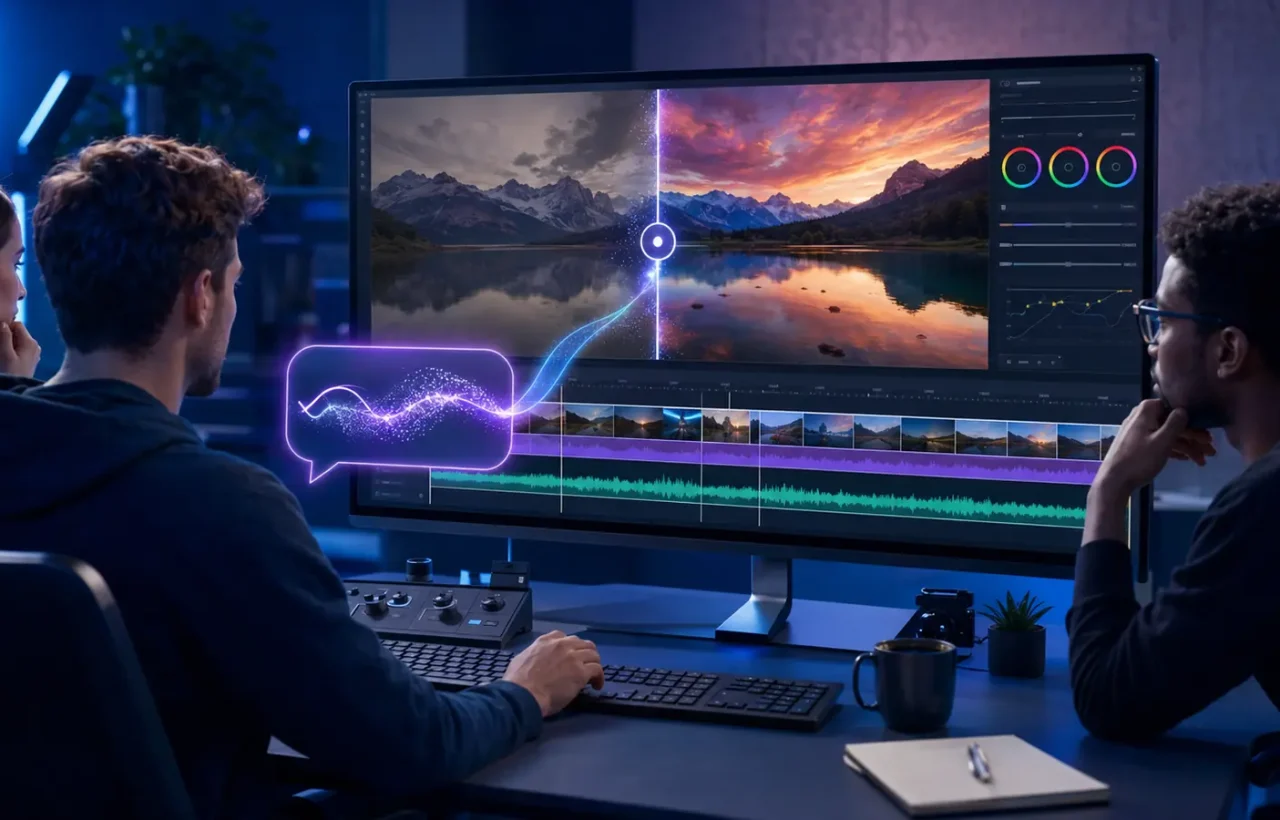
Google says the Omni Flash model improves text rendering, physics and realism over the earlier video models available in Vids. A user can generate a new clip from a prompt, reference images or an avatar. A separate editing mode accepts an existing video and a written change. Google’s own examples include correcting colour grading, restyling the visuals as anime and removing a New York siren from the background.
The current Google Vids help page gives the technical boundaries. Generated clips are 720p at 24 frames per second and use either a landscape 16:9 or vertical 9:16 aspect ratio. A generation can include up to seven reference images. When editing an uploaded clip, users can add up to three reference images or an avatar. If the source video is longer than 10 seconds, only its final 10 seconds are edited.
Vids can also animate a JPG or PNG into an eight-second clip. For that workflow, Google recommends describing motion rather than repeating everything already visible in the image: what the subject should do, how the camera should move and what pace or atmosphere the shot needs. That distinction makes a prompt more like a concise direction to a camera operator than a generic caption.
Where Omni may save real production time
For a small team, the practical win is unlikely to be a complete campaign video produced in one click. It is the ability to iterate on short pieces: animate a still for a social post, create a transition for a training video, repair the colour of a brief shot or remove an unwanted background sound without scheduling another recording. The vertical option suits mobile-first clips, while 16:9 fits presentations, explainers and internal communications.
Omni should not be mistaken for a full replacement for a professional non-linear editor. Google describes the capability as supporting simple video edits. Precise dialogue cutting, multi-camera projects, detailed audio mixing and a long-form colour grade still call for specialist tools. The new feature is at its most convincing when it creates or revises one short element inside a Vids project.
If you are still choosing the core services for your workflow, compare them by task in RozumTech’s guide to five useful AI tools for work. Google Vids with Omni is best assessed as a focused tool for producing short video assets.
The regional restriction is narrower than it sounds
At launch, editing non-AI video is unavailable in the European Economic Area, Switzerland, the United Kingdom, Texas and Illinois. The wording matters. Google has not said that Gemini Omni as a whole is unavailable in those locations. Its help page says users in the affected regions can edit AI-generated clips from their generation history; they cannot upload and edit an ordinary source video with this feature.
Ukraine is not named in Google’s list of exclusions for editing uploaded clips. That does not guarantee immediate access, because the account still needs an eligible subscription and the feature is rolling out gradually.
Personal avatars have a different set of conditions. At launch, they are English-only, limited to users aged 18 or older, and unavailable in the EEA, Switzerland and the UK. Google says people verify and manage their likeness through their Google Account before selecting the avatar as a character in Vids. These avatar restrictions should not be read as restrictions on every Omni generation feature.
Rollout dates
- Rapid Release domains: gradual rollout began on July 16, 2026 and may take up to 15 days for the feature to appear.
- Scheduled Release domains: gradual rollout begins on August 5, 2026 and may also take up to 15 days.
An eligible user who cannot find Omni on July 18 is therefore not necessarily facing an account fault. The sensible checks are the domain’s release track and subscription, followed by the relevant rollout window.
Eligible Google plans
Google lists Business Starter, Business Standard and Business Plus; Enterprise Starter, Enterprise Standard and Enterprise Plus; Education Plus; consumer Google AI Pro and Ultra; Enterprise Essentials and Enterprise Essentials Plus; and Nonprofits. Access is also included through Google AI Pro for Education, the Teaching and Learning add-on and AI Expanded Access. Google says AI Expanded Access carries higher Omni usage limits.
The help centre currently states that most users can generate up to 50 videos per month, with the allowance resetting at midnight Pacific Time on the first day of the month. When Google AI Pro or Ultra is shared with a family, the monthly generation limit is shared too. This is a generation allowance rather than a promise of 50 finished assets: finding a usable result may require several attempts.
What administrators need to know
The main Omni generation and editing launch does not have a dedicated admin control. Personal avatars are handled differently: the feature is on by default, but a Workspace administrator can enable or disable it at domain level. Organisations should decide in advance which footage may be uploaded, whether staff may create a likeness, who owns the rights to reference images, voice and music, and who reviews the output before publication.
Google also warns that generative features may produce inaccurate or inappropriate results. Feedback may be human-readable, so users should not put personal, confidential or sensitive information into a feedback report. The Vids help page further says that generated images and video are intended for use within Vids.
A sensible workflow for teams
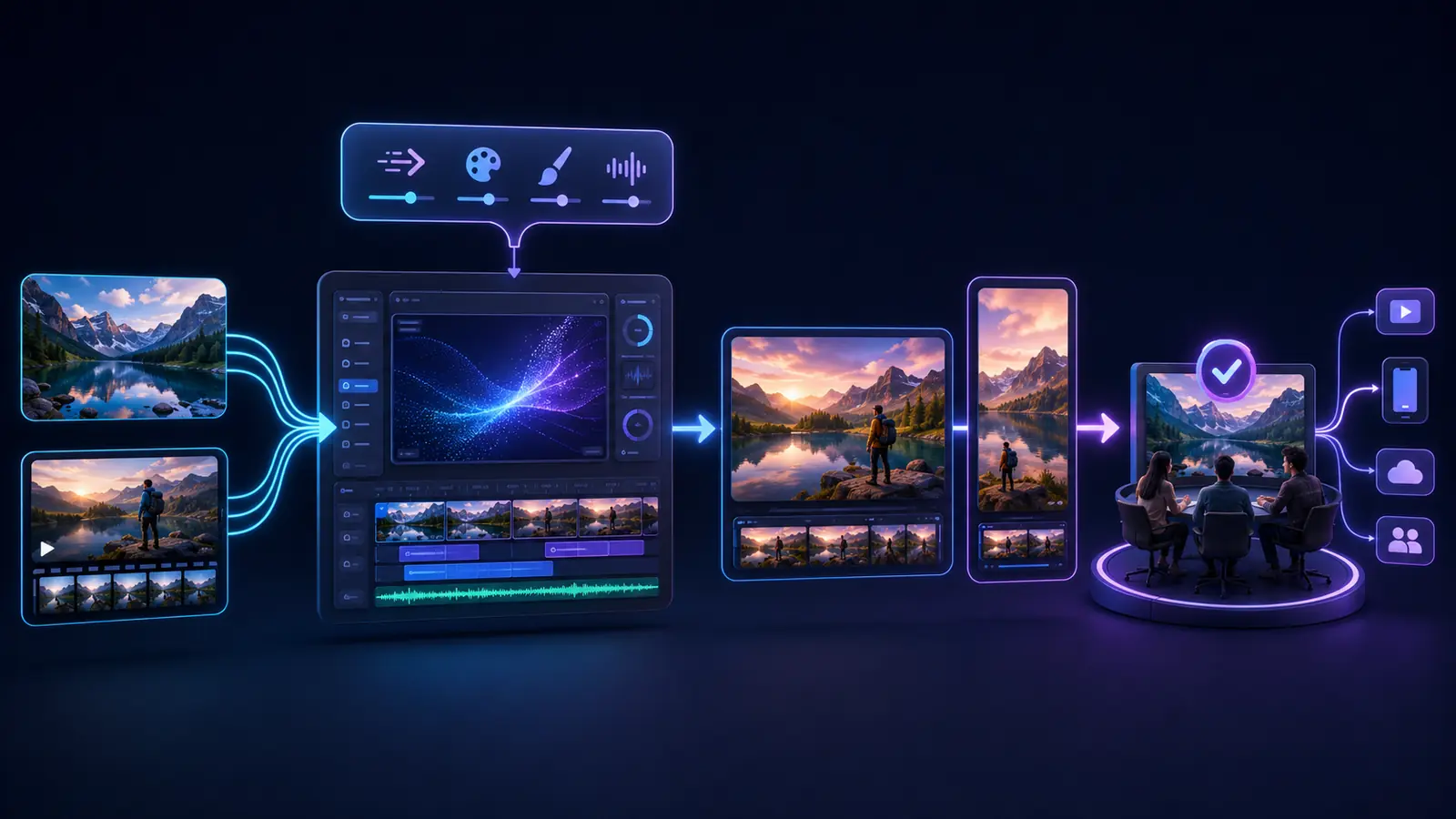
- Keep the source footage untouched and edit a copy.
- Ask for one visible change at a time—motion, colour, style or sound—so the result is easier to judge.
- Use only reference material you are entitled to use, and do not upload confidential footage without organisational approval.
- Inspect on-screen text, hands, object motion, audio synchronisation and factual details. Better realism is not the same as guaranteed accuracy.
- Insert a promising result into the Vids project before closing the tab. Google notes that the current session’s generation history disappears when the tab is closed.
It is also worth retaining a brief record of the prompt and source assets for any public-facing clip. That makes later corrections easier and gives a small team a repeatable process instead of relying on one person to remember how a particular result was made.
The practical takeaway
Gemini Omni makes Google Vids more flexible for short-form work: a written instruction can now create a scene or alter an existing clip. Its usefulness still depends on geography, plan eligibility, the monthly quota and a staged rollout. Treat it as a fast assistant for focused edits, not as a reason to skip human review or the permissions needed for someone else’s image, voice or footage.