
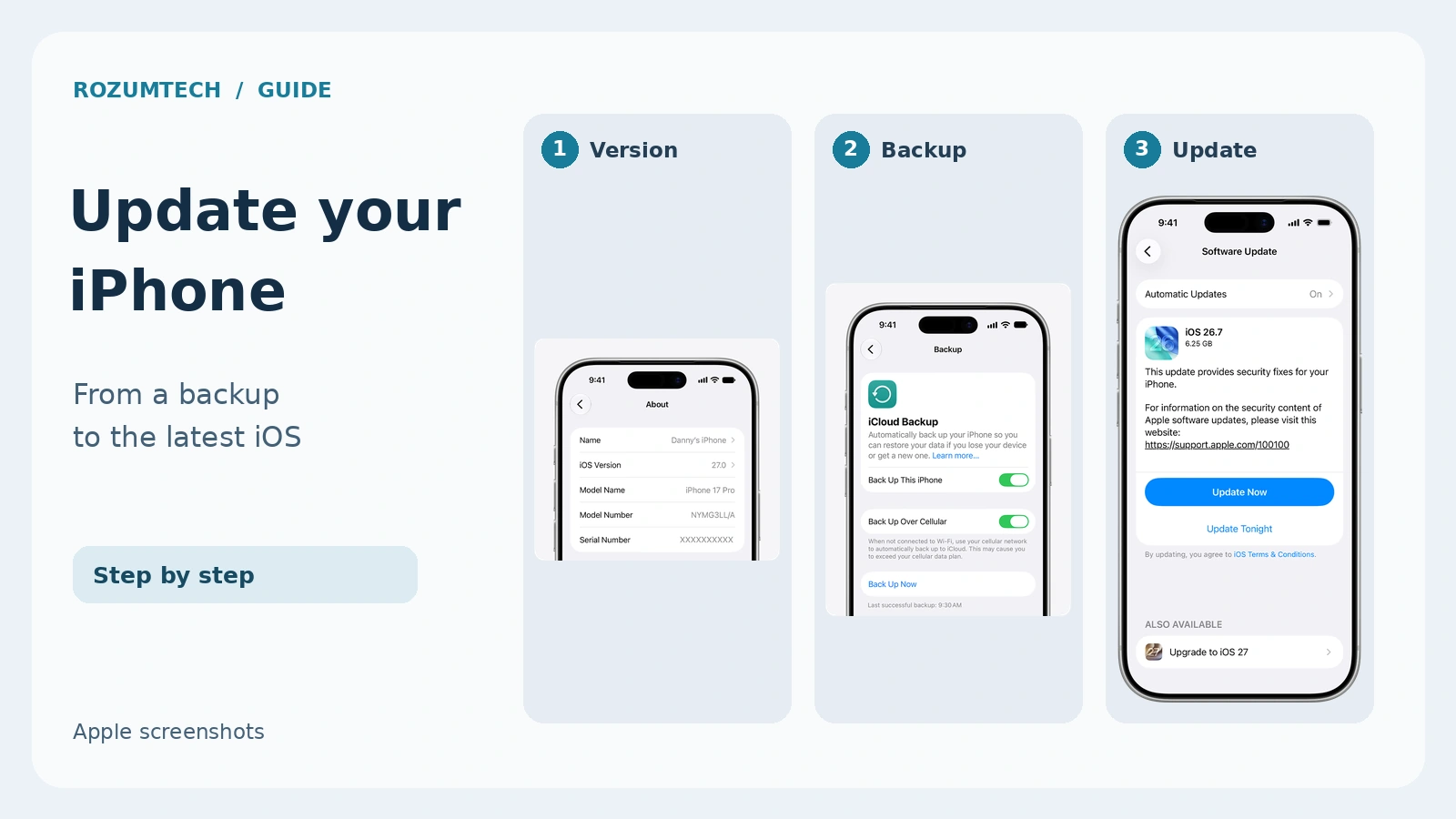
Before updating an iPhone, check three things: whether the model supports the version you want, whether a recent backup has finished, and whether there is enough storage for installation. This guide takes you from identifying the device to checking it after the restart, with genuine English-language Apple screenshots and explanations of the controls.
Checked on October 30, 2026. Apple lists iOS 27.2 as the latest stable release on this date. The newest iOS overall is not necessarily the newest release for your particular phone. For example, Apple released iOS 18.7.11 for iPhone XS, XS Max and XR. Check model compatibility and the update offered in Settings.
About the screenshots. These are genuine images from Apple Support in English. Some show earlier iOS versions: they illustrate where controls are located, not which version to install today. We have not redrawn the interface or changed its version numbers. Select an image to open the full-size file.
Step 1. Identify your iPhone model and installed iOS
Open Settings → General → About. Note the Model Name and iOS Version. The personal name you gave your phone, such as “My iPhone”, does not identify its hardware. Use the actual model field when checking compatibility.
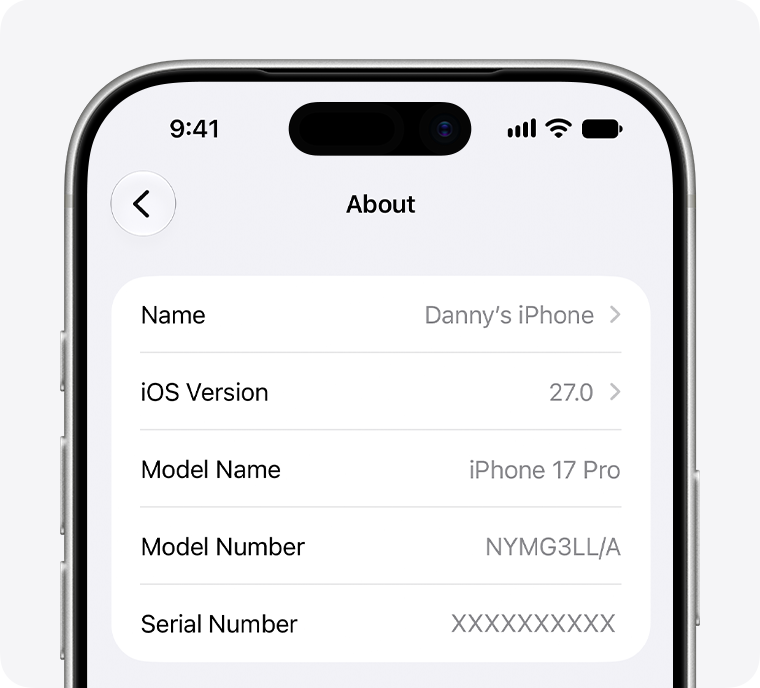
Compare that model with Apple’s compatibility list linked in the sources below. A phone that does not support a new major version will not gain compatibility by checking again. It may still receive a security release for an older branch. Consequently, an older iPhone saying its software is up to date does not mean it runs the newest iOS available across all models.
Step 2. Make a backup and check when it finished
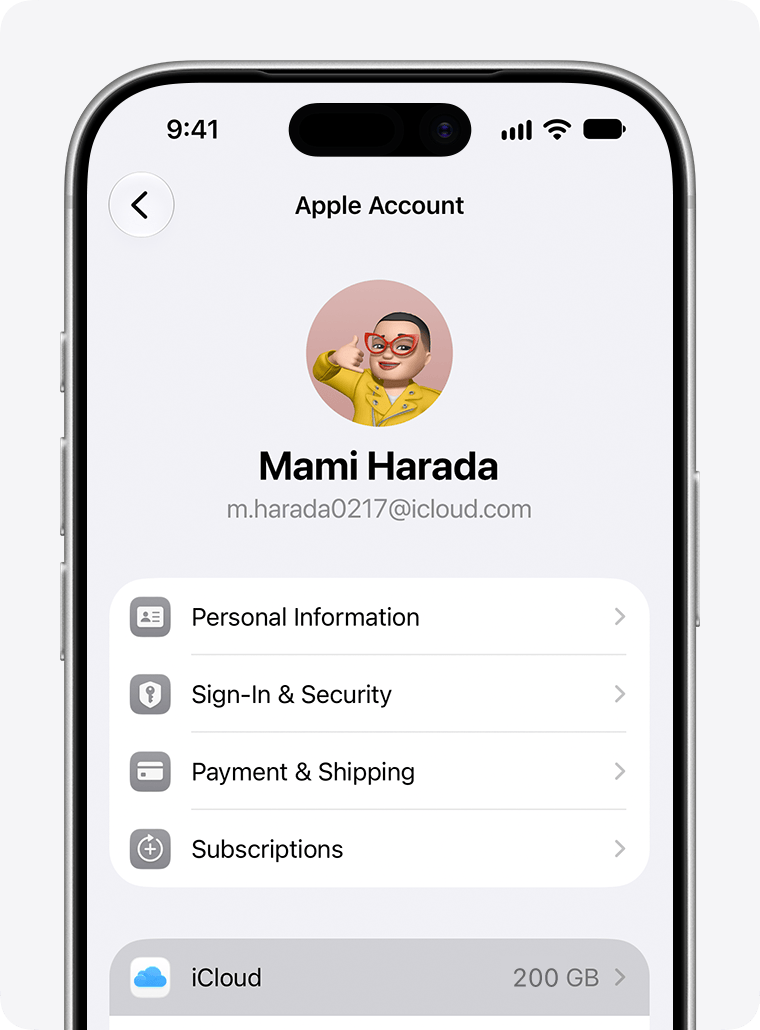
Return to the main Settings screen, select your name at the top and open iCloud. If the phone asks you to sign in instead of showing your account, establish access to your own Apple Account first, or use a computer backup.
Open iCloud Backup and choose Back Up Now. Keep the phone connected to Wi-Fi until the operation finishes. Check the date and time of the last successful backup beneath the button: that confirmation is the useful result of this step.
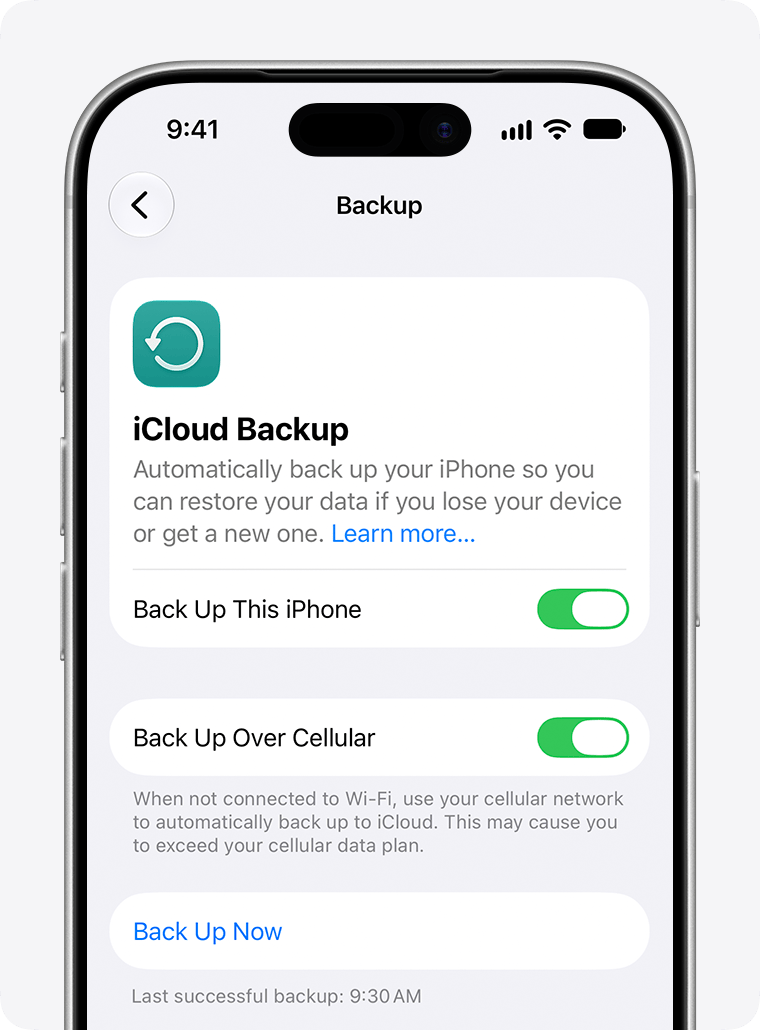
An enabled backup switch is not proof that a recent copy has completed. If iCloud reports insufficient space, resolve that issue or back up to a computer before proceeding. Avoid deleting photos or older backups at random simply to clear the message. Our iPhone backup guide explains the difference between synchronisation and a backup, and what to check with each method.
Step 3. Prepare power, Wi-Fi and device storage
- Connect the phone to a charger and a reliable Wi-Fi network. Choose a time when you will not need it for a call, a ticket or a sign-in confirmation.
- Make sure you know the iPhone passcode. You will need it after the restart; being able to unlock with your face is not a substitute for knowing the code.
- Check Settings → General → iPhone Storage. Space in iCloud and free storage inside the phone are separate resources. Buying a larger iCloud plan does not, by itself, make room for installation.
- Review large downloads and unused apps if device storage is low. Offloading an app retains its documents and data, while deleting an app can remove associated data. Read the action carefully before confirming.
Do not assume a fixed five-minute installation or a universal number of gigabytes. Package size depends on your starting version, and the time needed depends on the network, device and storage. The displayed download size is not necessarily the full amount of working space required during installation.
Step 4. Open Software Update and check the whole screen
Go to Settings → General → Software Update and allow the check to finish. Read the offered version and its description before selecting an action. If you wanted a new major release but see only a smaller update for your current branch at the top, scroll down.
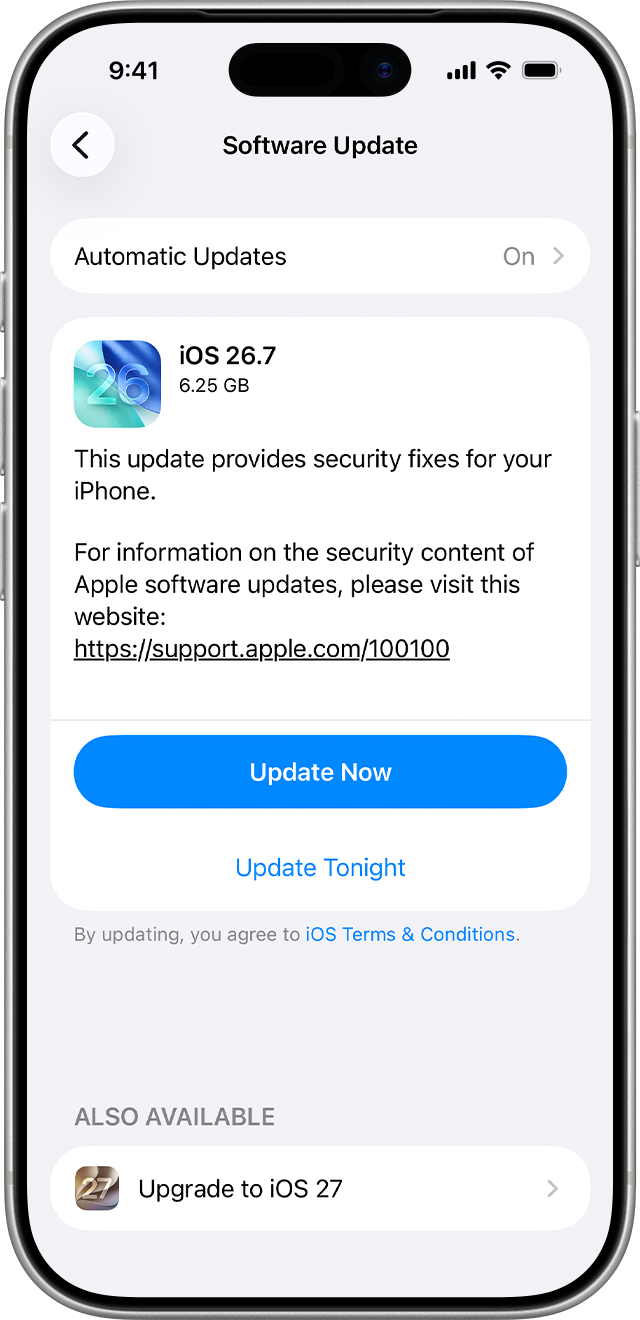
In Apple’s example, an iOS 26 update appears first, while the upgrade to iOS 27 is below it under Also Available. Open the lower option if your intention is to move to the new major version. This example explains the layout; the iOS 26.7 number in the picture is not a recommendation to install that specific release today.
If the phone says it is already up to date, return to the model and installed-version check in step one. If the device belongs to an organisation, consult its administrator about update availability before changing management profiles or settings.
Step 5. Start installation and allow the restart to finish
Select Update Now or Download and Install, depending on whether the package is already downloaded and on your interface version. Follow the system prompts and enter the device passcode if requested. If you choose an overnight installation, leave the phone charging with Wi-Fi available.
Downloading, preparing and installing are separate stages. The iPhone restarts during installation; that is not a reason to start the procedure again. Keep it connected to power. A progress bar moving slowly does not, on its own, establish that the device has frozen. Avoid a forced restart just because installation has taken longer than expected.
You do not need an “iOS updater” from an advertisement, a payment to an unknown website or someone else’s help using your SMS codes. If an unrelated page demands those steps, stop and open the phone’s Settings yourself. Our guide to recognising phishing covers warning signs of this kind of deception.
Step 6. Verify the result and configure automatic updates
After the restart, unlock with your passcode and return to About. Check the version actually installed, then revisit Software Update to see whether anything else is available. Before relying on the phone for a journey or work, it is also sensible to open your essential apps and check connectivity.
At the top of Software Update, open Automatic Updates. The screenshot below distinguishes downloading an update from allowing the phone to install it.
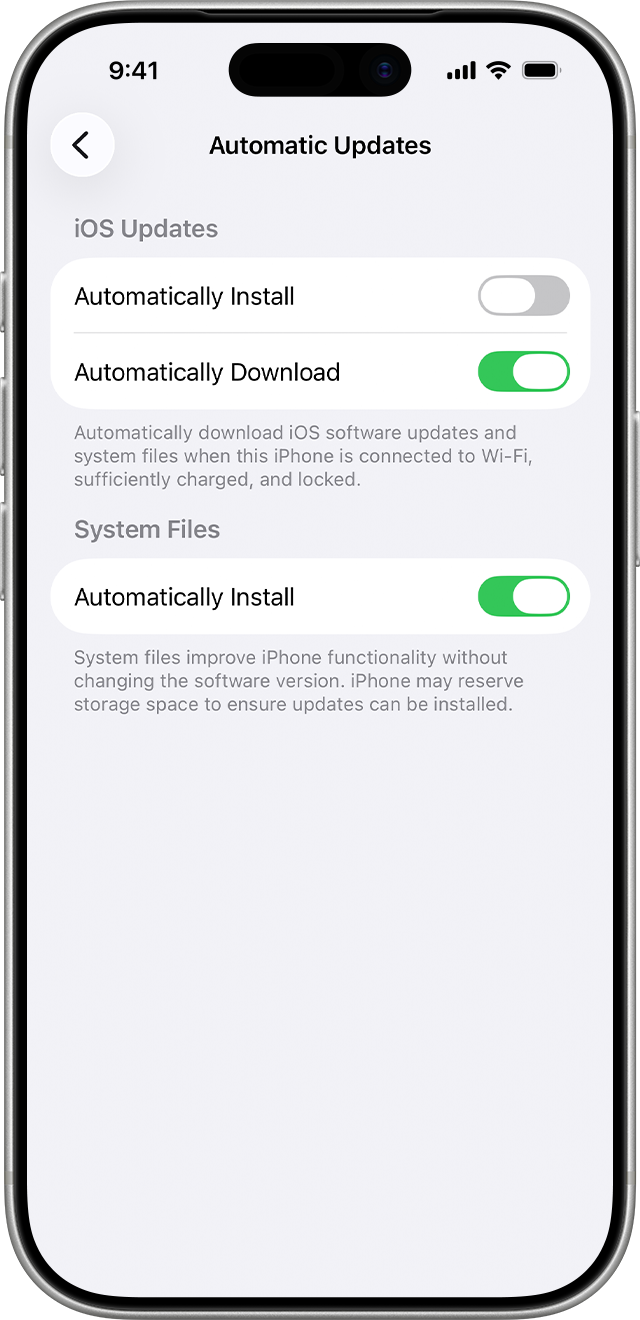
- Automatically Install under iOS Updates allows overnight installation while the phone is charging and connected to Wi-Fi. The system notifies you before installation.
- Automatically Download prepares an update in the background, leaving you to choose when to install it. Switch off automatic installation to see this download control.
- System Files has a separate setting. Those updates can improve system operation without changing the iOS version number. Do not mistake that switch for permission to install a full iOS release.
If the update fails: choose the next step
| What you see | What to do next |
|---|---|
| No new version is offered | Check the exact model and installed version, then look at the bottom of Software Update. |
| Not enough storage | Check the phone’s local storage. Remove only items you can restore or have already saved elsewhere. |
| A connection or verification error | Try again later or on another network. A VPN or proxy can interfere with access to update servers. |
| The downloaded package repeatedly fails | Find the iOS package in iPhone Storage, delete that update and download it again through Software Update. |
| Installation takes longer than expected | Keep power connected and compare the symptoms with Apple’s instructions. A slowly moving progress bar and a static logo without a bar are different situations. |
If another network and a fresh download do not help, a computer is the next option. Do not jump straight to erasing the phone: first confirm that your backup is available and use the update procedure.
An alternative: update with a Mac or Windows PC
On a Mac running macOS Catalina or later, connect the iPhone with a cable, open Finder, select the device in the sidebar and open General. Check for an update and follow the prompts. If the Mac gets its internet connection from that same iPhone’s Personal Hotspot, connect the computer to another network first.
On Windows, use Apple’s official Apple Devices app. Connect and select the phone, then open General to check for an available update and begin installation. Button labels depend on the app’s language. Keep the cable connected during the operation and distinguish Update from Restore: restoring and erasing the device is a different procedure.
If you previously installed an iOS beta
Turning off beta updates stops future test releases from being offered; it does not remove the beta already installed. To retain your data, you generally need to wait for an appropriate public release. Returning immediately from a beta may require an erase and restore, and a backup made on newer software may not work with an older version. Read Apple’s separate beta-removal instructions before taking that step.


Join the conversation
Stay on topic and respect other readers. Your first comment may appear after editorial review.