
Before updating iOS or moving to a new iPhone, check what you could actually restore. Seeing that iCloud is enabled does not answer that question. Individual data sync, a device backup and independent copies of important files each serve a different purpose.
The immediate reason to check is the iOS 27 rollout that began on September 14. The same routine is useful before a repair or an ordinary phone replacement.
iCloud Photos, iCloud Backup and a computer backup
Apple’s comparison of backup methods explains that iCloud Backup stores data and settings not already synced to iCloud. A Mac or PC backup also has exclusions, including data already stored and synced in iCloud. A “full backup” therefore does not mean a separate archive of absolutely everything.
| Option | Purpose | What to check |
|---|---|---|
| iCloud Photos | Access to your photo library across devices | Whether syncing has finished |
| iCloud Backup | Restoring phone data and settings | The last successful backup date |
| Mac or PC backup | An additional route to recovery | Completion and encryption |
1. Make a fresh iCloud backup
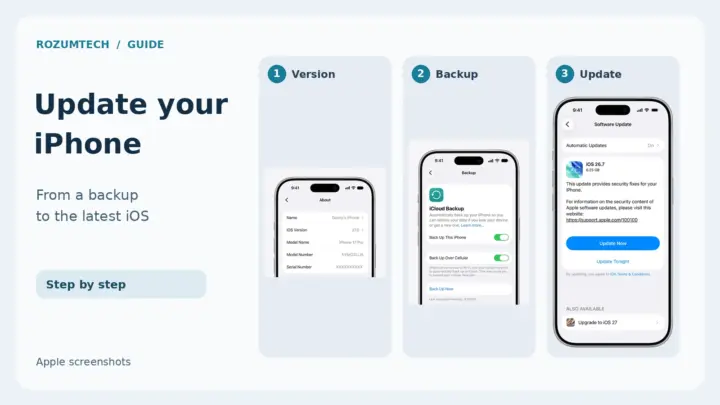
Connect the iPhone to Wi-Fi. Open Settings → your name → iCloud → iCloud Backup and select Back Up Now. Wait for completion, then check the last backup date and time below the button, as Apple’s instructions explain. If storage is insufficient, resolve that problem and complete the backup. An enabled switch is not a substitute for a finished copy.
2. Add an encrypted computer backup if you can
On a Mac with macOS Catalina or later, connect the phone by cable, open Finder and select the iPhone. Confirm that you trust your own computer, enable local backup encryption and start the backup. Check the latest backup date when it finishes. Apple also documents the iTunes method for older systems.
On Windows, use Apple Devices: select the device, open General, enable Encrypt local backup and choose Back Up Now. If Apple Devices is not installed, Apple’s Windows guide also covers iTunes. Let the process finish before disconnecting the phone.
Encryption affects what can be included as well as privacy. An encrypted backup can contain saved passwords, Wi-Fi settings and Health data that an ordinary local backup omits. Restoring it requires its password. Store that password somewhere you can access without relying solely on this iPhone. In Manage Backups, check the padlock and date. Apple documents these differences separately.

3. Save irreplaceable photos separately
With iCloud Photos enabled, deleting a photo also removes it from other synced devices. You normally have 30 days to recover it from Recently Deleted. The photo library is not duplicated in iCloud Backup, as the iCloud Photos documentation states.
For a separate copy, select the photos and videos, open the share menu and choose Export Unmodified Originals. In Files, select an external storage device; the default destination may be iCloud Drive. Alternatively, download originals through iCloud.com on a Mac or PC. Apple’s photo download instructions cover these options.
After copying, open several files from different dates directly from the new location. If edited versions matter too, save those separately: exporting unmodified originals serves a different purpose. Keep the drive separately from the phone and avoid treating it as your only permanent archive.
4. Before updating or handing over the phone
- Note where the latest backup is stored and when it finished.
- Check access to your Apple Account and a sign-in verification method that will remain available without the old device.
- Make sure you can retrieve the local backup password when needed.
- Review transfer requirements for important apps, including banking, messaging and your authenticator.
- Before erasing the old iPhone, verify the data and account access you need on the new one.
Verification codes deserve a separate check; our 2FA transfer guide covers that process. To build a backup routine across all your devices, continue with the 3-2-1 rule.
Do not erase your only working phone simply to test its backup. A recent backup timestamp is a necessary check, but successful restoration on another suitable device is what ultimately confirms recoverability. When moving to a new iPhone, keep the old one available until you have checked the result.



Join the conversation
Stay on topic and respect other readers. Your first comment may appear after editorial review.