
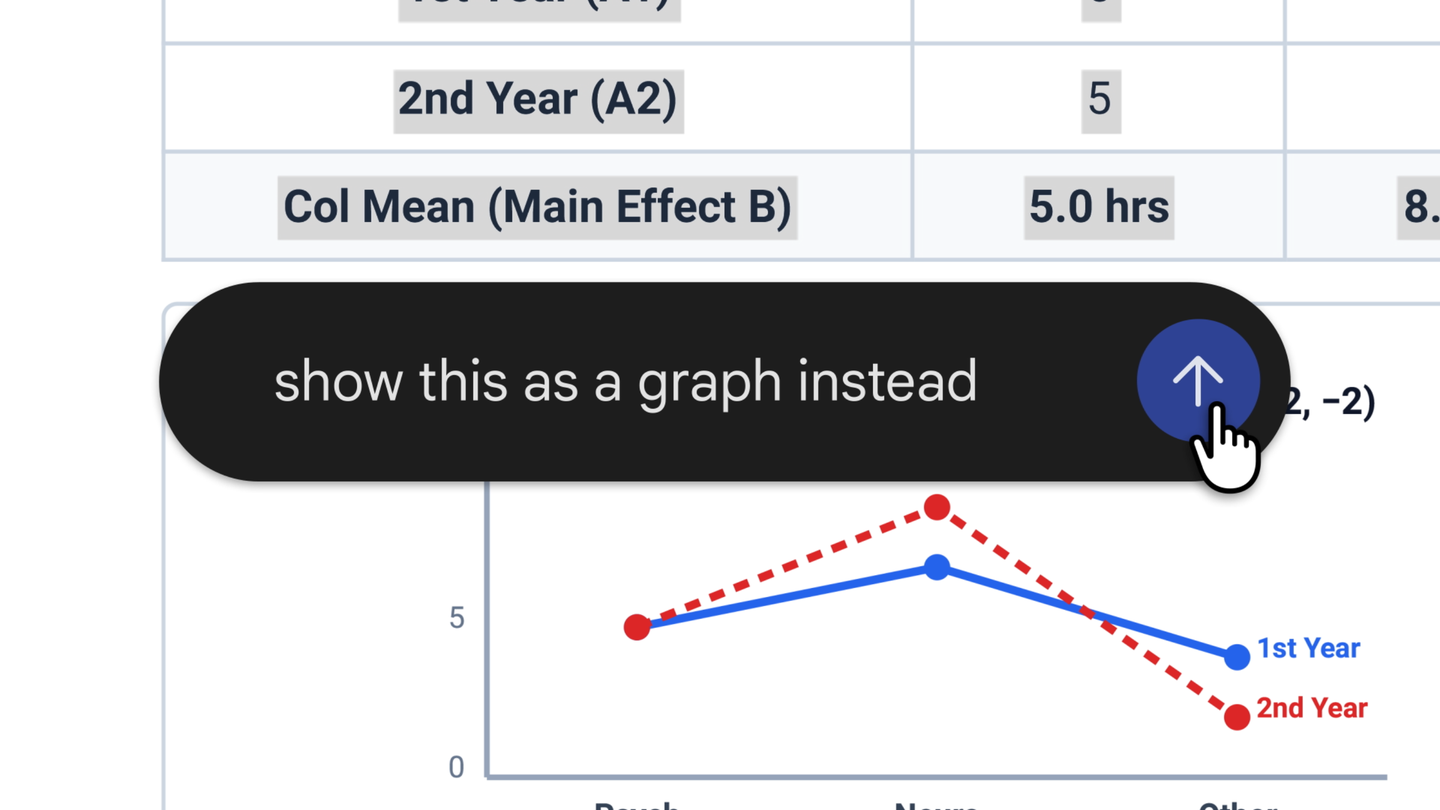
Gemini now lets you edit generated files directly inside a chat. In its October 29 announcement, Google demonstrated creating a document, opening a preview, typing changes manually and asking AI to revise a selected section. The practical benefit is a shorter path between an assistant’s response and a file you can hand to someone else or open in another editor.
The useful part is the opportunity to correct a concrete output before exporting it. Below, we explain availability, offer two example workflows and show what to check in the final file. The prompts are RozumTech editorial examples, not results of hands-on testing in a personal Gemini account.
What works on a computer and what works on a phone
The official Workspace announcement distinguishes between platforms: PDF previews and editing work on the web and mobile; the other listed formats work on the web. Google says the capabilities are available to all users in all languages supported by Gemini, including personal accounts and Workspace customers. Access to Gemini itself within an organization still depends on its settings.
| Task | Where to start | What to check after export |
|---|---|---|
| PDF revisions | Web or mobile app | Page breaks, text and links |
| Document or spreadsheet | Gemini on the web | Styles, dates, numbers and formulas |
| Presentation | Gemini on the web | Fonts, object placement and notes |
This table combines announced availability with our suggested checks. For an initial spreadsheet or presentation attempt, we recommend a computer: comparing the source, chat and downloaded file is easier. An option missing from the mobile app alone does not establish that the feature is unavailable to your account.
Start by specifying the file and the task boundaries
The Gemini help page explains that you can explicitly request a file type. Listed formats include PDF, DOCX, XLSX, CSV, Markdown, TXT and Workspace files. Most formats can be downloaded or exported to Drive. Choose a format for the next stage: PDF for distribution, an editable document for revisions, or a spreadsheet for calculations.
- Open Gemini in a browser and start a new conversation.
- Attach a small file you are authorized to process, or paste your own notes.
- Specify the format, audience, approximate length and details the model must not invent.
- Review the result. Correct a particular passage manually or with a focused follow-up prompt.
- Export a copy and open it in the application the recipient will use.
Workflow 1: turn rough notes into a usable document
Start with your own notes about a home project, study topic or working process. Instead of asking for something that “looks good”, decide what the reader needs to receive. For example, aim for a page containing the purpose, sequence of actions and unresolved questions. You can compare that output against your original notes even if they consist of fragments.
Example prompt: “Create an English document from these notes for someone who did not attend the meeting. Use these sections: purpose, decisions made, next actions and open questions. Preserve every date and number. Do not invent owners or deadlines; write ‘not specified’ when they are missing. List anything needing clarification separately at the end. Prepare an editable document, then a PDF after I have reviewed it.”
After generation, match each stated decision against the notes. “Discussed the possibility” must not silently become “agreed to do it”. If one section needs shortening, request a change to that section while preserving the rest. In the PDF, also check that headings remain with their following paragraphs and that lists are readable on a phone.
Workflow 2: build a spreadsheet with a checkable result
Consider a deliberately simple practice expense list: paper costs 12, delivery costs 8 and a cable costs 20, all in arbitrary units. The control total is 40. This example contains no bank details or personal information. A small known dataset lets you assess structure and arithmetic before using the tool for something more complicated.
Example prompt: “Create an expense spreadsheet from these three items. Use columns for item, amount and note. Calculate the total with a formula rather than typing a number. Store amounts as numbers without currency symbols inside the values. Do not add invented expenses. Explain which cells the total includes, and prepare an XLSX file.”
Open the downloaded file in your spreadsheet editor, check the total of 40, then change 12 to 15: the expected total becomes 43. If it does not change, inspect the formula and data types. This is a proposed check, not a claim that Gemini has already passed it. More complicated spreadsheets likewise need control values that you can calculate independently.
Why the exported file needs a separate inspection
A preview helps you notice obvious problems, but assess the final result in the place where it will actually be read. Check lists and indentation in documents, text fitting in presentations, and formulas and decimal separators in spreadsheets. For a PDF intended for printing, also open print preview. Keep the source so an unsuccessful revision does not become your only available version.
The file upload documentation allows up to ten files in a prompt, subject to availability, and up to 100 MB per supported non-video file. These are upload limits, not a promise of complete analysis. Break long material into meaningful sections and verify conclusions against specific pages. Our guide to working with PDFs through AI explains how to keep important details traceable.
What to leave out of an initial experiment
Google’s Privacy Hub warns that people may review some data and that data may be used to improve services. The applicable conditions depend on the account and settings. Use fictional or public material for an initial attempt, and check organizational rules before processing work documents. Our AI privacy checklist can help you prepare a copy without unnecessary sensitive details.
The practical value becomes clearer after completing one file: how many corrections were needed, whether meaning survived and whether the output opens properly in the intended editor. Start with a document you can confidently assess yourself, then decide whether the workflow deserves a place in more important tasks.
Cover: official Google announcement artwork. The original English text is preserved.


Join the conversation
Stay on topic and respect other readers. Your first comment may appear after editorial review.