
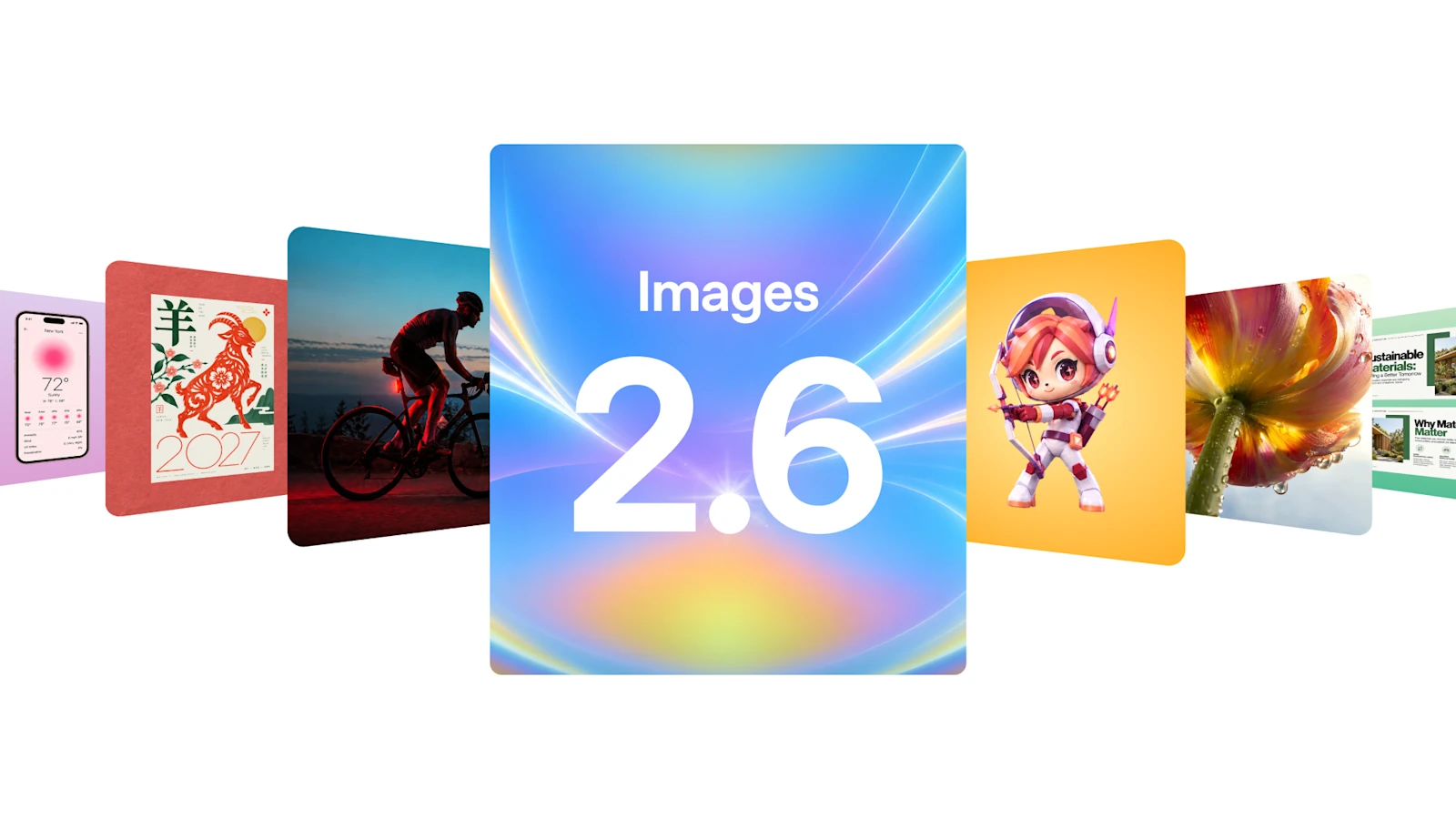
Suppose you have drawn a book for a book-swap invitation. You want the corner of a page to flutter, but the book, its colors and the empty space for the date should stay exactly where they are. That is a useful brief for Images 2.6, announced by OpenAI on November 4. The update is designed to preserve details across edits, and ChatGPT is rolling out a way to create looping GIFs from a still image or a description.
The model itself is available across ChatGPT plans. The release notes describe GIF creation separately as a feature still rolling out. If a request for motion produces only a still picture in your account, that alone is not a reason to upgrade your plan. Get the still image right first: it is the starting point for animation and a usable version of the invitation in its own right.
Make one edit you can verify
Say you own a sketch of an open book and want to change its cover color. Upload the original, open the image in the editor and, if helpful, select the cover. Alongside the change, describe a few visible features that should survive it. Here is a prompt written for this example:
Change only the book cover from green to navy. Keep the angle of the book, the pencil outline and the number of visible pages. Add no lettering. Leave the top third of the image empty for a headline.
Compare the original and the edit at the same zoom level. Look at the edge opposite the selection, the fine lines near the spine and the boundary of the empty area. The selection is a guide: OpenAI’s help page says an edit can extend beyond it. If a detail disappears, return to the source image and narrow the instruction. For an actual invitation, add the date, address and QR code in a layout editor afterward. That way a change of venue does not mean regenerating the artwork.
Turn the approved still into a loop
Once the book looks right, ask ChatGPT to animate that particular frame. Describe one motion, how it starts and where it should finish. A shifting background or an unintended camera move is often easiest to spot where one loop joins the next. The prompt for the invitation could read:
Make a short looping GIF from this image. Let the corner of the right-hand page lift slightly, then settle back into place. Keep the book, its shadow and the camera still. Finish in the same position as the first frame.
OpenAI demonstrates a similar transition from a drawing to an animated character. Below is the actual source image from the announcement: an owl drawn in pen on lined paper. Compare its eyes and silhouette with the animation. This is the publisher’s example; the book prompts above are a separate exercise you can try with your own drawing.
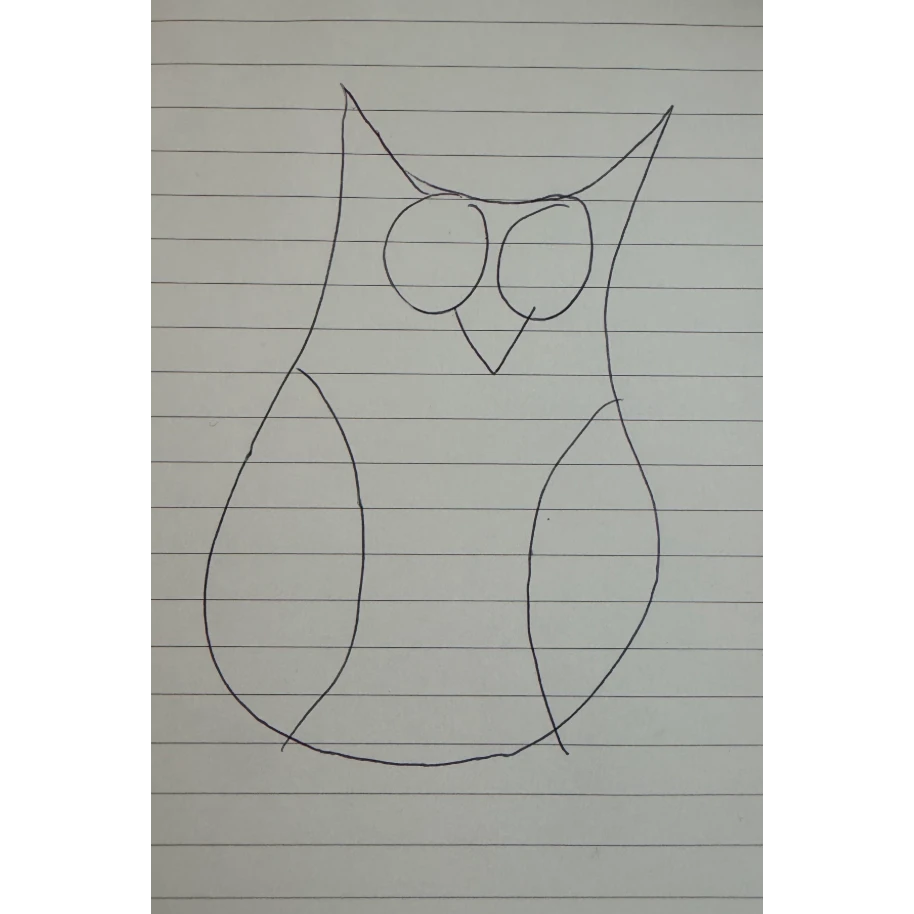
According to the ChatGPT instructions, you can open the resulting GIF, adjust playback speed, save it or share it. Describe further changes to a GIF ChatGPT made in the conversation. One limit matters: ChatGPT cannot edit an existing animated GIF you upload. To trim a frame from an old animation or preserve the exact timing of its frames, use a GIF editor. If you want a fresh interpretation of the movement instead, start from the original still and describe the motion again.
Reuse the reference for your next image
You can save a photo as a reference for later chats. For a series of posters, name your sketch something identifiable, such as BookSwap, then type @BookSwap in another chat and describe the new scene. The reference identifies the subject; it does not lock every detail of the result. Compare each new poster against the source. For readers who are new to the interface, our introduction to ChatGPT covers the basics.
Before publishing, open the saved file outside the conversation, let it run for at least three loops and view it at the size people will actually see on a phone. Can you understand the invitation without motion? Does the page jump as the last frame gives way to the first? If the animation distracts from the date or loads too slowly, use the still for the main invitation and keep the GIF for a social post.
For teams automating the workflow, the API offers Flare for fast iteration and Sunburst for work that depends on fine detail and consistency across edits. OpenAI demonstrates both in its developer video. For the book example, the chat interface, a drawing and one well-defined movement are all you need.




Join the conversation
Stay on topic and respect other readers. Your first comment may appear after editorial review.