
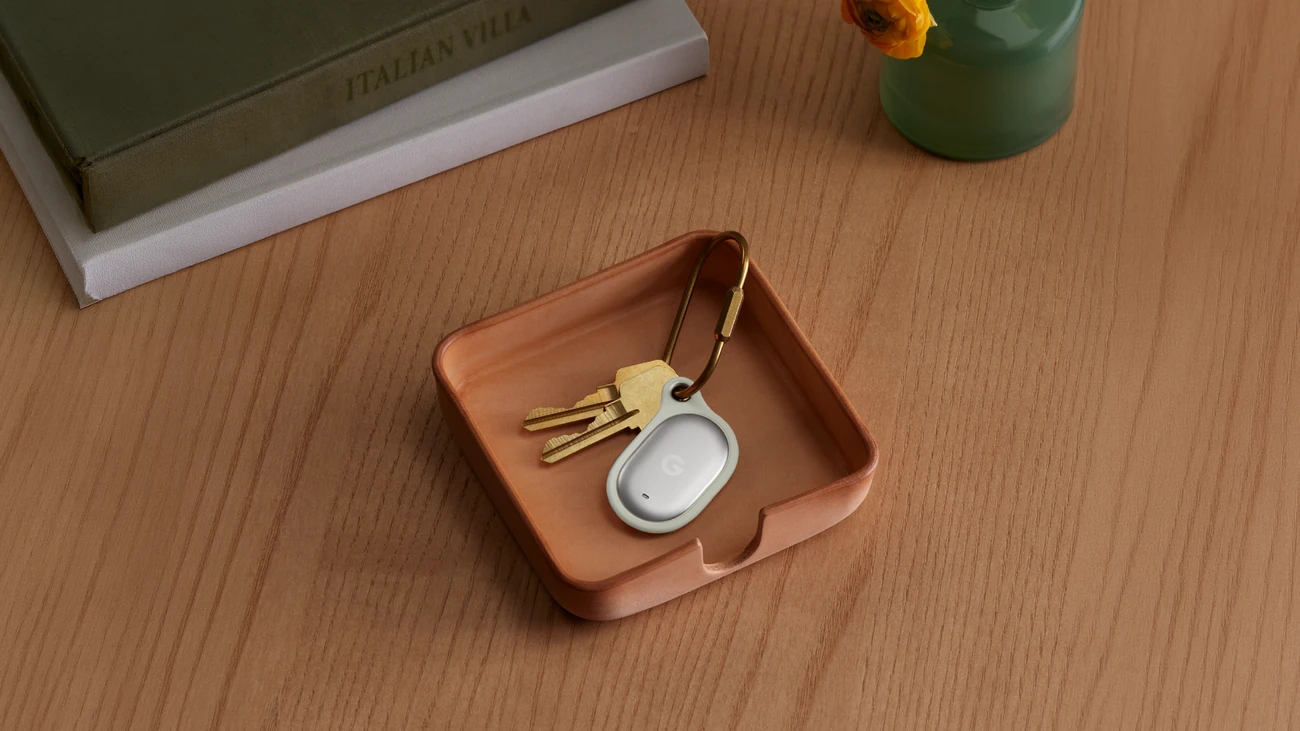
Your phone is in your pocket. Your keys are still on the café counter. A tracker used to be most useful after you realised the keys were missing. Android can now alert you as you move away from a compatible tag. The switch is in the settings for the individual item: seeing your keys on the Find Hub map does not mean separation alerts are already on.
On November 5, 9to5Google reported seeing the switch on Chipolo trackers and the Moto Tag in the US and Europe. Google documents the feature for compatible locator tags. That is narrower than the list of things you might see on the map: a pair of headphones appearing next to your keys does not mean the headphones support the same alert.
Turn it on for the right set of keys
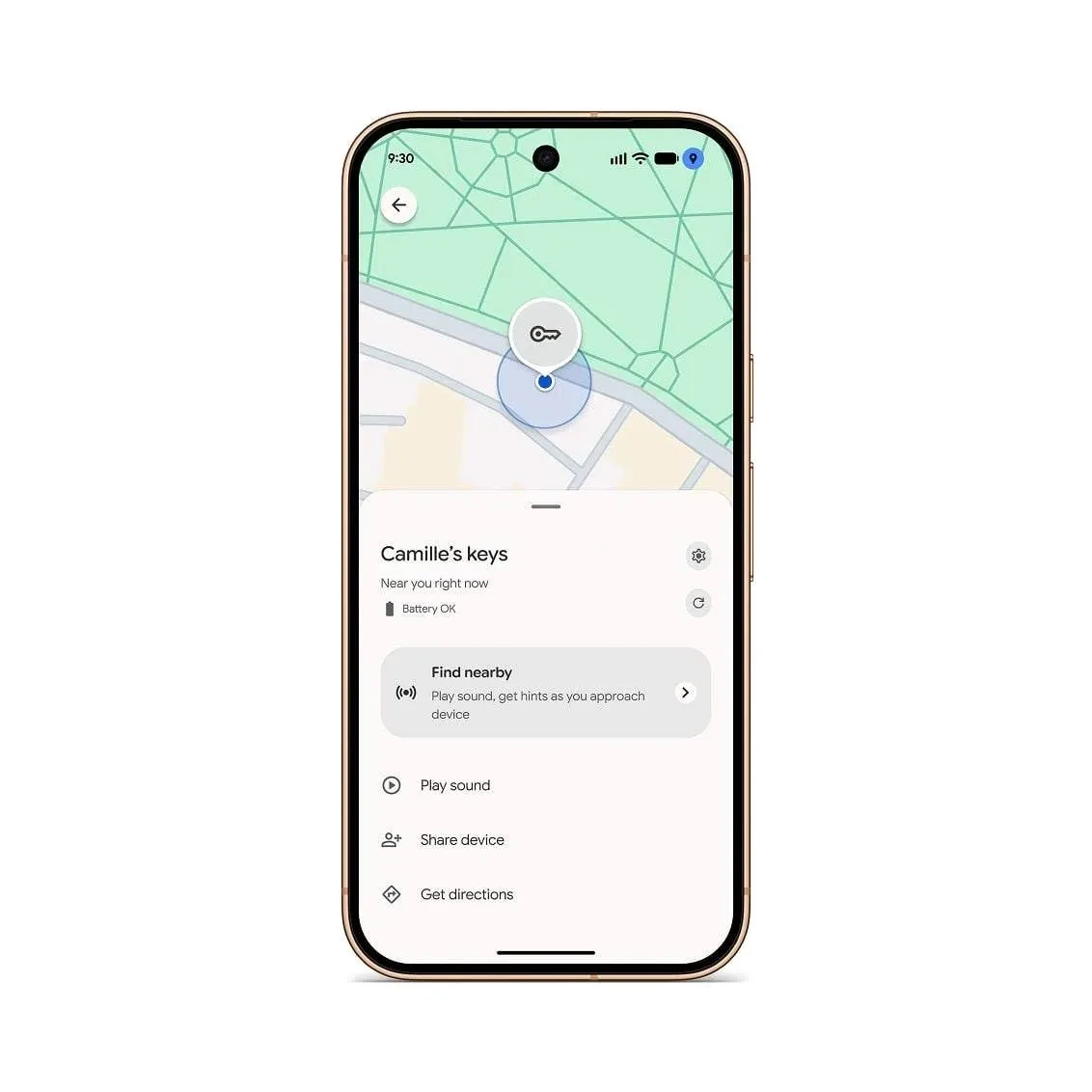
- On your Android phone, open Find Hub and select the tagged item. If there are two identical tags in your account, put the one you want beside you and use the sound option to identify it. It is easy to configure the spare keys by mistake.
- Tap the gear beside the item’s name to open Device details. Turn on Notify when left behind for that item. If you also want reminders for a wallet, open its own card and check the setting there.
- Allow Find Hub to send notifications and make sure Bluetooth and location are on. Check Battery Saver as well: Google says the phone does not receive these notifications while that mode is active.
No switch? Check whether you own the tag or someone has shared it with you. Then look for an app update and check the exact accessory model. Google’s Find Hub directory lists hardware that works with its finding network; inclusion alone does not confirm separation alerts for a particular accessory. There is no need to factory-reset a working tag just to find out whether the option has appeared.
Why a test at your front door can be misleading
If your Google Account has a home address, Google makes it an exception by default. That is useful for luggage: you probably do not want a reminder about a suitcase every time you walk to the shops. It might be exactly wrong for keys. To get a reminder when you leave home without them, open the keys’ alert settings and remove the home exception.
You can add another exception under Add location. Before adding your office, think about the item, not just the address. Leaving a gym bag in your locker overnight may be intentional. Leaving your wallet on your desk is a different matter, even if it follows exactly the same commute.
Three situations with different outcomes
| What happened | What to expect |
|---|---|
| You walked away with your phone; your keys stayed at the café. | If you own the compatible tag, alerts are on and the café is not an exception, this is the situation the feature is designed for. |
| You left a bag behind with both the phone and the tag inside. | The tag and the phone stayed together. They did not separate; you would not have the phone with you to see a notification anyway. |
| Your partner owns the tag and shared it with you. | Being able to see it on the map does not make you an alert recipient. Google sends the reminder to the owner, on one Android device at a time. |
Try it without leaving anything valuable behind
Put the tag on an empty pouch and keep your real keys with you. Pick a familiar spot outside your exceptions, leave the pouch with a friend who can wait for you, and walk away with your phone. If a notification arrives, check the item name. This tests the pairing you will actually use on a trip, including whether a reminder reaches the phone you carry.
If nothing happens, collect the pouch first. Then check ownership, location exceptions, notification permission, Bluetooth, location and Battery Saver, in that order. Google’s instructions do not promise an alert after a set number of metres or minutes. A few silent steps on their own tell you little. If the keys are already missing, open the map and use the nearby sound option when in range; you do not need to wait for a separation reminder to start looking.
Considering a tag in the first place? Our guide to the Pixel Tag and Google’s other Pixel hardware covers the accessory itself. For a tag you already own, its item card is the better place to check which actions are available on your phone today.


Join the conversation
Stay on topic and respect other readers. Your first comment may appear after editorial review.