

An 8 GB Windows 11 laptop can feel faster after an update without showing much more free memory. A better question is what happens when you leave a video meeting, switch back to a spreadsheet and start typing: does the first character appear immediately, or do you have to wait for the window to wake up? Microsoft published its findings on November 3, along with the version to look for and the details behind its performance claims.
What the 40% figure actually measures
Microsoft opened 20 Edge tabs, a 4K video, large Word, Excel and PowerPoint files, Outlook and File Explorer in sequence, leaving everything open. On the same HP OmniBook 3 with a Snapdragon X Plus processor and 8 GB of RAM, the company says the full sequence completed up to 40% faster than on its January build. This was one lab workload. It does not mean that every app opens 40% faster, or that a different laptop will produce the same result.
Start, Search and several other parts of the desktop responded up to 20% faster in a separate measurement. Those figures answer different questions. If you spend the day in one app, the useful delay to watch may be the gap between a click and the menu appearing. If you move repeatedly between a browser, a spreadsheet and email, it is the pauses between windows that matter.
Why Task Manager will not show two extra gigabytes
Windows already compressed some data in RAM. On 8 GB systems it now makes different decisions about what stays compressed, what moves to storage and what comes back. Microsoft says this can keep up to 2 GB more active data in memory under certain conditions. You still have an 8 GB machine. Those two gigabytes describe data that can stay closer to the processor; they are not additional installed RAM.
A separate 900 MB figure concerns the growth in committed memory from the start to the end of another multitasking test. Commitment is memory Windows has promised to back for applications. A reduction in how much that figure grows is different from finding 900 MB newly marked “Available” after every restart. Microsoft Learn explains the relationship between the commit limit, RAM and the paging file. There is no need to change paging file settings to check whether the update helps.
Find the right version and build
- Press Win + R, type winver and press Enter. Note both the version and the complete build number. Microsoft specifies Windows 11 version 26H2, build 26300.9818 or later. The KB5127936 release note also lists 26200.9818. The matching digits at the end do not make the two builds interchangeable; they belong to different Windows branches.
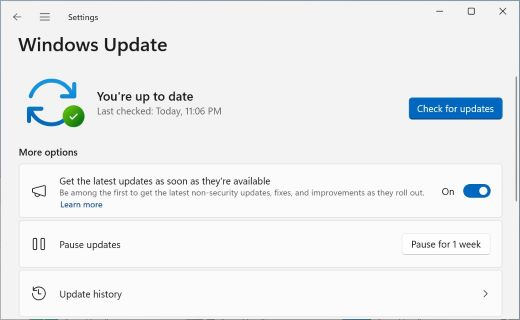
- Open Settings → Windows Update and check for updates. To receive changes earlier when offered, Microsoft recommends turning on Get the latest updates as soon as they’re available. The October 28 KB5127936 release was a preview. If you normally skip optional updates, you can wait for the next regular release offered to your device.
- Update the apps you use, too. Some improvements arrive through Edge, Microsoft 365 and Teams rather than through Windows itself. Your organization may control the schedule on a work PC. If 26H2 is not offered, our guide to Windows 11 26H2 availability explains the rollout before you go looking for a manual installer.
Compare a task you actually repeat
Choose a short piece of your day. For example, open the same workbook, three familiar websites and a video. Switch back to the workbook and type in an empty cell. Time the interval between selecting the window and seeing the first character. Separately, note whether the browser reloads the tab you left. Those observations tell you more about an interruption than a screenshot of the memory percentage alone.
Keep the power source, files, tabs and apps the same in both sessions. After a restart, let background installation finish; run the sequence three times and compare the middle result. If you have already updated, there is no reason to uninstall it for a measurement: record today’s result as a baseline for next time. While a pause is happening, Ctrl + Shift + Esc → Performance lets you see what the CPU, disk and memory are doing. A single spike is a clue, not a diagnosis.
If you can now move comfortably between a browser, email and documents, a high memory percentage alone is a poor reason to replace the laptop. On the other hand, if your ordinary workload is a multitrack video edit or a large 3D scene and you have to close every other app to make it usable, try that actual project before making a purchase decision. A lab sequence built around Office files cannot answer that particular question for you.

Join the conversation
Stay on topic and respect other readers. Your first comment may appear after editorial review.