

A folder contains cover-v3.pdf and cover-v4.pdf. The client approved version three. Version four is where a designer tried a different typeface. Ask an assistant to “pick the final cover” and the file names cannot tell it which one to choose. That is why the most useful part of Dropbox’s update is the chance to inspect its plan before it moves anything.
On November 5, Dropbox introduced actions on existing files from a written request. They include creating folder structures, moving files and renaming them in bulk. Instead of returning a list of relevant documents, the service can help organise them. Here is how to set the scope for one folder, check the proposed changes and use the same method if your account does not yet have the feature.
Which accounts get it first?
The initial rollout is for businesses on Standard and Advanced in the US, the UK and Australia, starting in English. Dropbox says the capabilities have reached more than 70,000 teams. It plans broader availability in 2027 without giving a date for each remaining market. A paid subscription elsewhere, or a personal account in one of the named countries, is not by itself a promise that the assistant will appear.
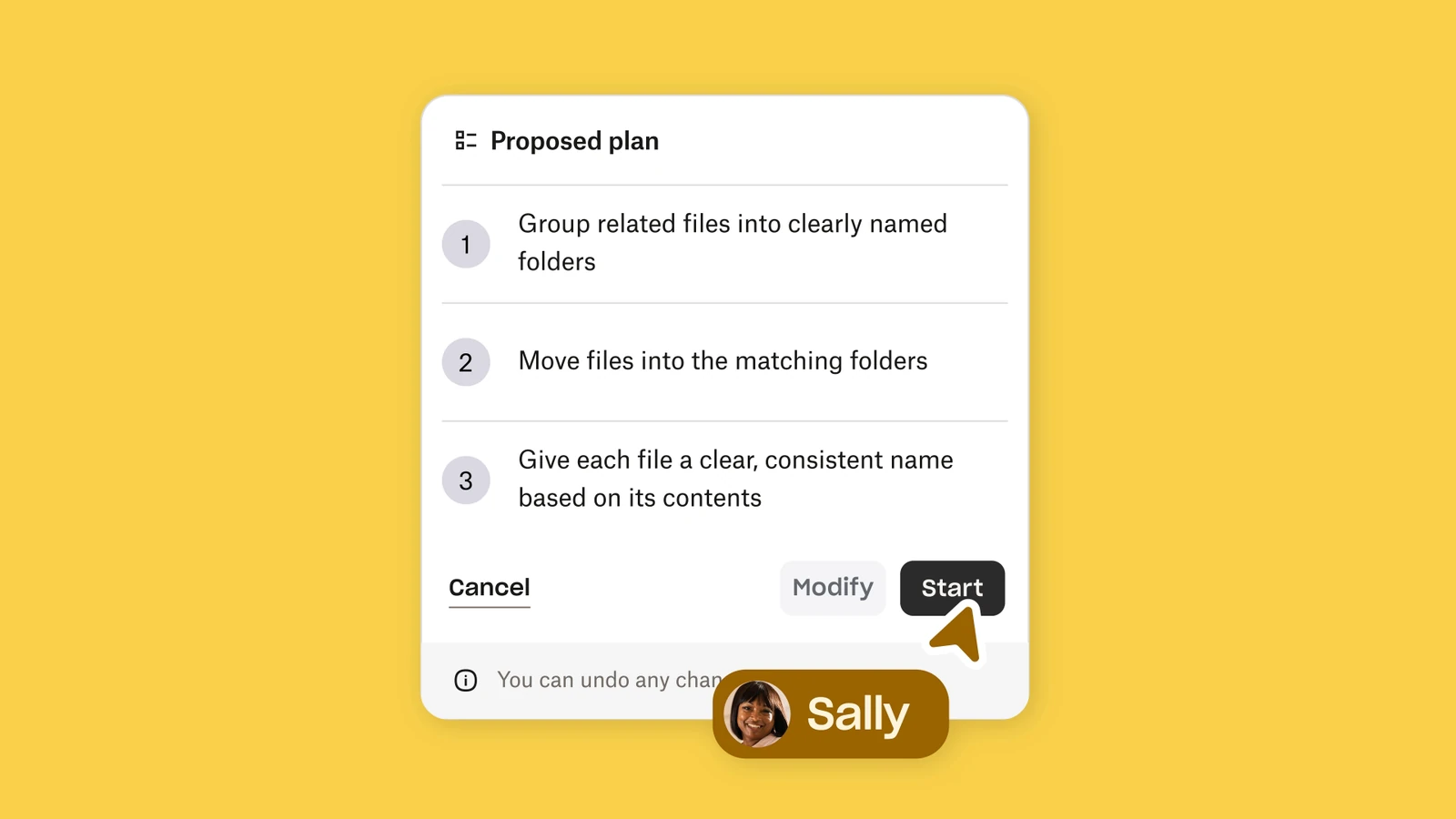
Dropbox proposes a plan and asks for approval before carrying out supported actions. Its official demonstration shows three steps: group related files, move them to matching folders and give them consistent names. None of those steps tells the assistant which version a human has signed off. Supply that information before asking it to organise a delivery.
A six-file folder with only two approved PDFs
Imagine a design team finishing a poster. The approval message names two PDFs, and the team wants them in one place for a final check. Call the working folder Poster. Inside it is an empty folder named Delivery, currently shared only with the team. The following files are fictional; the decisions come from the approval message, not a guess about their contents.
| File in Poster | Intended result |
|---|---|
cover-v3.pdf | Approved. Move it to Delivery as cover.pdf. |
poster-A4-v2.pdf | Approved. Move it to Delivery as poster-A4.pdf. |
cover-v4.pdf | Leave it alone. A higher number does not make it approved. |
poster-A4-final.pdf | Leave it alone. “Final” in the name is not a sign-off. |
logo.svg | Keep it in place. It is source artwork, not one of the two PDFs. |
notes.txt | Keep it in place. Internal notes do not belong in the delivery. |
Here is a request you can adapt. It names the two inputs, their intended outputs and a reason to stop. Do not use it unchanged if the approved originals must stay in the working folder: this example deliberately asks for a move.
In Poster, propose a plan to move only cover-v3.pdf and poster-A4-v2.pdf into its Delivery folder. Rename them cover.pdf and poster-A4.pdf respectively. If either destination name already exists, stop. Leave the other files, their contents and sharing settings alone. Show the plan before making changes.
What to look for before choosing Start
Match the proposed work to the table. You want two source names, two destination names and one destination folder. A plan to rename “all PDFs” is too broad: there are four PDFs in the example. If the preview only says “organise the documents,” ask for a file-by-file plan or make the two changes manually. If Delivery/cover.pdf already exists, identify it before agreeing to replace anything.
Check access to the destination separately. Dropbox says the assistant acts within existing permissions. The team having permission to move a document answers a different question from whether a client should see it. Keep the initial delivery internal, inspect what actually landed there, and decide whom to share it with afterwards.
If the player does not load, watch the original Dropbox video. The useful moment is about ten seconds in: you can see the proposed steps and the option to modify them before starting.
How to sign off, with or without the assistant
Expect exactly two PDFs in Delivery. The root of Poster should hold four original files plus the Delivery folder. Open both PDFs and compare them with the versions named in the approval. Counting will catch an extra file; it will not catch the wrong cover placed under the right name.
If something does not match, open the file in full-screen preview on dropbox.com and choose File → Activity. The record helps establish who renamed or moved it and when. Dropbox offers undo for supported actions; do not count on a universal undo for every change. If your account does not have AI actions, the same table doubles as a manual move list.
Renaming and moving are also different from changing a document’s contents. If you need an assistant to edit the file itself, our guide to editing documents and spreadsheets with Gemini explains how to check what changed inside.



Join the conversation
Stay on topic and respect other readers. Your first comment may appear after editorial review.