
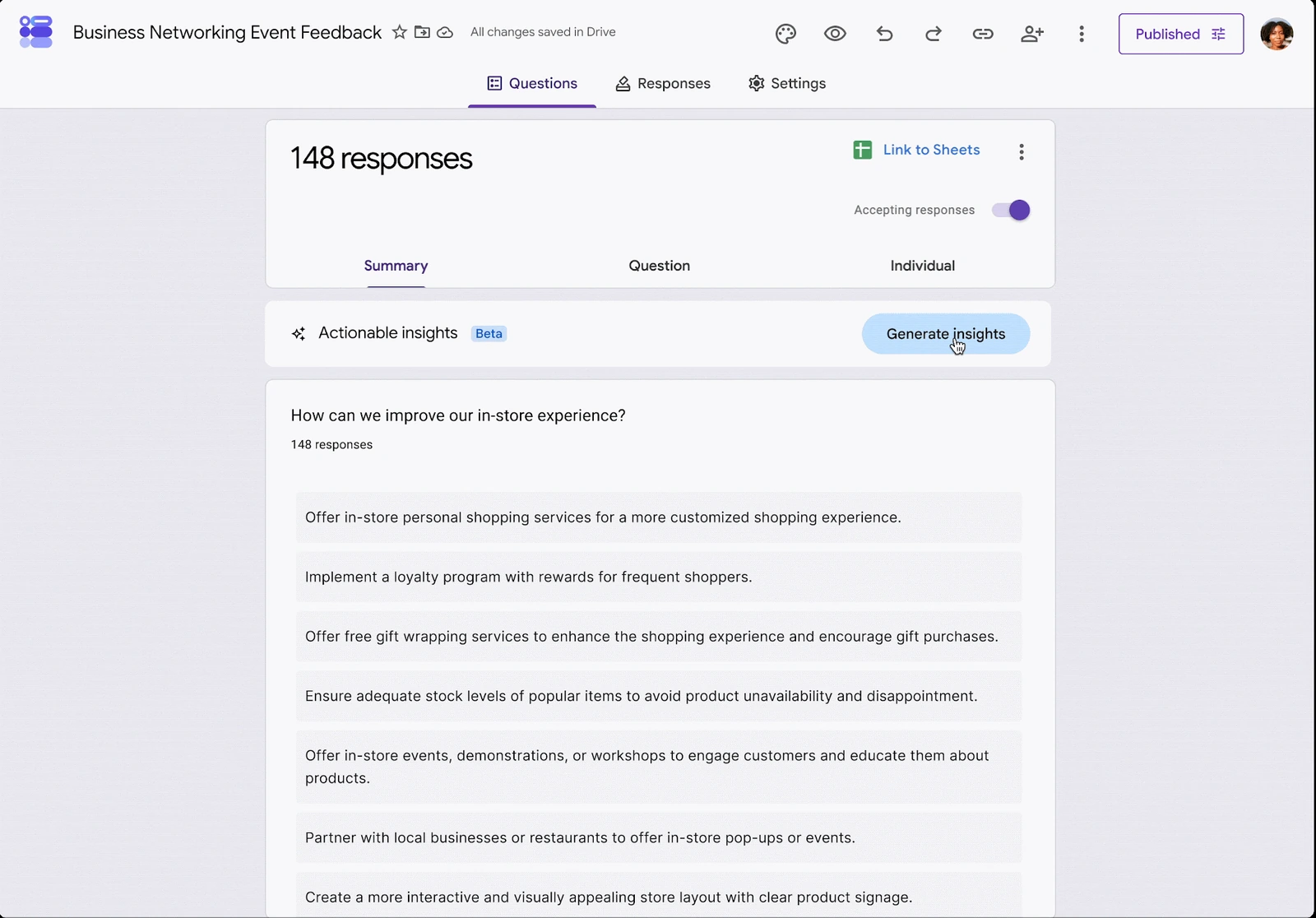
You ran two workshops and asked participants whether the pace felt right and whether they wanted a recording. If you manage a Google Form, you can now ask Gemini to compare answers across questions and recommend a next step. That goes beyond summarizing comments, but it still matters whether “80%” means 80% of people who answered one question or 80% of everyone who submitted the form. The 12-row example below makes the difference easy to check.
What has changed in the Responses tab
Google announced the update on November 5. For this feature, Gemini writes and runs Python code against the form’s response data. It can count responses, compare groups and suggest what to do next. Instead of separate summaries of which session people attended and how they rated its pace, you can look for a relationship between those answers. You do not need to write Python to use the feature.
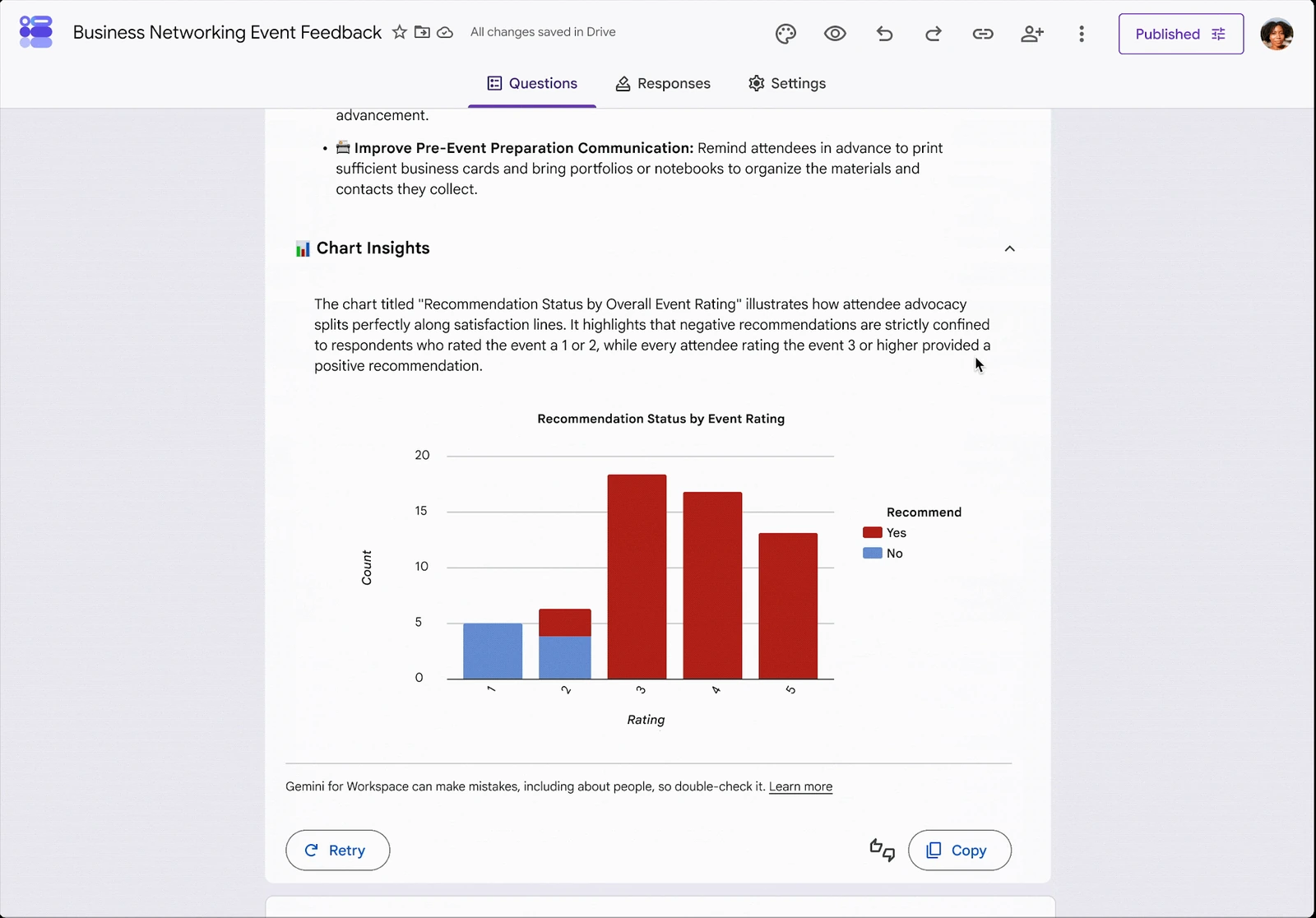
On a computer, open the form and go to Responses → Actionable Insights → Generate insights. Once a result appears, expand Analysis steps to review how the service arrived at its recommendations. Google’s original animation (about 10 MB) shows the process with a different feedback form. That is Google’s demonstration; the workshop numbers below are our own example.
Why the button may be missing
Whole-form analysis needs at least three questions and 12 submitted responses. Quiz mode must be off. If the form already has a linked spreadsheet, you need access to that sheet. A summary for a single open-text question is a separate feature with different rules. Seeing that summary is not proof that whole-form analysis should also be available. The Google Docs Editors Help page describes the tools separately.
As of November 6, access also depends on your plan and rollout schedule. For Rapid Release domains, rollout began November 2; for Scheduled Release domains, it is due to begin November 19. Google allows up to 15 days for the feature to appear in each wave. The announcement lists Business Standard and Plus, Enterprise Standard and Plus, Education Plus and personal Google AI Pro and Ultra plans, among others. On a work or school account, check your edition and smart features settings with the administrator before redesigning a survey to make the button appear.
A 12-response check: where does 80% come from?
Here is a small fictional dataset. Each row is one submitted form. An empty last field means the person skipped the recording question. We calculated the figures below directly from the rows; they are not presented as output from Gemini. Copy the data into a spreadsheet if you want to follow along, using a comma as the column separator.
Show the 12 responses to copy (CSV)
Session,Pace,Want a recording
Morning,Too fast,Yes
Morning,Too fast,Yes
Morning,Too fast,No
Morning,Too fast,
Morning,About right,Yes
Morning,About right,Yes
Evening,Too fast,Yes
Evening,About right,Yes
Evening,About right,Yes
Evening,About right,Yes
Evening,About right,No
Evening,About right,
Six people attended each session. On the recording question, eight said yes, two said no and two skipped it. 8 out of 10 = 80% of the people who answered that question. Across all submissions, the figure is 8 out of 12 ≈ 67%. Both calculations are valid, but only the first answers “what share of people who expressed a preference want a recording?” A blank is not a no.
Now compare the pace question. In the morning group, 4 of 6 said it was too fast; in the evening group, 1 of 6 did. Those figures give the organizer a reason to ask morning attendees which part felt rushed. They do not justify canceling morning sessions: the groups are small and nobody was asked what caused the difference.
Check the recommendation before acting on it
Start with the decision you actually face. Sending out a recording, changing the pace of the next workshop and moving the start time are three different decisions. Pick one number in the proposed recommendation and check two things: which rows went into the calculation and how many people skipped that question. You can view individual responses or download a CSV. If you have already linked a Google Sheet, filter it to the relevant session and count the answers there.
The same check works if Gemini has not reached your account. If you go on to work with an exported file in chat, our guide to editing documents and spreadsheets in Gemini covers that separate workflow. For this survey, there is already enough evidence for a modest decision: send the recording to the people who asked for it, and ask the morning group what needed more time before changing the next session.




Join the conversation
Stay on topic and respect other readers. Your first comment may appear after editorial review.