
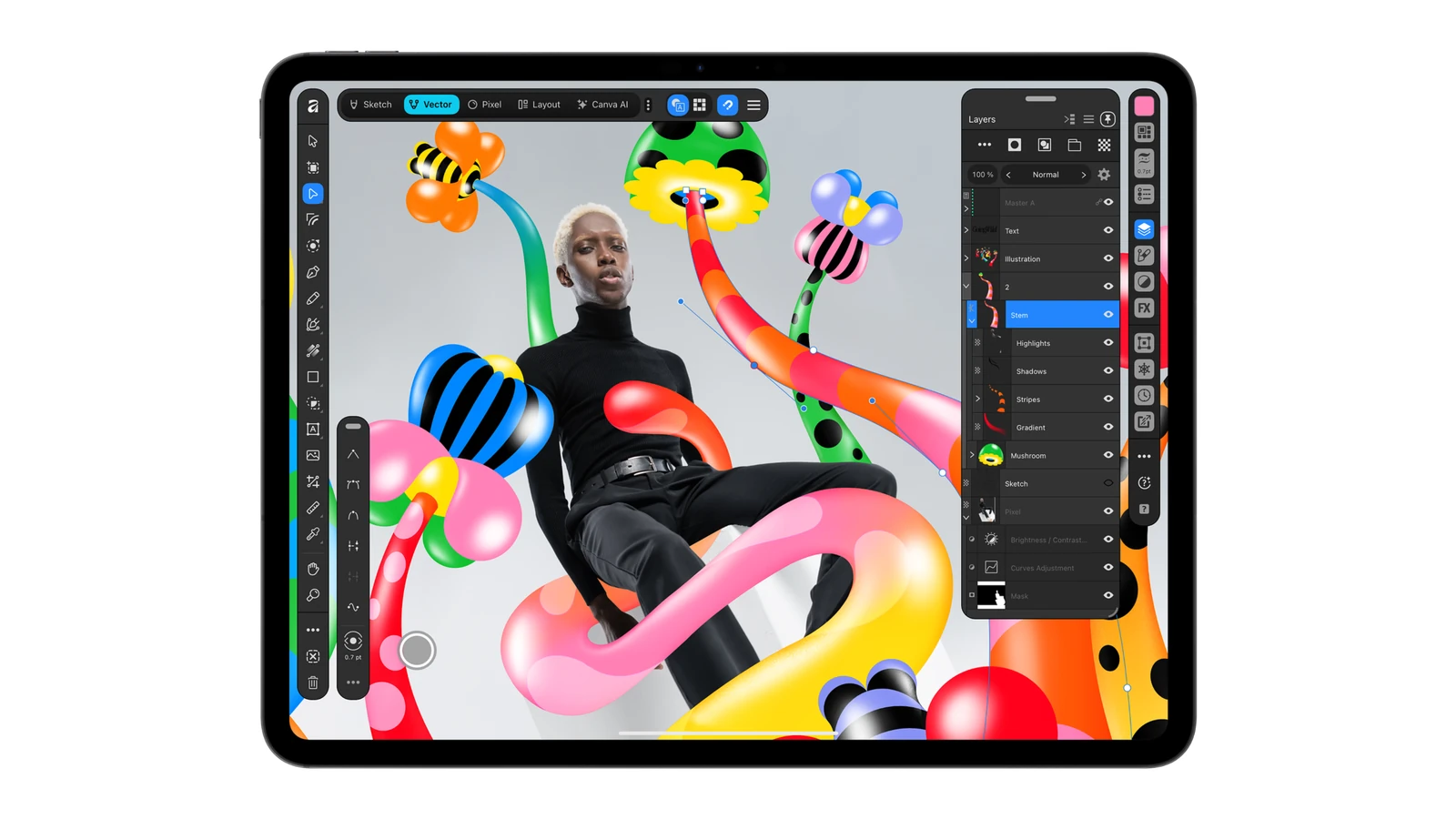
One event often needs two posters: a printed notice for the door and a portrait image people can forward in a chat. Building it twice is tedious, but cropping the finished image can cut off the address. With the new Affinity for iPad, you can keep the drawing, photo and type editable, then make a separate output for each destination.
On November 2, the Affinity team released its unified iPad app, Affinity by Canva. Its core sketching, vector, photo and page layout tools are free for individuals. You need a Canva account; Canva AI Studio is a separate benefit on eligible premium plans. Nothing in the poster exercise below requires paid AI tools.
Install the right app and pick a studio
Open Affinity by Canva in the App Store. Look for Canva as the developer. This is the unified app, rather than one of the individual Affinity V2 apps. Apple lists iPadOS 18.0 or later; check compatibility on your own iPad before starting the download. You can draw with a finger or an Apple Pencil, and there is no need to buy a stylus for this simple shape-based exercise.
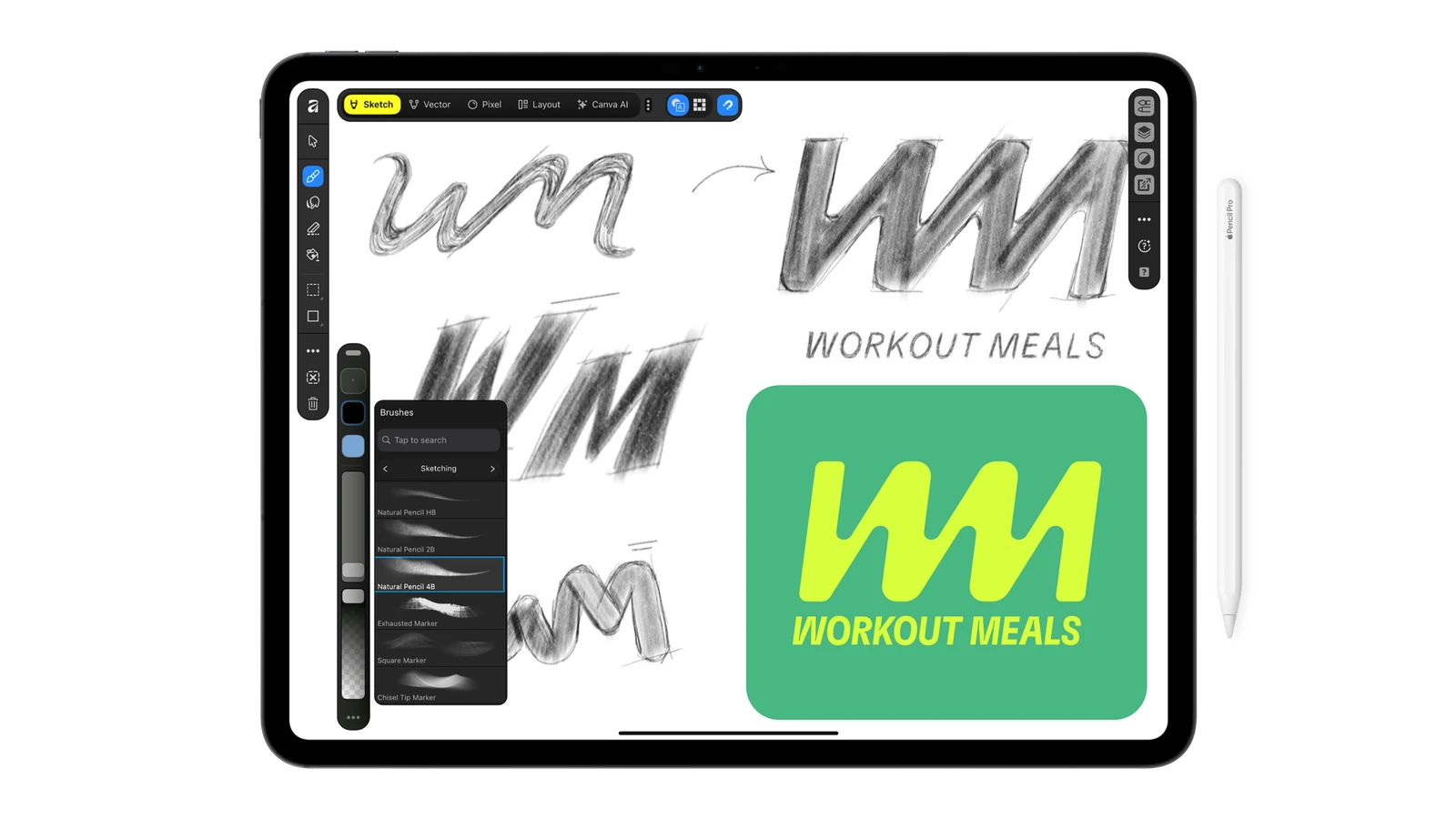
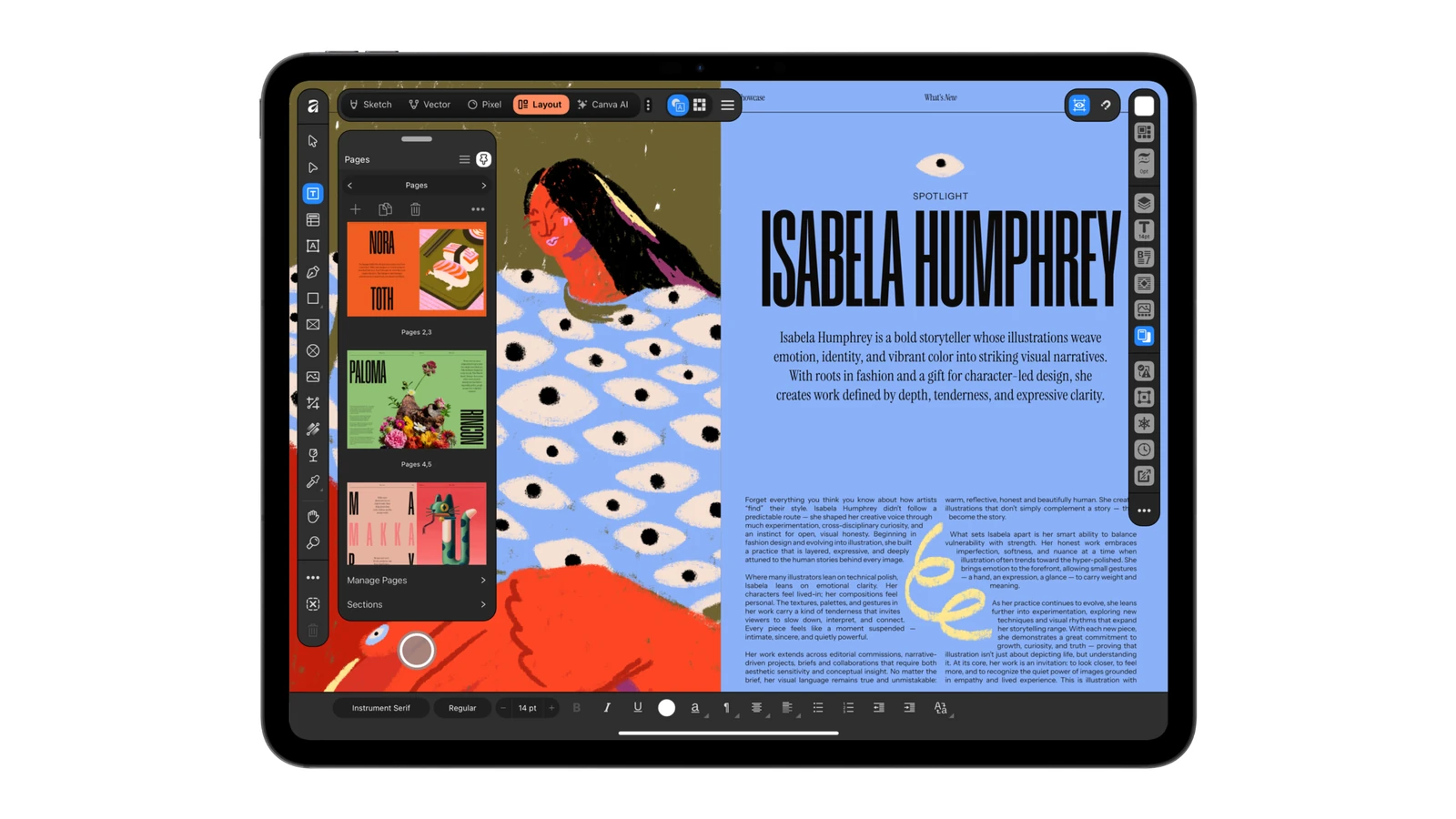
After signing in, choose a studio for the job in front of you. Use Sketch for pencil marks, Vector for paths and shapes, Pixel for photographs and masks, and Layout for type and pages. Moving between studios in one document does not mean exporting the artwork to a flat JPEG. Your lettering can stay editable as text unless you deliberately convert it to curves or pixels.
Build a poster whose date you can still change
Make a poster for an imaginary event called “Drawing Night”. It needs a title, a date, a time, an address and a simple symbol. Start with a portrait A6 page: 105 × 148 mm. That is the finished size after trimming. If the poster is going to a real print shop, ask it for bleed, colour profile and PDF requirements before setting up the print output.
- In Vector, build a pencil symbol from a rectangle and a triangle. If you prefer to sketch first, draw on its own layer in Sketch, lower that layer’s opacity and build a clean outline over it. Hide the rough layer before exporting.
- In Layout, put the title in a separate text object from the date and address. Live text matters more than a fancy typeface here: a date change should take one edit. Keep the background on a separate layer so moving the address cannot drag the background with it.
- Save the editable document as
poster-master.af. Make a copy for the screen before changing the proportions. An adjustment in the screen copy will then leave the print margins alone. The two layouts are now independent, though: if the event date changes, check both.
Three files, three different jobs
| File | Who needs it and what to check |
|---|---|
poster-master.af | The working original for you or another designer. Reopen it and check that the date is still editable as text. |
poster-print.pdf | The print shop’s copy. Check the A6 trim size and agreed bleed. Open the exported PDF separately and inspect the address and the edge of the background. |
poster-chat.png | The finished image to share. For this exercise it is 1080 × 1350 pixels. Open it on a phone at normal viewing size rather than pinching to zoom. |
Why not just resize the width? An A6 page scaled proportionally to 1080 pixels wide is about 1522 pixels tall. Our screen image is only 1350 pixels tall, a difference of roughly 172 pixels. Instead of stretching the type or guessing which edge a centre crop will cut off, change the canvas in the copy, bring the address up, move the symbol, then export the PNG.
The print check is different. If a shop asks for a 3 mm bleed on every edge, the background must extend across 111 × 154 mm, while the trimmed poster remains 105 × 148 mm. Do not enlarge the finished A6 page to stand in for bleed, and keep the text away from the trim line. Three millimetres is an example of a shop’s specification, not a requirement for every PDF.
An official video with a project file to follow
If you would rather watch the tools in use, Affinity’s drawing lesson takes a rough sketch through to a finished illustration. It uses Sketch, Vector and Pixel and shows how layers keep the drawing editable. This is a separate exercise with artwork by Nora Toth, not a recording of the poster example above.
Open the lesson and get the practice file using Download the lesson file on Affinity’s page. If the player here does not load, you can also watch directly on YouTube. If you are still choosing a tablet, our iPad mini buying guide covers the hardware questions separately.


Join the conversation
Stay on topic and respect other readers. Your first comment may appear after editorial review.