
Edge has another way to interrupt scam notifications. Microsoft explained on November 2 that, starting with Edge 156, the browser disables a site’s notifications when SmartScreen or Scareware blocker detects a scam reached through one. Permission prompts also gain “Block and report.” This responds to detected threats; it does not promise to catch every unwanted message. Microsoft’s announcement.
The useful next step is to review which sites already have permission to contact you. When a “viruses found” message appears in a corner of the screen, start by identifying its origin. A shield graphic, an antivirus brand name or an alarming colour does not establish that the computer is infected. This desktop Edge guide separates an unwanted website permission from a situation in which you have already installed software or shared access.
A website notification is different from a pop-up
Microsoft’s help page explains that authorised website notifications can appear even after Edge closes. Closing the original tab therefore may not stop them. A separate window or tab opened while browsing uses a different mechanism: pop-ups, which have their own setting.
Consider two situations. In the first, an alert returns every hour while you are reading unrelated websites. In the second, a new tab opens only after you select a particular button. Before changing ten settings at once, record the action immediately preceding the message. This gives you a way to check whether your change worked and avoids unnecessarily disabling useful reminders from a work service.
Revoke the unwanted permission
Open the three-dot menu → Settings → Privacy, search, and services → Site permissions → All sites. Select the unwanted domain and change Notifications to Block. These labels follow Microsoft’s current help instructions; wording can vary with the interface language.
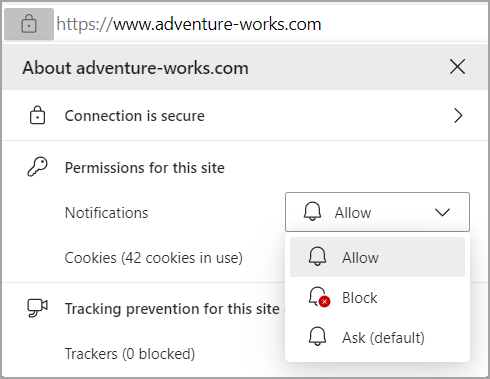
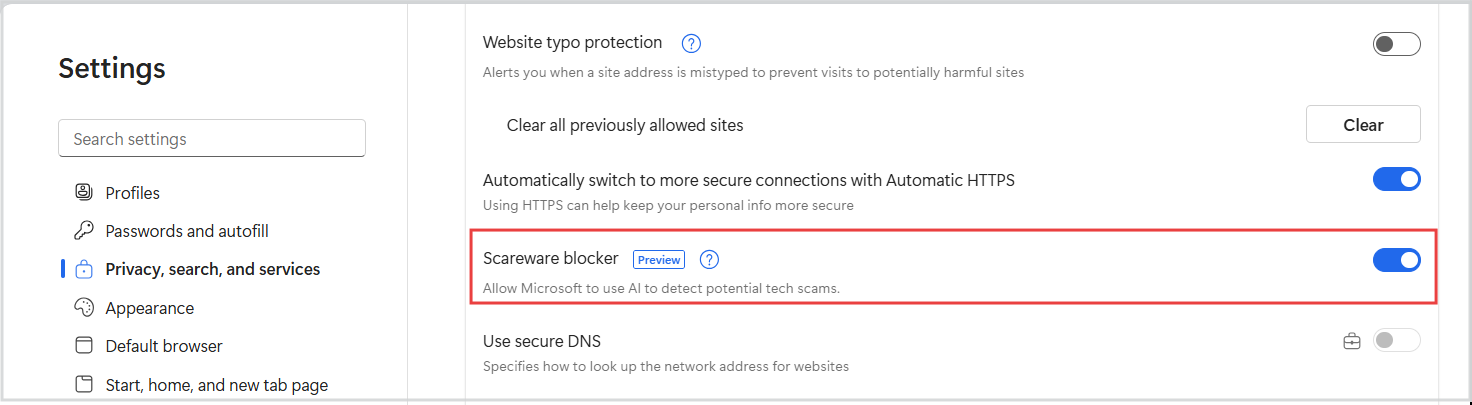
The illustration is Microsoft’s genuine help screenshot of the alternative address-bar permissions menu. Its displayed domain is a Microsoft demonstration example. You do not need to revisit a suspicious website to block it: use the list in Settings. The cover also comes from Microsoft’s documentation and retains an older Preview label. It illustrates the protection toggle, not the new Edge 156 notification screen.
Check the complete address before changing a permission. A label such as “security service” can simply be text inside the message; the actual domain is more useful for identifying the sender. If other people use this computer, explain which permission you revoked. Otherwise, another user may grant it again because the next request appears to be a necessary step to reach a page.
Check browser updates and protection
Enter edge://settings/help in the address bar. The About Microsoft Edge page shows the version and update status; finish with a restart when requested. If an organisation manages updates, contact its administrator. Microsoft explains update settings here.
Separately, open Privacy, search, and services → Security and check Scareware blocker. Its documentation says availability and automatic activation depend on the computer’s specifications. Local analysis of a suspicious page is different from voluntarily sending a report. With the new reporting option, check what you include, particularly screenshots that could contain personal information.
A missing toggle is not a reason to install a random extension. Check the version, documentation and workplace restrictions first. Do not install an add-on simply because the frightening page calls it essential. Aim for a concrete result: an updated browser, the unwanted domain blocked, and an understanding of which protection is available on this device.
Choose the response that matches what happened
- You only allowed notifications. Revoke the permission and watch for further messages. Selecting Allow alone does not establish that malicious software was installed.
- You followed a notification but downloaded nothing and entered no information. Close the page and review its permission. Do not treat the alarming page’s claims as a diagnosis of the computer.
- You installed software or granted remote access. This needs a different response. Stop the assistance session, end contact with the stranger and check the computer with security tools. If you entered a password, change it from a trusted device; if you shared payment information, contact the bank through a channel you already know. Follow Microsoft’s scam guidance.
Do not call a number inside the suspicious warning to ask whether the warning is real. That would mean checking a claim with the same party that made it. Open official support yourself or ask someone you already trust. For the account side of the incident, our data-breach response guide provides a separate checklist.
A useful routine for a shared computer
Agree on a simple procedure: pause before acting on an unfamiliar warning. Record the domain and time, open browser settings independently, change the relevant permission and check the result. If the problem returns, establish whether it is the same domain, another Edge profile or a different application altogether.
This is more useful than telling someone “never click anything”: it gives them an achievable next action. For example, a family member can describe the sender and what they did before the warning, without trying to interpret a technical error code. If you help remotely, explain the change you made and leave the person a short note they can follow next time.
Automatic protection can interrupt a scam, but knowing where a message comes from remains useful after the browser update. Judge success by the unwanted sender losing its permission and by any separate account or software issue being addressed, rather than by a reassuring message on the suspicious page itself.

Join the conversation
Stay on topic and respect other readers. Your first comment may appear after editorial review.