
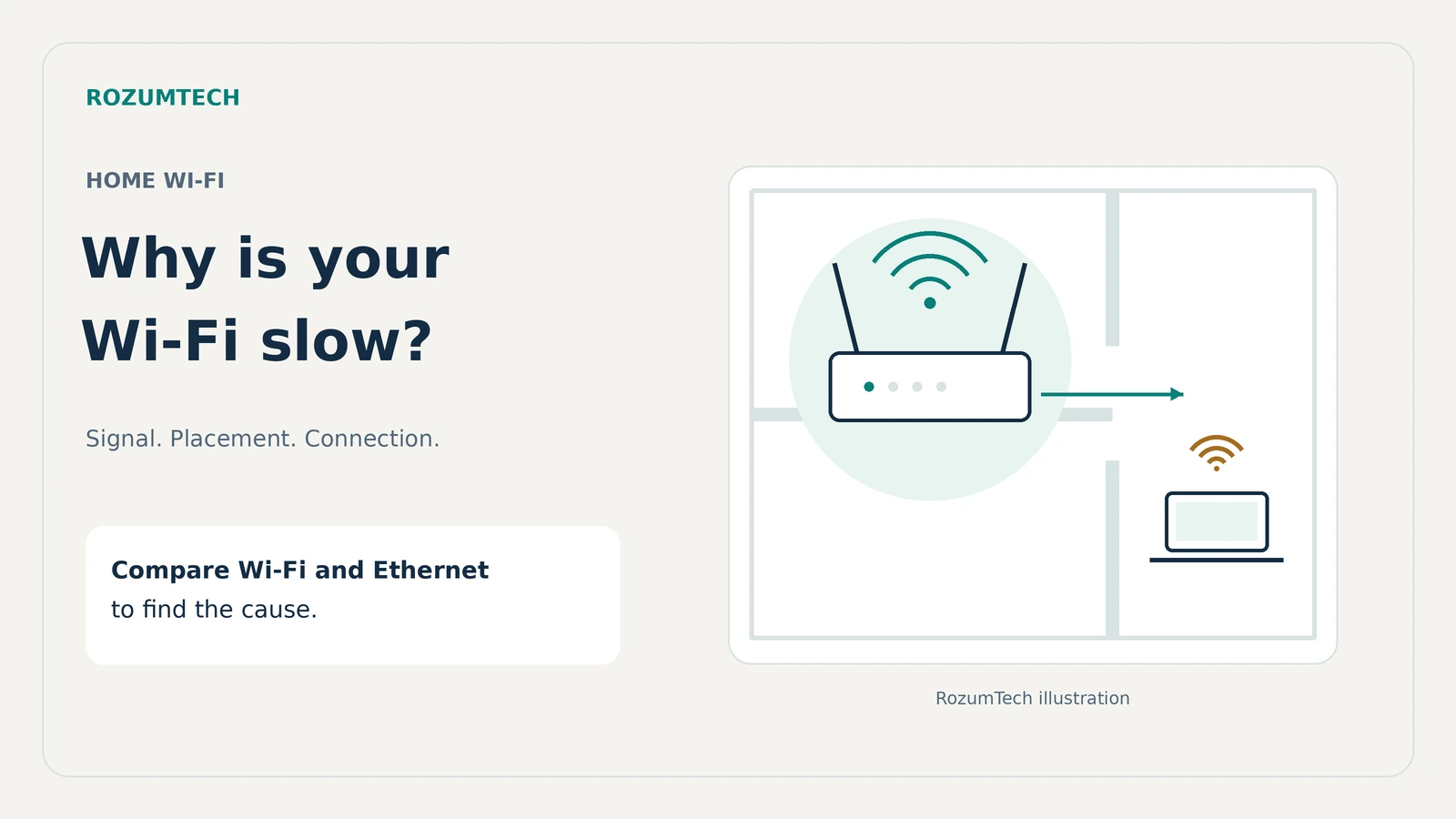
Your plan promises hundreds of megabits, yet a video keeps stopping in the bedroom. The cause could be a weak signal, a busy home network, or the connection from your internet provider. A more expensive router will help with only some of those problems.
You can narrow it down without specialist software or complicated settings. First, compare speeds in a few places. Then change the part that affects your connection: where the router sits, the Wi-Fi band, or the link back to the router.
Find out where the slowdown starts
There are two separate parts to the journey between your phone and a website: your home network and your provider’s connection. Wi-Fi is the wireless link to your router. Even with full signal bars, internet access can be slow if there is a problem farther along that path.
Make three comparisons. Use the same speed-testing service throughout, and the same phone or laptop when comparing rooms. Pause large downloads, game updates, and cloud uploads while you measure.
- Near the router. Stand in the same room and run the test two or three times.
- Where the connection is poor. Repeat the tests at your desk or beside the TV. Keep the same device for these first two comparisons.
- Over a cable. If you have a computer with Ethernet or a suitable adapter, connect it to a LAN port on the router. Turn off Wi-Fi on that computer and run the test again.
Compare several results: a single test might catch a brief slowdown. A router’s built-in speed test can help too, but check what it measures. A test between the router and the internet tells you nothing about the wireless signal beside your sofa.
| What you find | Where to look |
|---|---|
| Fast near the router, much slower in a distant room | Distance, walls, obstructions, or an unsuitable Wi-Fi band. |
| Fast over Ethernet, slow over Wi-Fi even nearby | Wireless settings, interference, or limitations of the device. |
| Slow over both Ethernet and Wi-Fi on different devices | Home network traffic, the router, cables, or the provider’s connection. |
| Only one phone or laptop is affected | Start with that device: its apps, updates, and wireless adapter. |
Which speed-test numbers matter?
Download measures how quickly you receive data, which affects file downloads. Upload measures how quickly you send it, which matters for video calls and backups. Ping, or latency, measures response time in milliseconds. High or uneven latency can interrupt a conversation even when download speed looks good.
Check the units as well. Providers usually quote megabits per second, or Mbps, while download apps may show megabytes per second, or MB/s. There are eight bits in a byte: 100 Mbps is a theoretical 12.5 MB/s. Some capacity goes to the data needed to manage the connection. A reading around 10–12 MB/s does not, by itself, show a fault with a 100 Mbps plan.
Give the router an open spot
A cupboard by the front door may be convenient for cables, but it is often a poor place for Wi-Fi. Try an open shelf above floor level, closer to the rooms where you use the internet. Leave space around the router for ventilation.
Concrete walls, metal doors, and large objects in the signal’s path can weaken the connection. Where possible, move the router out from behind the TV and away from the microwave. No single distance works for every home: after moving it, repeat the test in the room with poor coverage.
A normal restart through the app, or a power restart following the manufacturer’s instructions, can also help. The Reset button usually restores factory settings, so it is not needed for a restart. If the fault returns every day, investigate the cause rather than making power cycling a daily habit.
Should you use 2.4, 5, or 6 GHz?
These are the frequency bands used by Wi-Fi. If the router lists several networks, their names may include 2.4G or 5G. In this context, 5G means a Wi-Fi band, not a cellular connection.
| Band | When it can help | What to consider |
|---|---|---|
| 2.4 GHz | The device is far away or several walls separate it from the router. | Usually lower speeds and more interference from nearby networks and household devices. |
| 5 GHz | You want higher speeds near the router or with relatively few obstructions. | Walls weaken the signal more than they do on 2.4 GHz. |
| 6 GHz | You have compatible devices and the router is nearby. | Both ends need support, and availability also depends on your country. Thick walls remain an obstacle. |
Start with 5 GHz if it is available. In a distant room, compare it with 2.4 GHz: the lower band can sometimes deliver a steadier connection. Choose based on how well it works, rather than signal bars alone.
Your router may combine bands under one network name and automatically steer devices between them. There is usually no need to split that network just for an experiment. Also, Wi-Fi 6 and 6 GHz mean different things: ordinary Wi-Fi 6 uses 2.4 and 5 GHz, while Wi-Fi 6E adds the 6 GHz band.
Which router settings are worth changing?
Open the settings through the official app or the address given in your model’s manual. Save the current configuration first, if that option is available. Change one setting at a time and repeat the speed test, so you can tell what helped.
Start with channel selection set to Auto. On 2.4 GHz, try a channel width of 20 MHz: Apple recommends it for reliability, particularly around other networks. A larger number in that field does not always give better results in an apartment building.
Check for firmware updates—the software that runs inside the router. Use the manufacturer’s app or a file for your exact model and hardware version. An update may fix connection faults, but it cannot remove the effect of a thick concrete wall.
When only one device is slow, or evenings are worse
If other devices work normally in the same spot, start with the affected phone or laptop. Restart it, install system updates, and check whether a large file is downloading in the background. On Windows, check for Wi-Fi driver updates from the laptop or adapter manufacturer.
If only one website or app is slow, try a few others. The service itself may be having trouble. Moving the router is unlikely to change that.
An evening slowdown needs its own comparison. Pause downloads on your home devices, then repeat the Wi-Fi and Ethernet tests. If Ethernet still works well, investigate the wireless connection. If both connections slow down on different devices, save the results and the times you ran them, then contact your provider. Those details will help it investigate the line.
When mesh, an access point, or a cable will help
If speeds are good near the router but moving it does not fix a distant room, you need better coverage. A mesh system uses several coordinated units to spread Wi-Fi through the home. A wireless satellite needs a good connection to the main router, so place it on the way to the problem room, rather than where the signal has already disappeared.
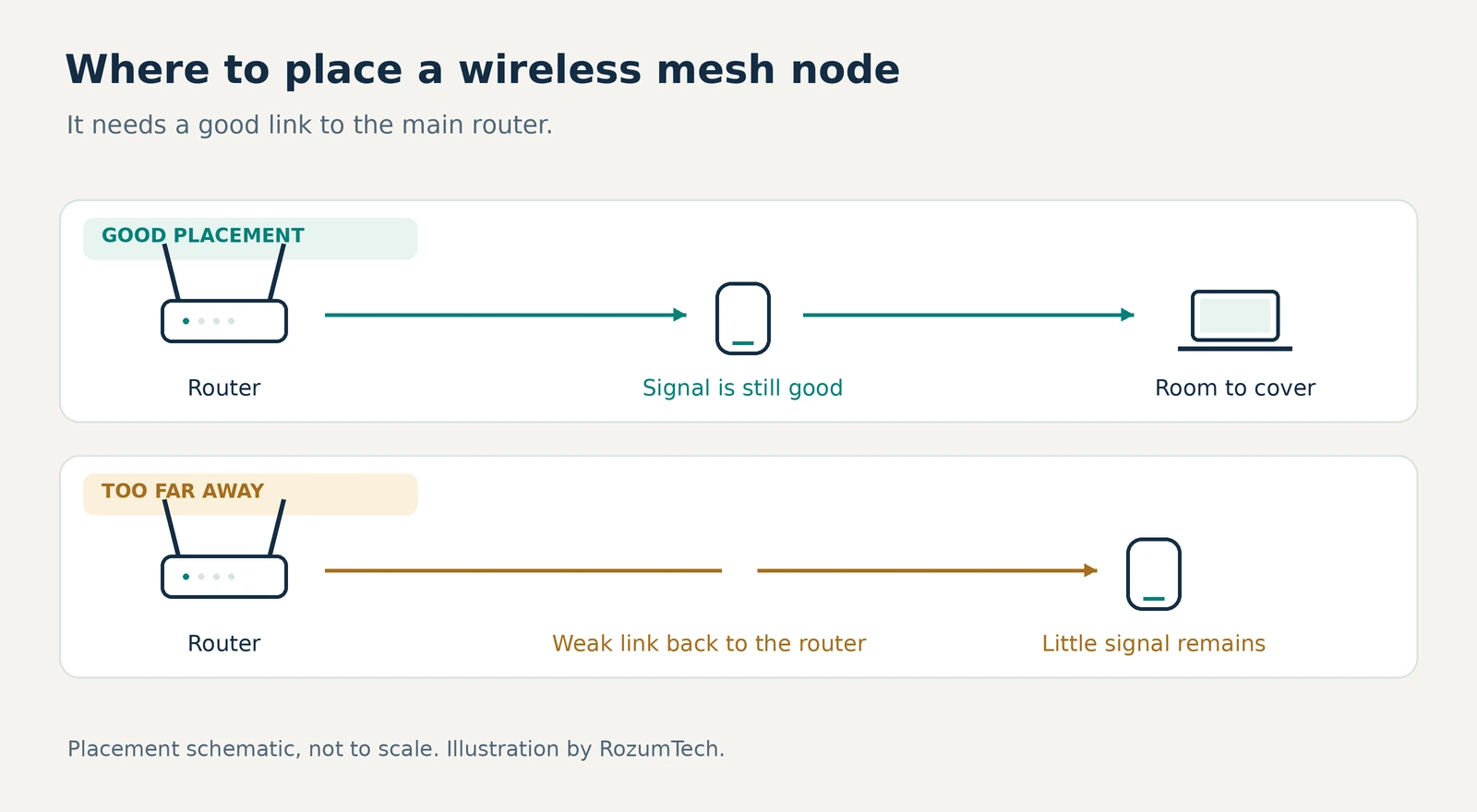
An extender, also called a repeater, receives the router’s Wi-Fi signal and sends it onward. It can cover one weak area. However, a phone beside it may show full signal while internet access stays slow because the extender has a poor link to the router. The whole path matters.
If you can run Ethernet, connect your desk computer or an additional access point to it. The access point receives its connection over the cable and provides Wi-Fi in the room where you need it. Some mesh systems also support a cable between units, a feature called Ethernet backhaul. Check compatibility for the particular models before buying.
A new router makes sense when the old one limits port speeds, regularly malfunctions, or no longer meets your devices’ needs. For example, a 100 Mbps port will limit a faster internet plan. But if a capable router sits behind several thick walls, an access point in the right place may do more than replacing that one router with a more expensive model.


Join the conversation
Stay on topic and respect other readers. Your first comment may appear after editorial review.