
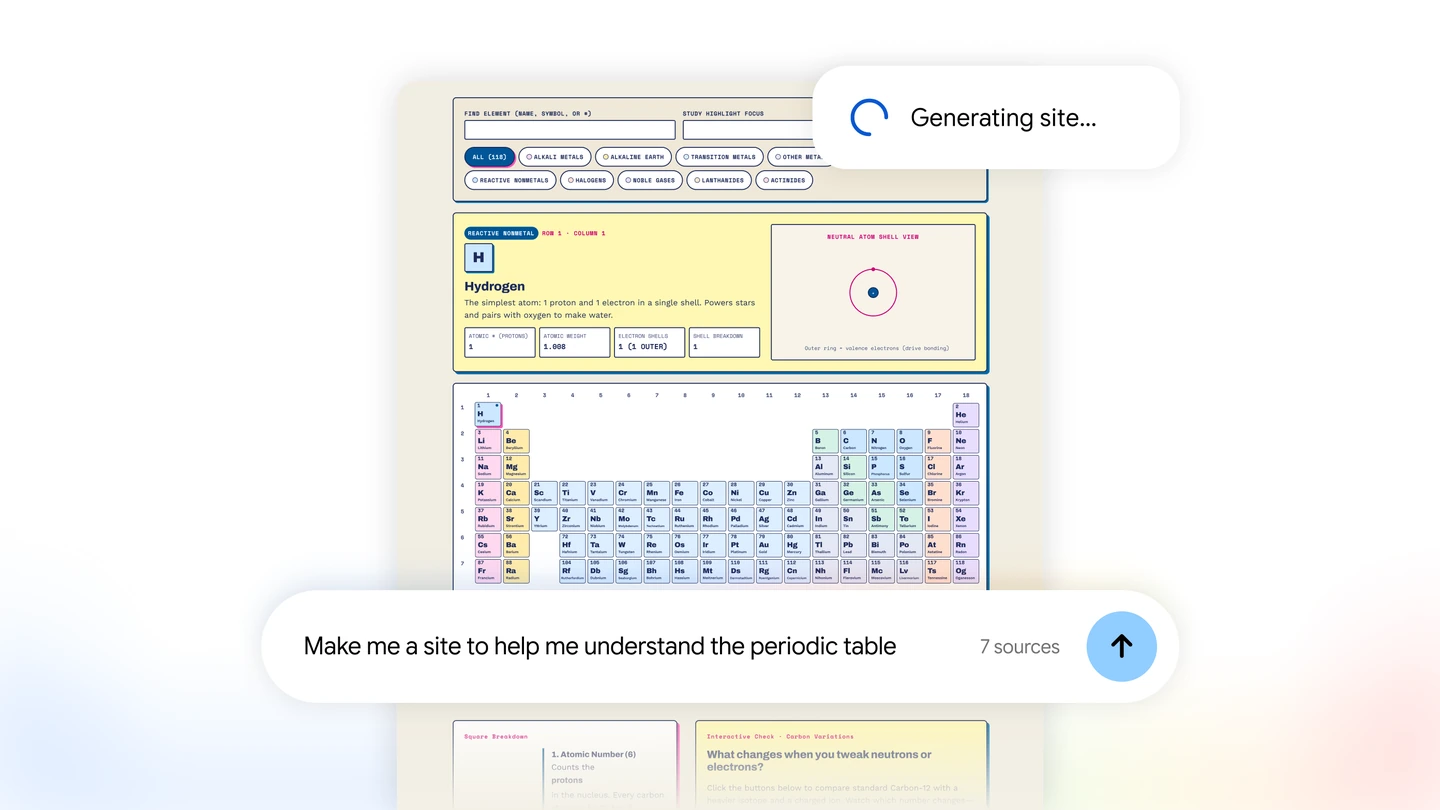
Gemini Notebook can now turn a notebook’s materials into an interactive site. Instead of a long chat response, you can get a page with filters, charts, input fields, or learning activities. Google announced the start of the rollout on November 16.
Official examples include an interactive periodic table, a dashboard for exploring sales, and a project task page. The useful part is being able to work with your own sources through a custom interface. Sharing and saved inputs, however, work quite differently from a typical team application.
Who can create a site?
Google is initially rolling out the feature globally on the Gemini Notebook website for users aged 18 and over, including Google Workspace accounts. Mobile app support is coming later. The announcement does not give a specific mobile launch date.
You need edit access to a notebook to generate or delete a site. Being a viewer of someone else’s collection is not enough. Rollout can also be gradual, so the same app or subscription does not guarantee that every account receives the feature at once.
You can start with an existing notebook or create a new one. Personal notes, PDFs, documents, spreadsheets, and other supported sources can supply the material. A collection focused on one project will usually produce a clearer result than a mixture of unrelated files.
Describe the page you want to create
In the notebook chat, ask for a site and explain its purpose. Google gives “make me a site” as the starting phrase. Then describe what someone should be able to do on the page: compare data, switch periods, explore concepts, or record personal progress.
For a collection of technology sources, for example, you could write:
Make a site using the selected sources in this notebook. Show events in chronological order and add filters for topic and date. Give each event a title, a short explanation, and its source. If an exact date is missing, say so. Use English for the interface, large readable text, and a layout that works well on a phone.
This describes both the content and how the page should work. Words such as “beautiful” or “modern” can express a visual preference, but do little to explain why the site is needed. A useful filter or switch matters more than elaborate animation when the task is finding a particular event.
Generation takes some time; Google’s help page says you can keep working in the notebook while it runs. The finished page appears in Studio. Open it there, or choose Open in new tab from its menu to use it in a separate tab.
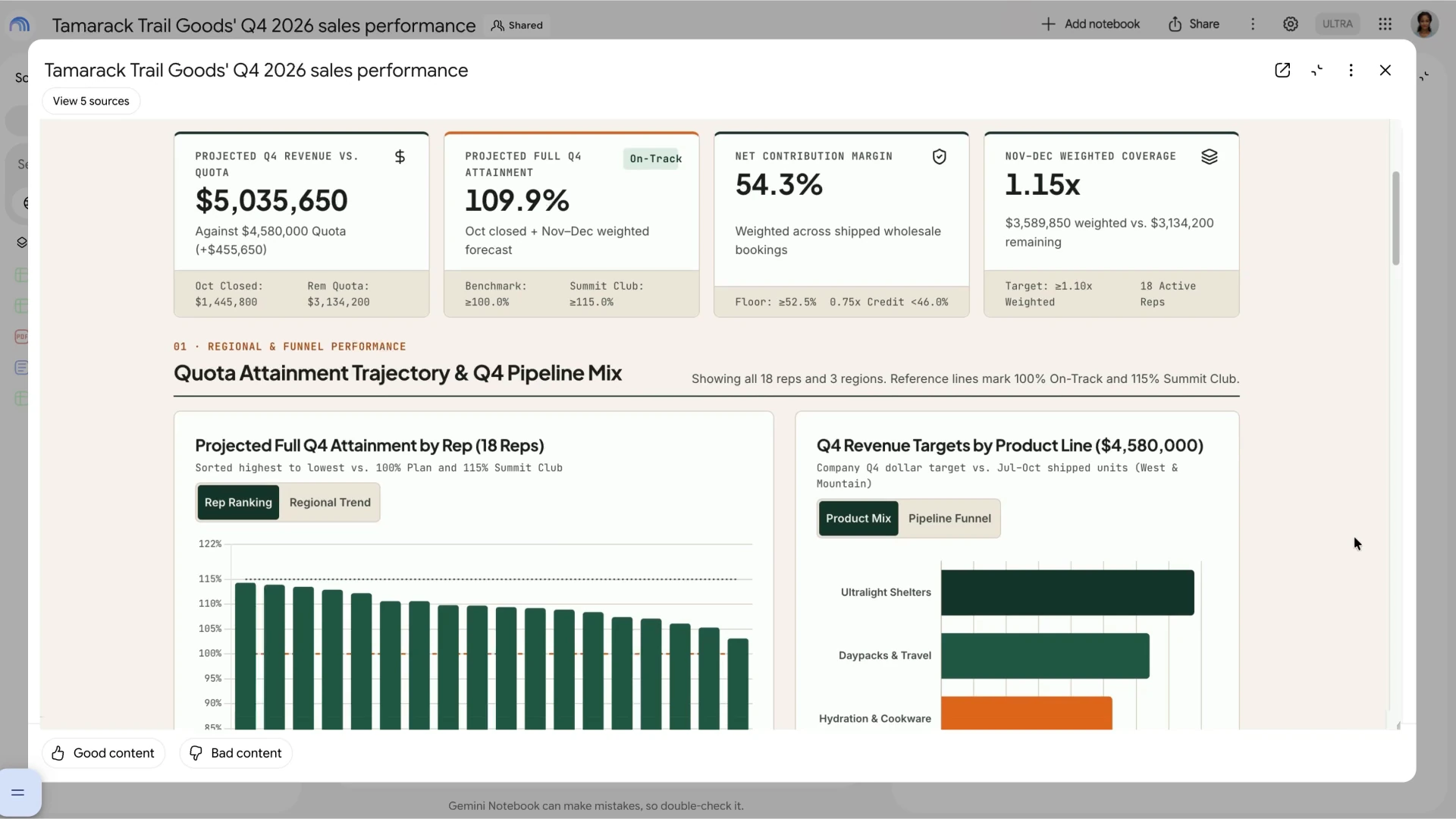
Your sources determine what goes into the site
Supported sources include PDFs, Word documents, text files, Markdown, CSV, presentations, Google Docs, and Google Sheets. You can also add webpages and public YouTube videos. Supporting a format does not mean a file contains every field the future interface needs.
A monthly sales table needs amounts, reporting periods, and clear metric names in its sources. Without them, a model might combine unrelated figures or produce unhelpful totals. Asking it to display units and leave missing values empty can make the result easier to understand.
The ordinary notebook chat remains available for factual questions, with citations leading to source passages. You might first ask which dates are actually present in the material, then build a timeline. This helps separate a data problem from a poor choice of presentation.
Another detail in the documentation matters: changing or deleting a source does not automatically update Studio outputs already generated from it. A new report in the notebook therefore does not make an old dashboard current. A page showing prices, deadlines, or metrics benefits from a clear date for its underlying data.
Personal checkboxes do not become a shared task board
Generated sites can remember your selections and inputs, including text fields, notes, and checked boxes. When you return, the page opens with your previous settings.
Google explicitly says that each user sees only their own inputs. Even the site owner cannot see what other people enter. If a colleague checks off a task on their page, that does not create a shared completion status for the entire team.
A tracker like this can be useful for personal study or working through source material. Team-wide completion tracking needs a separate solution with shared records. That is a practical difference between a page people can access and an application where everyone works with the same database.
Sharing requires access to the full notebook
The site menu includes Share. A recipient needs access to the full notebook to open the link. Google also specifies that public site sharing and access management require a consumer account and notebook owner or editor permissions.
This matters when a notebook contains public material alongside internal documents. The generated page might display only a small part of the information, but that does not prevent the recipient from accessing the remaining sources. For a public learning site, a separate notebook containing only material you can share is a better fit.
“Anyone with a link” and a public notebook also work differently. Google’s documentation says the former does not appear in public notebook search, while a public notebook can. Recipients need a Google Account.
The documentation also describes Download, which lets you save the site and share the resulting file. This is a different sharing route, so judge its capabilities from the saved result itself. Deleting a site or turning off its sharing in Notebook makes previously generated share links stop working.
How usage limits work
Site generation uses Gemini Notebook’s compute-based limits. Prompt complexity, conversation length, and the features used affect consumption. A fixed promise of a certain number of sites per day would therefore fail to describe every case.
You can see remaining usage under Settings → Usage. The help page also describes quota refreshes every five hours within a weekly limit. Paid plans provide higher allowances, while consumption still depends on the work. When access runs out, the web version may offer Generate later to postpone generation.
The feature is most useful for turning information you have already collected into something easier to explore. A filterable timeline, learning page, or personal dashboard can help without a separate development project. Two product details remain central when sharing: recipients receive notebook access, and their inputs are saved separately.



Join the conversation
Stay on topic and respect other readers. Your first comment may appear after editorial review.