
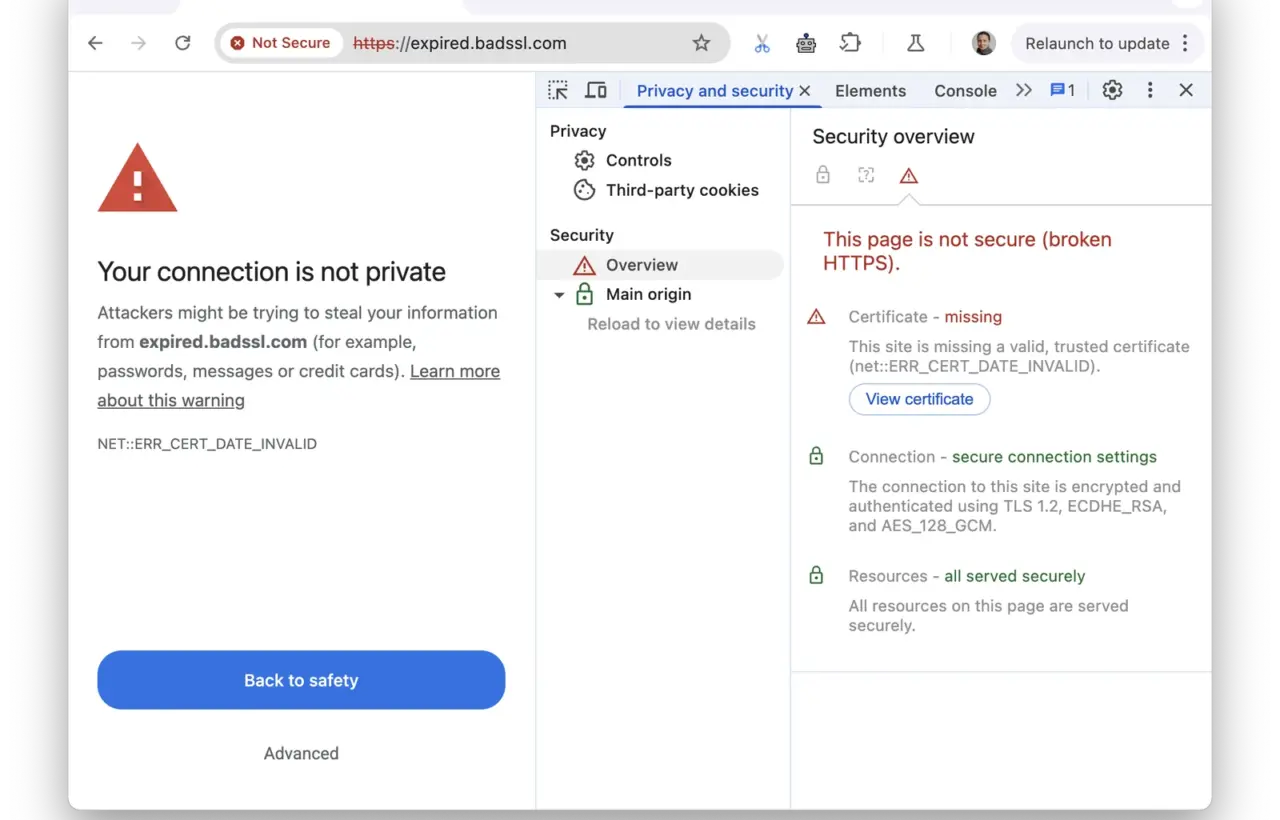
Google scheduled a Chrome trust-store change for the morning of October 27, US Pacific time, removing the emSign ECC Root CA – G3 root certificate. Some legitimate sites with certificate chains leading to that root may consequently stop opening without a warning. The action follows an incident involving keys belonging to eMudhra subordinate certificate authorities.
This is not a report that every Chrome user has been compromised. However, if a familiar site suddenly produces an HTTPS error, automatically choosing to continue is the wrong response. Here is a practical sequence for visitors, followed by a separate plan for site owners.
What the browser is checking
In a typical chain, a website certificate is vouched for by an intermediate authority, which is linked to a root trusted by the client. Checking the expiration date is not enough: trust in a root can end earlier. A certificate that says it remains valid until next year does not establish that a browser must accept it today.
Google reported insufficient randomness in eMudhra key generation and an emergency block already delivered through CRLSet. Removing the root is an additional measure. For Android, Google also recommends restarting the device to trigger receipt of the corresponding protective update.
Chrome can receive trust-store changes through component updates, separately from a new browser release. On an organisation-managed system, policy can restrict their delivery. Identical Chrome version numbers on two devices therefore do not establish that their trust state is identical.
For visitors: what to do when a site will not open
- Record the exact address and error code. For example, NET::ERR_CERT_AUTHORITY_INVALID concerns certificate trust. That code alone is not enough to attribute the problem to eMudhra.
- Do not submit passwords or payment details through the warning. Return to safety. Contact the service through a known application or a previously verified contact method.
- Check Chrome. On a computer, open the menu → Help → About Google Chrome and install any offered update. If a relaunch button appears, use it after saving your work.
- Check the scope. A failure on one domain and failures across many unrelated sites call for different investigation. Record whether it also happens on another familiar network; do not bypass protection to make the comparison.
- Check the date and time. NET::ERR_CERT_DATE_INVALID can result from an inaccurate device clock. That is a separate possibility, not confirmation that a root was removed.
- Contact your administrator on a work device. An organisational proxy can also affect HTTPS. Do not install an unfamiliar root certificate supplied in an email or pop-up.
A first support report can include the domain, error code, time, browser version and a description of the network. Before sending a screenshot, close unrelated tabs and remove visible personal information. A password, sign-in code or certificate private key is unnecessary for that initial investigation.
For site owners: inspect the complete chain
Start by establishing where the visitor’s HTTPS connection terminates: your server, hosting provider or CDN. Inspect the certificate the browser actually receives, rather than relying only on an entry in a control panel.
- Open the relevant page and Chrome DevTools. In the additional tools menu, select Privacy and security; the panel name can differ between versions.
- Under Security → Overview, select View certificate. Open the certificate details and hierarchy.
- Inspect the complete chain, including the root. Compare the exact name emSign ECC Root CA – G3, rather than matching only the company name in an issuer field.
- If a path to that root is confirmed, arrange with your provider to reissue and install a certificate using a different trusted chain. Check automatic renewal as well.
- After replacement, recheck the main domain, its www variant and important subdomains. If a CDN or multiple serving locations are involved, ask the provider to confirm deployment across the necessary endpoints.
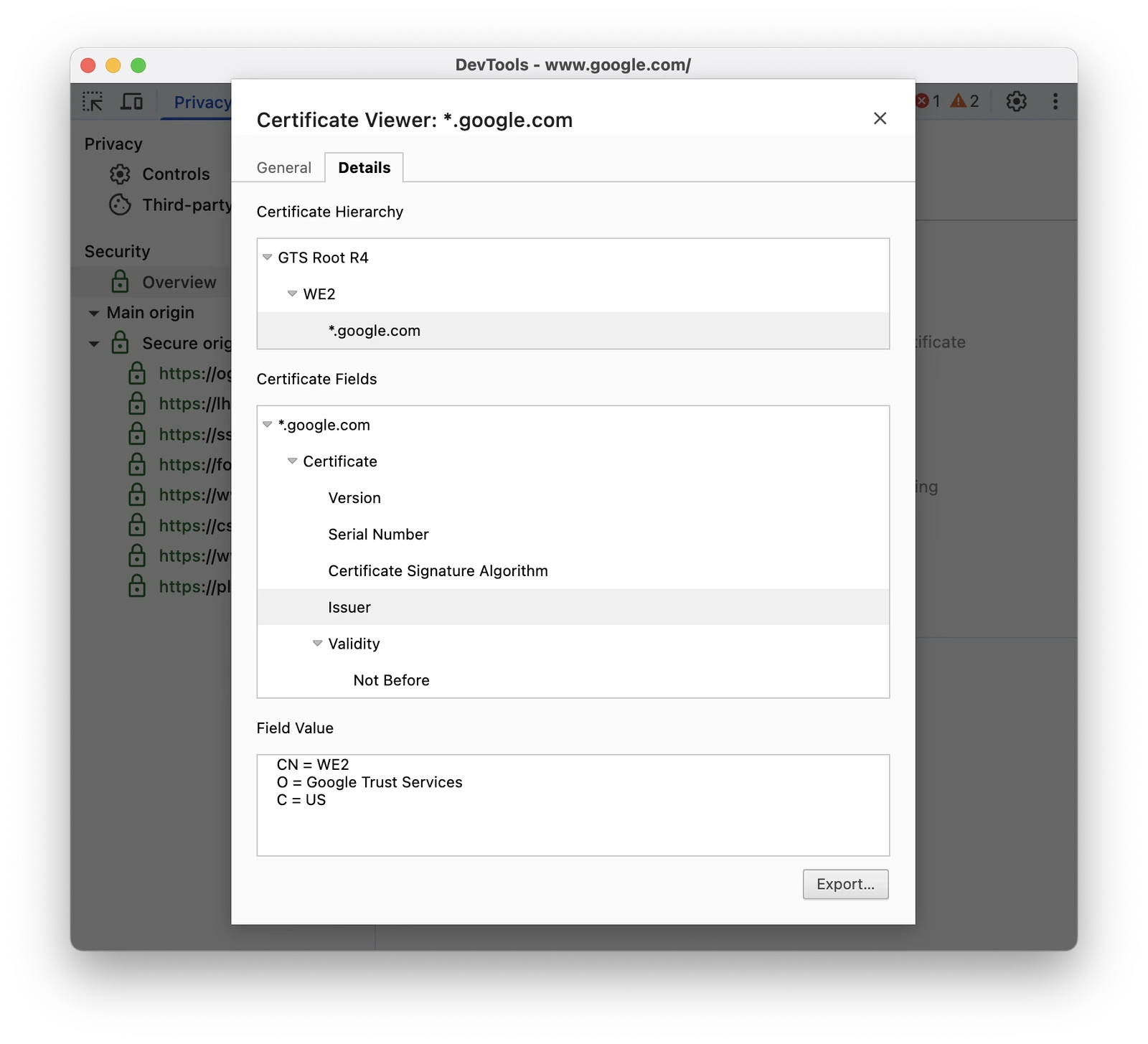
The illustration shows Google’s certificate-viewer example from the official Chrome documentation, not an eMudhra certificate. It helps locate the relevant interface; your chain will contain different names.
A message you can send your hosting provider
Replace the example address with your own before sending this template. It requests a check rather than assuming that your site is affected:
Please check whether the TLS certificate for example.com or its subdomains uses a chain leading to emSign ECC Root CA – G3. If so, please reissue and install a certificate using another trusted chain, and review the CDN and automatic renewal configuration. After completion, please provide the new root authority and the result of a check in current Chrome. I have included the error code and the time it appeared.
There is no reason to replace every certificate merely because the company name eMudhra appears in a news report. The particular chain needs checking. Clearing a WordPress cache or installing an SEO plugin is likewise not a substitute for correcting TLS at the server or CDN.
Distinguish three different warnings
- HTTP without a protected connection: the site has not established HTTPS. We covered Chrome’s updated mechanism in our article about HTTP warnings and scam protection.
- An HTTPS certificate error: validation, expiry, naming or trust is failing. Use the error code and chain to narrow down the cause.
- A red dangerous-site warning: Safe Browsing may have identified a harmful or deceptive resource. Using HTTPS does not cancel that warning.
If you already entered credentials after reaching a suspicious page, follow our account protection plan. A certificate error alone does not prove a data breach, but submitting information to a questionable page calls for a separate response.
As of October 27, Google describes a scheduled rollout of root removal; the exact arrival time depends on the device and its updates. The visual examples are supplied by Google / Chrome for Developers under CC BY 4.0. The cover is an educational example of an expired certificate, not this incident; images were converted to WebP with their proportions preserved.




Join the conversation
Stay on topic and respect other readers. Your first comment may appear after editorial review.