

Firefox 161 lets you set rules for its built-in VPN on individual sites. It can use the VPN every time you open a forum, for instance, while the rest of your browsing follows the main switch. If you normally keep the VPN on, you can also tell Firefox to use a direct connection for a particular site.
Mozilla released Firefox 161 on November 24. The update also adds a Fire toolbar button for quickly clearing browsing data and the option to assign a shortcut for copying a tab’s address. The Fire button is rolling out gradually and may turn up after the rest of the update.
What the VPN rules do
A rule covers the whole site. Add a forum’s address and it applies to the homepage as well as the threads you open there. Sites without a rule work the same way they did before. They follow the main VPN switch.
| Rule | How Firefox connects to the site |
|---|---|
| Always on | Through the VPN, even when the main switch is off |
| Always off | Directly, even when the main switch is on |
| No rule | Follows the main VPN switch |
You can leave the VPN off for everyday browsing and add a few sites where you want to mask your IP address. If one site has trouble with the VPN, an Always off rule saves you from flipping the switch for the entire browser. That site will see your usual IP address when the rule applies.
Where to add a site and check the connection
Open the Firefox menu and go to Settings → Privacy & Security. In the VPN section, open Manage VPN rules and click Set rule. Enter the site address, pick Always on or Always off, and save it. The VPN button in the toolbar also leads to the same list.
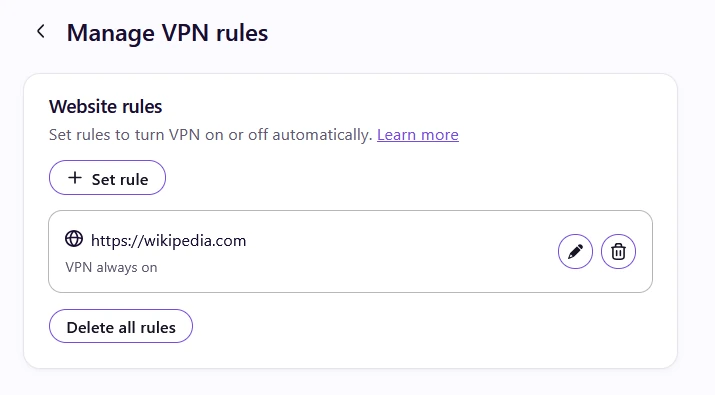
Then visit the site and click the VPN icon. Under Your rule, the panel shows whether the VPN is on for that address. This is more useful than looking at the main switch when a site has its own rule. If you previously excluded some sites from the VPN, Firefox converts those exceptions into Always off rules.
To return a site to normal behavior, delete its entry under Manage VPN rules. It will go back to following the same switch as other sites without a rule. To change the mode, use Edit in the same list.
Server location is a separate choice in the VPN panel. Mozilla lists Germany, Japan, and the United States among the options. Leave it on Recommended to let Firefox pick a server. The rule for a site decides whether it uses the VPN. The setting in the panel determines where that traffic is routed.
What happens when Firefox pauses the rules
If Firefox cannot connect to the VPN on a site with a rule, it may show an error. Mozilla suggests turning the VPN off and back on. If you choose Continue without VPN, Firefox temporarily pauses all website rules. That includes sites you set to Always on.
To restore the rules after that choice, close Firefox and open it again. Then check the VPN panel on the site you want to use. The connection status is what matters. A saved rule can still be listed while it is temporarily inactive.
Where the VPN is available and what it covers
The built-in VPN is available in Firefox on computers. It requires a Mozilla account and includes 50 GB of VPN traffic each month at no charge. When you use up the allowance, the VPN pauses until the start of the next calendar month. It routes traffic from Firefox. Other apps on the computer use their own connections.
Firefox warns you as you approach the limit. If you often stream video or download large files in Firefox, site rules can leave that traffic on your normal connection. That saves the VPN allowance for the pages where you want to use it.
Mozilla lists the United States, the United Kingdom, Ukraine, and Greece among supported regions. The rollout is staged, so two people in the same country may see the button at different times. If Firefox is up to date and the icon is missing, check whether you’ve allowed improvements between updates in the privacy settings. On a work computer, an administrator may also control availability.
Firefox makes some essential connections directly. Mozilla mentions its sign-in services and the pages you use to sign in to public Wi-Fi. Those connections let the browser get online or restore the VPN after a problem. For a regular page, you can check the connection from the VPN icon while viewing that tab.
A VPN changes the IP address a site sees. Sites can also recognize browsers from other characteristics. Our guide to browser fingerprint protection in Firefox covers those settings and how to check them.
What the new Fire button clears
The Fire toolbar button gives you a quick way to clear browsing data. Pick the categories you want or clear them together. If you delete history, Firefox closes open windows and starts a new one. It keeps pinned tabs. Finish what you’re doing in unpinned tabs before you clear history, especially if you have forms open with unsaved information.
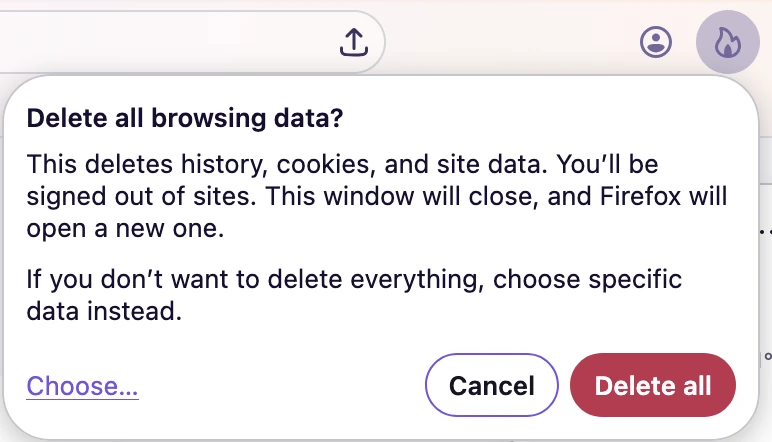
In Mozilla’s example, Delete all clears history, cookies, and site data. Use Choose… to pick specific data. Sites use cookies to remember that you signed in, so clearing them can make some websites ask you to sign in again. Fire has its own rollout, so the button may still be missing just after you update.
Tabs, keyboard shortcuts, and switching from Chrome
Tab groups now appear in the main Firefox menu, which makes it easier to find a group and reopen it. You can also assign a keyboard shortcut to copy the current tab’s address. Look for Customize keyboard shortcuts in Settings. Firefox leaves that action unassigned at first, so you can use a combination that fits the shortcuts you already use.
Firefox 161 also brings over visit frequency when you import browsing history from Chrome. Sites you visited regularly can then appear higher in the address bar’s suggestions. The Add-ons Manager has a new Classic themes section too. It includes the Proton theme from older versions of Firefox, a dark Firefox OLED theme, and several solid colors.



Join the conversation
Stay on topic and respect other readers. Your first comment may appear after editorial review.