
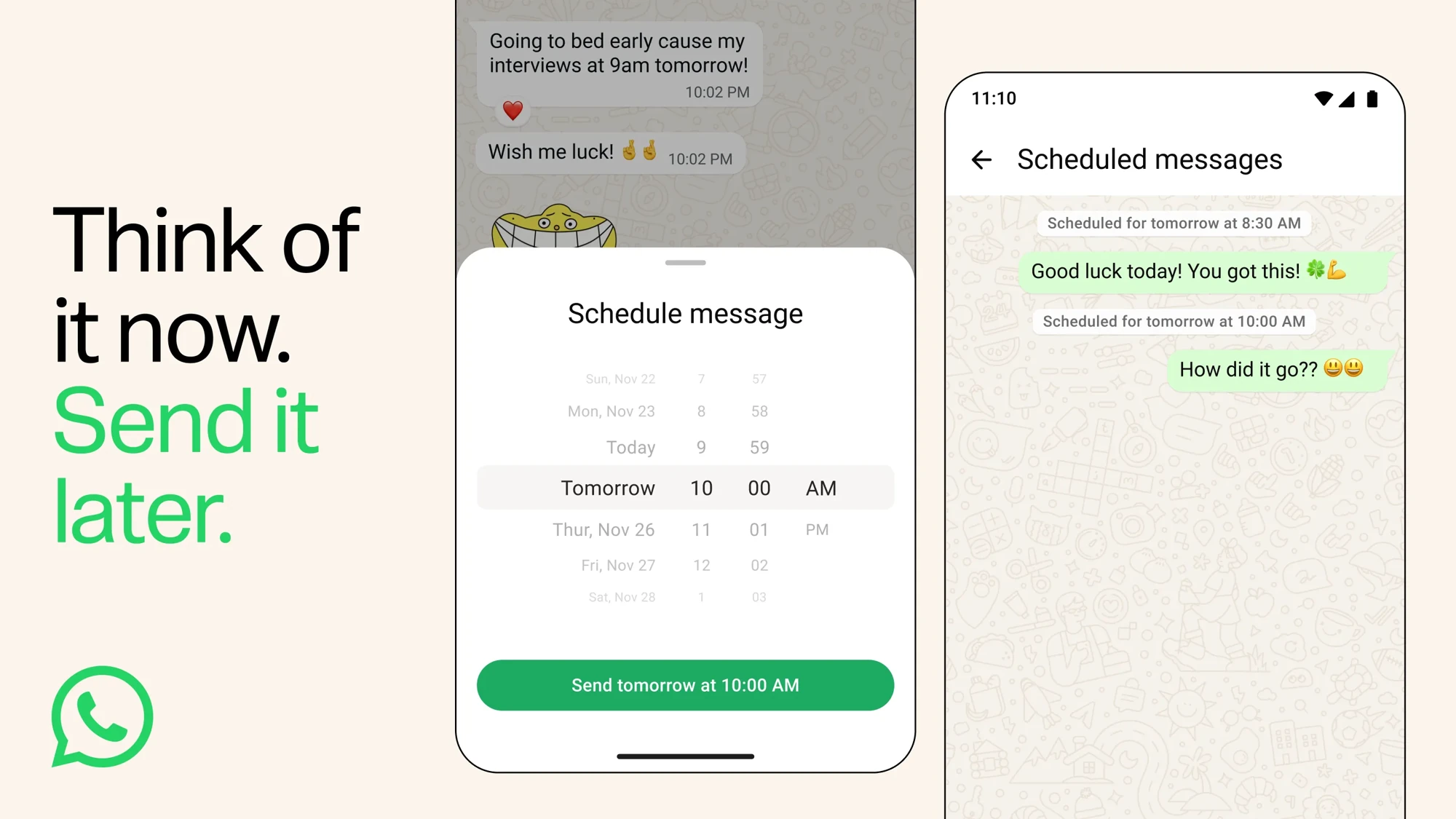
WhatsApp is rolling out scheduled messages. You can write to someone tonight and ask WhatsApp to send the message tomorrow morning. Scheduling works for text, photos, and videos in individual and group chats. You can choose a send time from ten minutes to 14 days ahead.
WhatsApp announced the feature on November 25. It will reach Android and iPhone users around the world over the coming weeks. Two people running the same version of WhatsApp may see the option on different days.
How to pick a send time
Open the conversation and type a message or select a photo or video. Press and hold the send button. Once scheduling is available in your app, this opens a date and time picker. Choose when you want the message to go out and confirm the scheduled time.
WhatsApp displays the time you picked on the confirmation button. The example in its launch image shows a message set for ten the next morning. It’s a useful place to catch a date that accidentally stayed on today or an AM time that changed to PM while you were scrolling. After you confirm, the message goes into the scheduled list.
WABetaInfo reported that the Android beta could schedule one photo or video at a time and let you add a caption in the editor. If you want to send several photos, check the options your app shows after you select them. WhatsApp’s announcement confirms support for photos and videos and leaves albums out of its description.
If you only need to wait two or three minutes, that falls outside the scheduling window. A message must be scheduled at least ten minutes ahead. The 14-day limit also counts from when you put the message in the queue. For a reminder next month, set it up closer to the date.
Where to find and cancel a scheduled message
The list is in the conversation’s info screen. Tap the person’s name or the group name at the top and look for Scheduled messages. The queue belongs to that conversation. A message for the family group and another for a friend appear in their respective chats’ info screens.
You can remove a message from the list before it goes out. If a meeting moves and your reminder still gives the old time, delete the scheduled message and prepare a replacement. Save the text in a note before deleting it if it contains an address or room number you would need to type again. That also helps when the time is the only thing you need to change.
Canceling a scheduled message is silent. Once it goes out, the usual WhatsApp rules apply. The help center gives you two days after sending to request Delete for everyone. The recipient may read it in that time, so it’s easier to fix a wrong meeting address while the message is still in the queue.
What happens when your phone is off
Once you confirm the schedule, WhatsApp handles the send. The message goes out at the chosen time even if the sender’s phone runs out of battery or loses its connection. You can prepare a morning reminder, turn your phone off for the night, and leave it to WhatsApp. The confirmation and scheduled list show that the app has accepted it.
The recipient sees an ordinary message with no label showing that it was written in advance. If all of their devices are offline at the chosen time, delivery depends on when one reconnects. Whether an alert appears on their screen depends on their notification settings for the chat.
The usual delivery marks appear after the message goes out. In an individual chat, one gray check means sent and two mean WhatsApp delivered it to the person’s phone or a linked device. If their phone is off, the message can still reach their connected computer. Open the sent message’s info if you need to see the delivery time.
WhatsApp says scheduled personal messages retain end-to-end encryption. The service queues the encrypted message for sending, and the people in the conversation can read the contents. That applies to both text and media you add when scheduling.
When someone joins a group matters
WABetaInfo reports that people who join a group after you schedule a message won’t receive it. That matters if you’re organizing a meetup and adding people throughout the week. A reminder put in the queue on Monday could skip the person who joined on Tuesday.
If you already know the meeting time, you can create a WhatsApp event and invite people. A scheduled group message can provide a short reminder or a detail about where to meet. If the group changes in the meantime, send an update in the chat or reschedule the reminder after everyone has joined.
Photos and videos follow the same scheduling rules. In a work group where details often change, queue something likely to stay useful until the send date. A photo of a building entrance for a meetup will usually hold up better than a screenshot of a timetable that someone is still editing.
When you’ll see scheduling in WhatsApp
The rollout covers the regular WhatsApp apps on iOS and Android. Update through the App Store or Google Play and check what happens when you press and hold Send with a message ready. If the picker doesn’t open yet, the app update may have arrived ahead of the feature becoming available to your account.
For a message across time zones, check the local times for the date you want. If you’re seven hours ahead on that date, 9 a.m. for the recipient is 4 p.m. for you. Choose 4 p.m. if the picker is showing your local time. For a greeting you want to arrive at midnight, check the date as well. It may already be the next day or still the previous day where you are.
If you queue several messages for different days, open the chat’s scheduled list after confirming them. It shows the text and the chosen time. That helps when you’re preparing both the first announcement about an event and a short reminder for the day itself.



Join the conversation
Stay on topic and respect other readers. Your first comment may appear after editorial review.