

Proton has released Lumo Desktop for Windows, macOS, and Linux. The new app can find documents on a computer, work with connected mail, and run tasks on a schedule. It launched on November 17. You need a Proton account to sign in.
One straightforward job for Lumo would be to list the new documents in a project folder every Friday. It can find the files, read them, and present a summary. To do that, it needs access to the files, a time to run, and instructions for what to put in the report. Lumo gives you separate settings for each of those things.
Access to files, email, and work apps
Lumo calls its app integrations Connectors. They let the assistant look up material on its own. If a question calls for details from several documents in Dropbox, for example, you can ask Lumo to gather the information from the connected account. That saves attaching one file at a time to a chat.
Proton’s documentation lists local files, Google Drive, Dropbox, Slack, and Atlassian services such as Jira and Confluence. Lumo also supports custom connections through MCP, a way to connect a tool that does not appear in the built-in list. The actions available to Lumo depend on the connector.
Proton Mail has a separate requirement. Lumo reads and works with mail through Proton Mail Bridge, the program that lets other desktop apps access Proton Mail. Bridge is available on paid plans that include Proton Mail. If mail is the main reason you want to use Lumo Desktop, check whether your current plan includes Bridge.
Which actions need approval?
In Lumo Desktop, open Customize → Connectors, select a service, and click Connect. Some services will ask you to sign in and grant access. Once the service is connected, open its Functions tab to change permissions for individual actions.
Auto-approve lets Lumo perform an action automatically. Ask human means it requests approval first. Deny blocks the action. Proton’s help page says the actions for a new connector are set to Auto-approve by default. It also says connected services are initially enabled in chats.
Email makes the difference easy to see. For a list of messages that still need a reply, you can let Lumo search automatically, ask before sending, and block message deletion. With files, you can keep read access and review the actions that your particular storage service allows for editing or moving documents.
Use Tools → Connectors to turn off a connector in a particular conversation. That is useful if one chat needs project documents and another is a simple question about a term. When you no longer use a connector, you can remove it with Disconnect in its settings.
How scheduled tasks work
Open Scheduled → New task to create a task that runs once or repeats. There are two options. In Create with Lumo, describe what you need in plain language and let the app prepare a task for your approval. In Set up manually, enter the name, instructions, time, connectors, and permissions yourself.
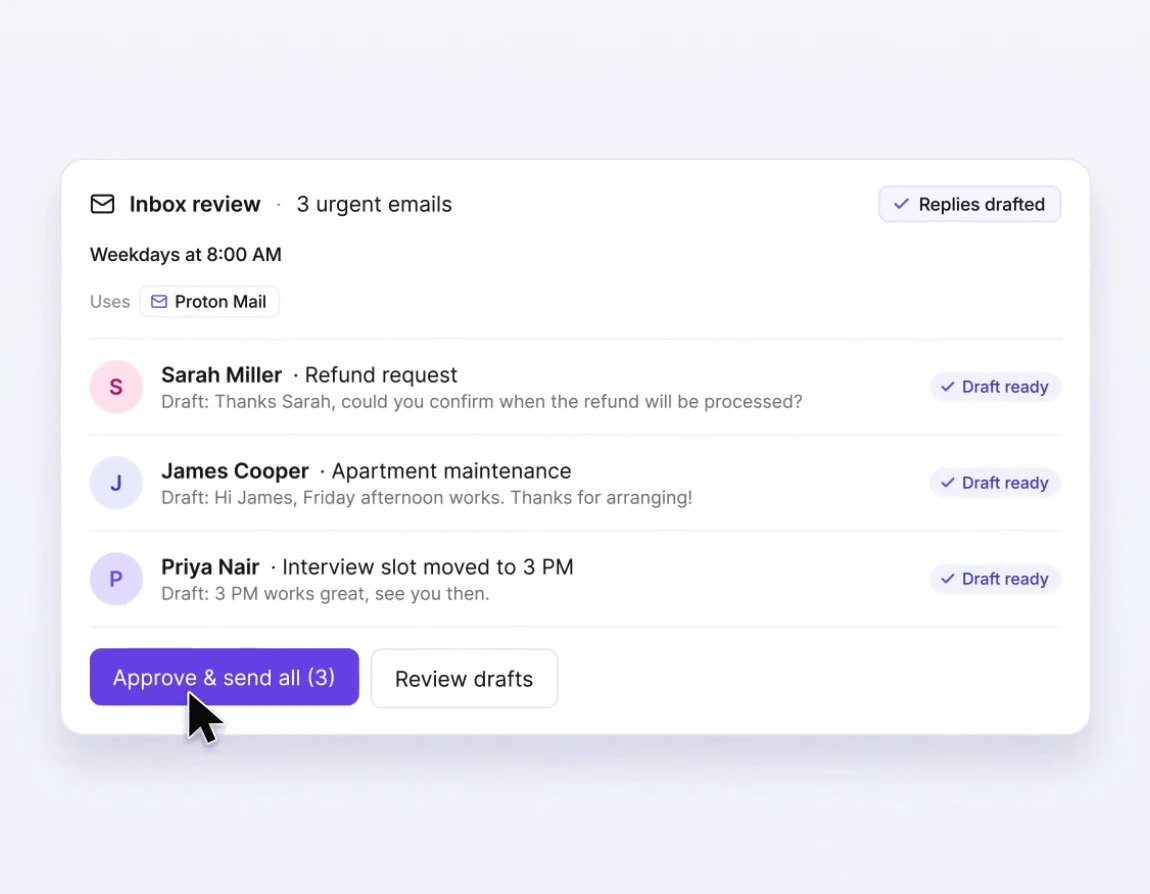
For a weekly project report, you could specify a Google Drive folder, the day and time, the date range to search, and the information you want back. The result could give each new document’s name, date, and a sentence describing its contents. Read access is enough for that job. The report can appear in Lumo without moving any of the source documents.
Each task has its own permissions. Two tasks that use the same Google Drive connection can have different instructions and actions. When an action needs approval, Lumo asks before carrying it out. The Run now option lets you see a first report before the next scheduled time.
You can change, pause, or delete the schedule later. Which documents show up depends on the time range you give the task and what the connection can find. A specific folder name and date range will usually help more than a broad request for “everything new on the project.”
Skills save instructions for repeat work
When your reports should follow the same format, save the instructions under Customize → Skills. For example, you can tell Lumo to start with the biggest change, point out documents that need attention, and include dates. You can attach a template or a sample report to those instructions.
To use a saved skill in a chat, you can select it or enter its slash command. Lumo can also apply relevant skills automatically. If you created Custom Lumos before, Proton moves them into the Skills tab with their existing names, descriptions, and instructions.
A skill shapes the response. To write a report using a template, Lumo still needs the material. You can add it to the chat or give the assistant access through a connector. The same formatting rules can then work with different sets of documents.
When a chat or project is enough
If you need help with one PDF, add it directly to a chat. On the web or in the mobile app, select + and choose Upload from device. That is a quick way to ask a question about a file you already have to hand.
For several conversations about the same material, Lumo has Projects. You can collect files in a project or link a specific Proton Drive folder to it. New files in that folder also become available in the project. That helps when you want to ask several questions about a trip using the same reservations and notes.
In a project, you open a conversation and ask whenever you need something. A schedule makes sense when the same job should start at a specified time. If the material lives in Google Drive, for example, the task still needs the matching connector.
Where Lumo processes requests
The desktop app gives Lumo access to connected tools on your computer. The language models themselves run on Proton’s servers, according to the company’s documentation. When you send a request, it travels in encrypted form. The server decrypts it temporarily so the model can process it.
Proton describes a separate protection for saved chat history called zero-access encryption. The company says the account owner can read that history. If you use Lumo with files, check the connector’s permissions too. They determine which documents Lumo can read and what it can do with them as part of a task.


Join the conversation
Stay on topic and respect other readers. Your first comment may appear after editorial review.