
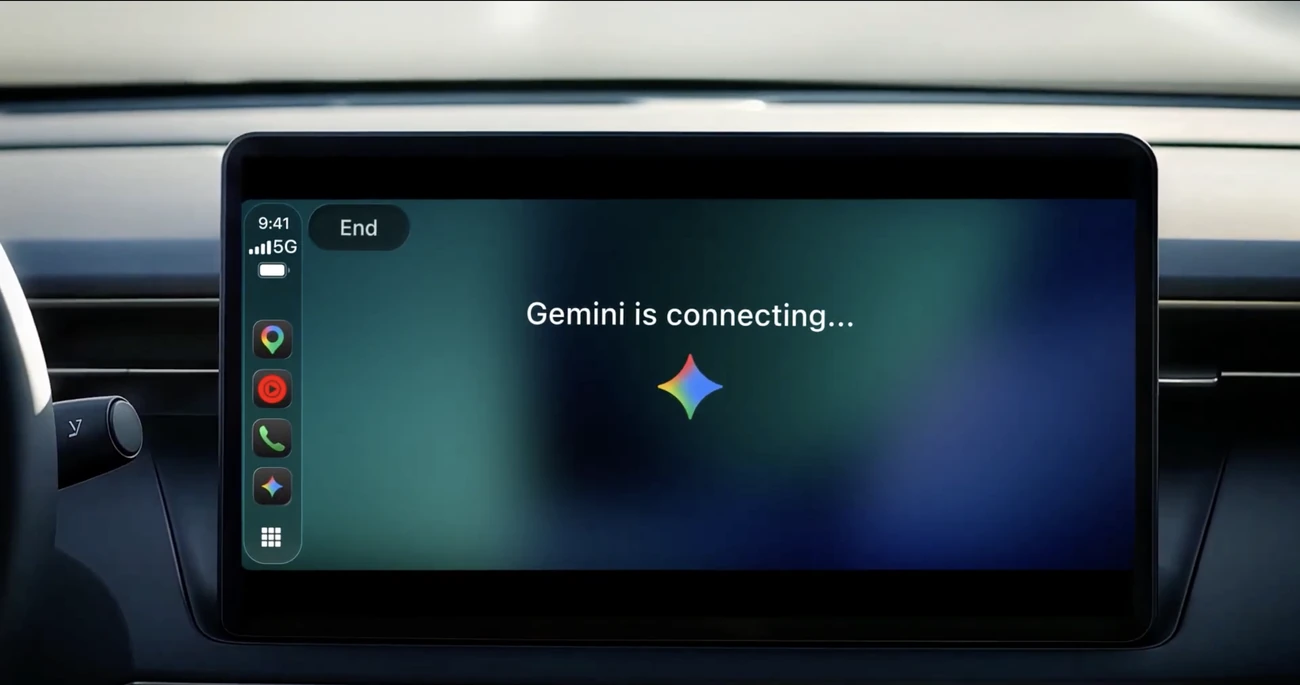
On November 11, Google began rolling out the Gemini app globally on Apple CarPlay, supporting Gemini Live languages. It brings voice conversations to the car display. A practical starting point is talking through an idea or rehearsing a short answer before a meeting, with setup completed beforehand while the vehicle is parked.
Prepare your iPhone and CarPlay
First check the ordinary CarPlay connection: your vehicle or aftermarket head unit must support it. Apple describes USB and wireless connections, depending on the equipment. If CarPlay itself does not appear, adding Gemini will not resolve that problem. Establish the iPhone-to-car connection first.
- Update Gemini on your iPhone, allow microphone access, and use Live on the phone at least once.
- Connect the iPhone to CarPlay. Open the Gemini icon and begin a conversation.
- For an initial check, request a brief answer about a familiar topic to assess the language, audio, and recognition of your voice.
Live requires signing in to a Google account with appropriate access. Test it on the iPhone first: open Gemini, then tap Live or swipe left. If this part fails, searching through the car display’s settings will only make the problem harder to isolate.
Email and calendar access need their own setup
A voice conversation and access to personal data are separate parts of the setup. In Connected Apps, check which services are available to your account and which actions they support. On iOS, Google ties their availability to the Keep Activity setting. Review your activity settings before deciding whether to change it.
Work and school accounts have separate rules: the current Live help page lists Google Calendar, Keep, and Tasks as their supported connected apps. Having a work mailbox in Gmail therefore does not establish that you can use it in Live. Verify support for the particular action before making it part of a daily routine.
The separate Daily Brief feature must be enabled first and is unavailable to under-18s and in the European Economic Area and Nigeria. This restriction concerns the personalized briefing; it should not be treated as a restriction on every CarPlay conversation.
Try a short spoken rehearsal
A useful first exercise does not need email or calendar access. Try rehearsing how you explain your work experience. Short questions and a manageable pace matter more than an elaborate answer. Judge the exercise by whether you can repeat the improved response yourself.
Run a short job-interview rehearsal with me in B1 English. Ask only one question at a time. After each answer, correct my most important mistake and suggest a more natural version in no more than two sentences. Start by asking about my previous experience.
If the response is too complicated, adjust the exercise:
Use simpler words and speak more slowly. Let me answer first. Do not add experience or skills that I have not mentioned.
Keep these conversation rules when changing the topic. For a presentation, ask for one challenging question about your explanation. For a weekend plan, request two options and their differences. This format is easier to follow by ear than a long answer with many items. Leave figures, addresses, and exact wording for a check after stopping.
Another useful constraint is a clear finish. After three questions, ask for one thing to improve next time. This gives the exercise a purpose and avoids turning a short rehearsal into a stream of unrelated suggestions. The prompts above are suggested exercises, rather than a report of a completed product test.
Discussing a route and controlling navigation
Google documents Gemini inside Google Maps separately. At the time of writing, the Maps help page says that integration is unavailable in CarPlay. The arrival of a standalone Gemini app does not establish support for every navigation command. Check which app is handling the conversation before relying on it to change a route.
Check recommendations on a map as well: confirm the entrance, parking, and opening hours. Our article on finding places with Google Maps in AI Studio discusses the distinction between a model’s answer and information about a place. A convincing spoken recommendation still needs its practical details verified.
If an icon or action is missing
Check in order: whether CarPlay works, whether Live starts on the phone, whether microphone permission is granted, and whether the relevant connected app is available. The rollout began on November 11; an announcement does not mean every user receives the feature simultaneously.
Conversations sync with Gemini on your iPhone. Once parked, review the relevant section and write down your final answer or plan. A brief result you can use afterward is a more useful measure of the conversation than how long it lasted.



Join the conversation
Stay on topic and respect other readers. Your first comment may appear after editorial review.