
A small bookshop finder, branch map or event-location directory can now begin with a description in Google AI Studio. On November 9, Google announced its Maps Platform integration, helping the environment add a map and connect geographic data to a generated application. A Maps Demo Key provides a first testing route without a payment card.
Start with a narrow task whose outcome is easy to inspect. Our practice exercise is a finder showing up to five bookshops in a selected city. You will check whether cards match markers, whether the city is correct and how errors are handled. Generating an attractive screen is the beginning of that work.
Check your account and choose demo access
The Maps Demo Key guide requires a personal Google Account; corporate Google Workspace accounts are ineligible. Availability also depends on territory. If you already use Google Cloud, select the demonstration route carefully when you want no-cost testing. Connecting an existing project with billing is a different mode.
A demo key is intended for testing and supports a restricted set of capabilities. The general Demo Key guide excludes user-submitted photos and reviews. Avoid starting with a promise to reproduce every Google Maps feature and data field. A place search and a clear result list are enough for a first exercise.
Generate a first version in AI Studio
- Open Google AI Studio and go to Build. Keep the web-app platform selected and describe the function you want. Google Maps is available among the additional capabilities.
- When the environment offers Maps setup, select Demo Key access if your account qualifies. In this route, AI Studio configures credentials for the application.
- Wait for generation and open the preview. Refine the behavior through chat and inspect the Code tab when needed. You do not need to publish immediately to check the first search.
Use the following as a starting brief. It is our practice example, rather than a description of an application we have already tested.
Create a bookshop-finder web app with Google Maps Platform. The user enters a city, chooses the country separately and presses Search. Show up to five results with a name, address and map marker. Obtain place data through supported Google Maps APIs; do not invent names or addresses. Selecting a result card must highlight its matching marker. Do not request geolocation when the page first opens. Do not search after every typed letter. Add clear states for no results and a request quota being exhausted. If the API response lacks a field, do not fill it with invented text.
Four checks before the next revision
| Check | Expected behavior in the exercise |
|---|---|
| Card and marker match | Selecting the third card highlights the third place rather than the first result. |
| Duplicate city names | The chosen country affects the search, keeping it from silently selecting a namesake elsewhere. |
| An empty result | The screen explains that nothing was returned and lets the user change the search. |
| A second search | The new list and markers replace the old ones without mixing results. |
When you find an error, describe one action and its incorrect outcome: “Selecting the second card opens the first marker.” That is more useful than “fix the map.” After a revision, repeat the same step and check a previously successful search again.
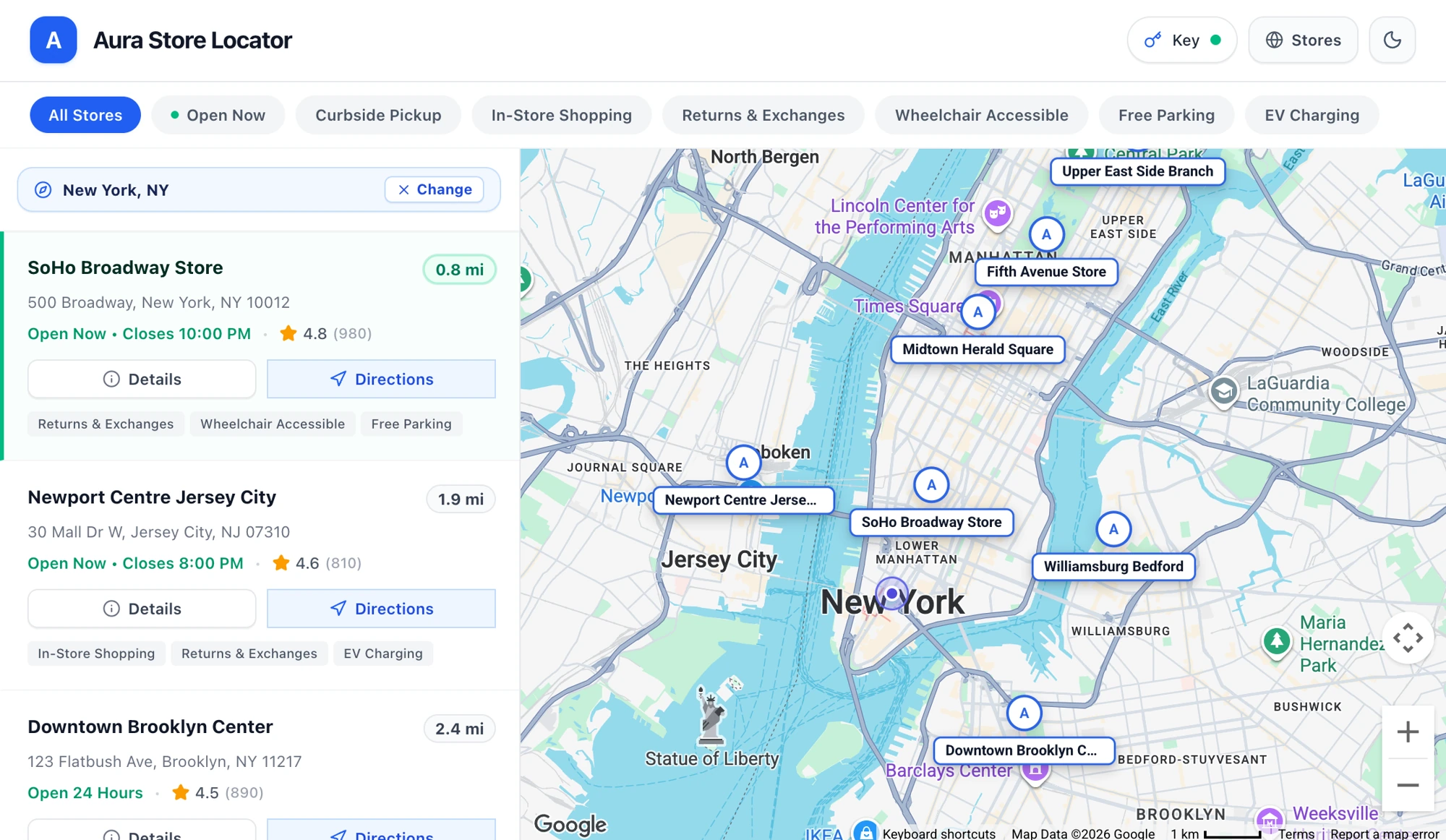
For another starting point, open the official Store Locator in the AI Studio gallery and make your own version with Copy App. The example demonstrates a branch-finder structure. Its illustration is not evidence that every displayed field is available with your particular demo key.
Understand the 100-request limit
As of November 10, the integration documentation lists 100 calls per day per API, with quotas resetting every 24 hours. These are service calls. One person’s search can trigger several calls, so the number does not mean 100 visitors or 100 completed itineraries.
For illustration, 20 Places calls and ten Geocoding calls use separate quotas. If the app calls Places ten times after one click, investigate the repetition first. For an exhausted-quota error, wait for the reset; for an unavailable-API error, check whether that service is supported by your particular key.
Watch Google’s demonstration and compare it with your own test
For production Maps use with standard quotas, Google describes moving to a project with Cloud Billing. That is a separate decision after testing: demo access does not promise unlimited free operation. Before making the change, identify the APIs you need, expected call volume and how you will monitor usage.
If you currently need a creative result without a map, our Google Vids exercise starts with a short video. In either workflow, keep the original brief and check the specific behavior you asked the tool to create.



Join the conversation
Stay on topic and respect other readers. Your first comment may appear after editorial review.