
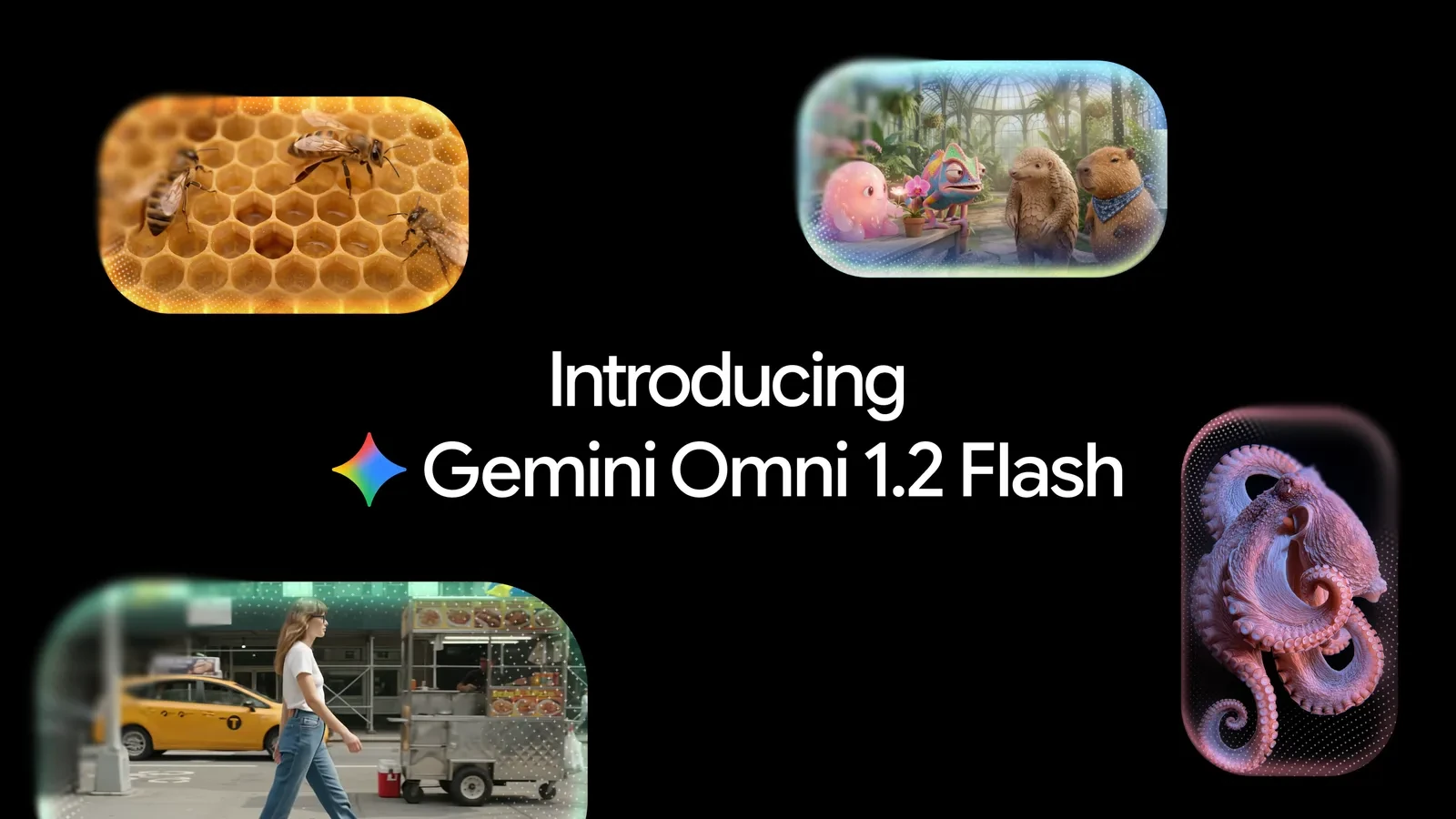
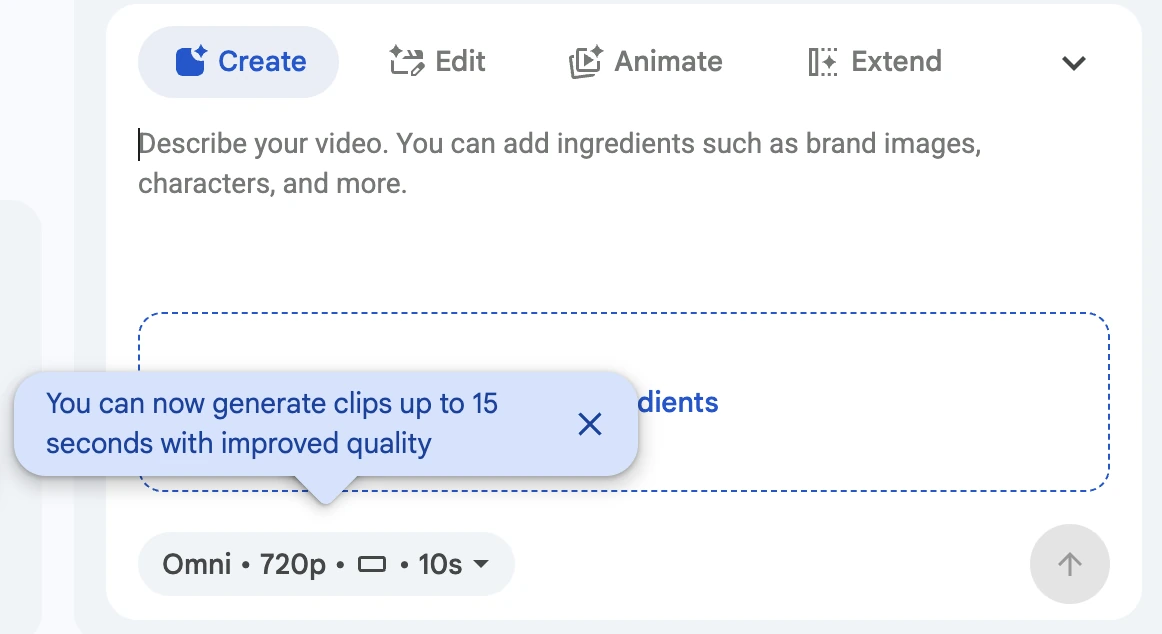
A short video for a workshop page can begin with one photograph: a mug on a table, a slow camera move and a date added at the end. Gemini Omni 1.2 Flash now lets Google Vids create clips up to 15 seconds long. A useful first attempt starts with a clear choice of movement, aspect ratio and product details that need to remain consistent.
Google introduced the model on November 5, highlighting improved reference following and conversational edits. Access through Vids, the Gemini app and the API comes with different conditions. This exercise uses Vids and your own photograph; it does not require buying API access.
Check access and your remaining seconds
Open Google Vids on a computer with the account you intend to use. The Workspace announcement lists a November 5 rollout for personal accounts and many business and education plans. If the action is missing, check your selected account, its plan and any organizational restrictions. The Google AI Ultra requirement for the Gemini app should not be applied to every Vids user.
As of November 9, Google’s availability table lists 60 seconds of AI video per month for a personal Google Account, 200 for Business Starter and 500 for Standard and Plus. Check your own column before making several attempts. The clip creation guide still contains a general reference to 50 generations; that should not be treated as a universal current allowance.
If your available balance is indeed 60 seconds, four 15-second clips would use that amount mathematically. This is a planning example, rather than a promise of four usable results: edits and retries may need additional allowance. Start with a shorter composition test and watch what happens to the balance shown in your account.
Find generation and select 15 seconds
- On the Vids start screen, choose Create AI videos. In an existing project, use the side panel’s AI video → Create action.
- Add your photograph through Ingredients. Open the Omni pill to choose portrait or landscape, a duration from 3 to 15 seconds and the resolution.
- Enter your description and select Generate. Review the result, then select Insert to keep it in your Vids project for further work.
Try one mug and one camera move
Photograph your own blue mug against a simple background without third-party logos. The goal is a portrait video for an imaginary pottery class. Add the date later in the editor, where you can correct it without generating the scene again. Upload a photograph only when you have permission to use it.
Portrait video, 9:16, 15 seconds. Use the mug in the attached photograph as the main subject. It stays on a pale wooden table throughout. One continuous shot with a very slow camera push-in. Preserve the blue colour, handle shape and mug proportions. Soft daylight. Leave clear space in the upper third for a title. No lettering, people, scene changes or music.
This is a RozumTech practice prompt. It sets review criteria, but does not guarantee that every instruction will be followed precisely. Before judging how attractive the scene is, inspect the handle at the beginning, middle and end. A handle that changes shape or disappears makes the result unsuitable as an accurate representation of a product.
Change one parameter at a time. If the camera moves too quickly, revise the movement alone; if the mug is too small, revise its size in the frame. Changing the background, lighting, colour and camera angle together makes it harder to tell which edit helped. Keep the initial result so you can compare both versions against the same requirements.
An official demonstration and a final viewing check
Google’s video below demonstrates a more elaborate camera move guided by architectural references. It is the manufacturer’s demonstration result. The mug prompt above is a separate, simpler exercise for a first attempt.
Watch your own clip on a phone at its normal viewing size. Inspect the object’s edges, unwanted objects and the space left for a title. Add your lettering in the editor and check whether you can read the date without pausing. If audio is missing, check the device volume and whether the Vids object track is muted before trying another generation. Export a sample and open the file separately before publishing it.
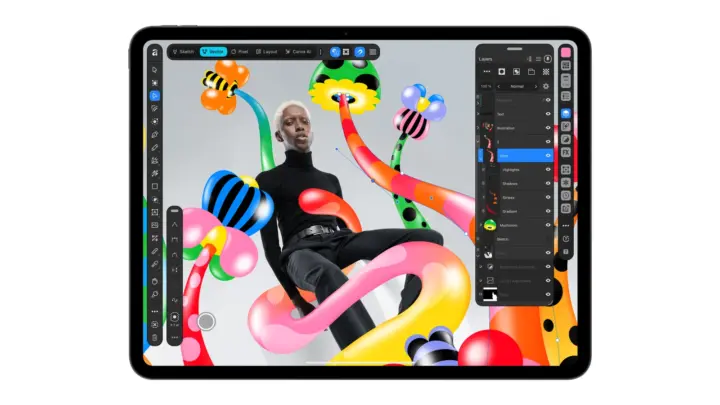
For a matching still poster, our Affinity for iPad exercise covers a separate image with the date and address. That gives guests something convenient to forward alongside the video.

Join the conversation
Stay on topic and respect other readers. Your first comment may appear after editorial review.