
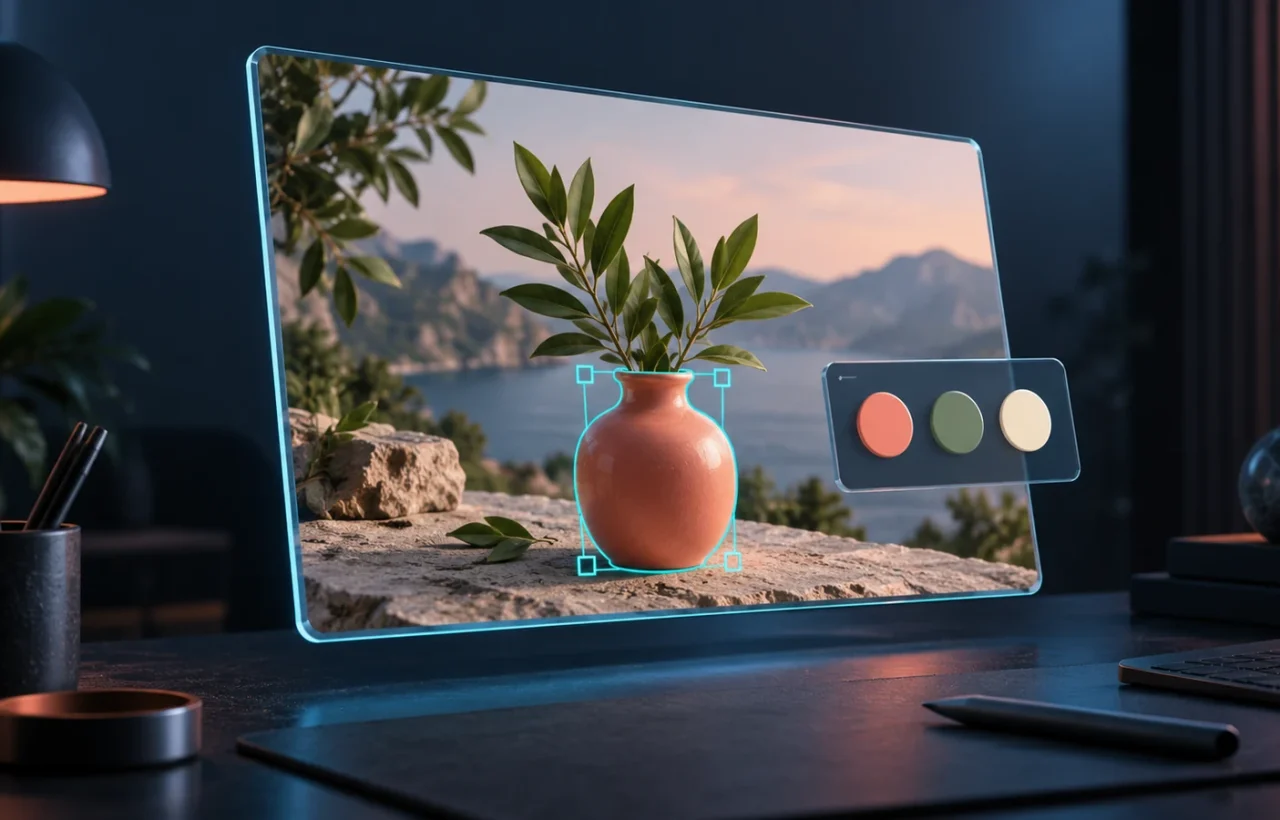
On September 1, 2026, Google began rolling out Google Pics, an editor for generating images and making targeted changes with AI. Work account rollout depends on an organization’s release schedule. This does not mean every Gmail user can already open the new tool. The official announcement names specific plans and dates.
Its most interesting everyday use is selecting an object or text element and changing that part. Possible assignments include another language version of a poster or removing a distracting background object. We explain access, formats and the documented workflow below; this is not a hands-on comparison of image quality.
Who is getting access
| Account type | Plans listed by Google |
|---|---|
| Work | Business Standard / Plus; Enterprise Standard / Plus |
| Personal | Google AI Pro; Google AI Ultra |
| Education | Google AI Pro for Education add-on |
| Additional access | AI Expanded Access |
The table follows the availability help page. Three further details matter: the editor is available on desktop, Ukrainian is a supported language, and Pics is unavailable for personal accounts in Germany. Workspace Experiments is a separate route for testers, not general free access.
For Rapid Release domains, rollout started on September 1; Scheduled Release domains begin on September 15. Google allows up to 15 days for visibility in each case. A missing Pics option in a work account on September 5 can therefore still be consistent with the rollout schedule.
What to check if the editor will not open
First check which account is signed in, its plan and whether you are using a computer. For a work profile, ask the administrator about the release schedule and service access. Switching between a personal and a company account can change access even in the same browser.
In the Admin console, Pics is controlled through Apps → Google Workspace → Drive and Docs → Google Pics. It also requires Drive and Docs and permission to create files in Drive. If the service is disabled, users in that organization cannot even open a Pics file shared with them. Check this before sending a design to colleagues.
How to prepare a targeted edit
According to the getting-started guide, images can come from a computer, Drive or Google Photos. Listed upload formats include JPG, PNG, BMP and TIFF. On desktop, Google supports the two latest versions of Chrome and Firefox, plus Edge on Windows.
- Open Google Pics and add the image.
- Select an object or drag to select an area. The editing instructions also describe selecting individual text elements.
- Describe one change and apply it. For example: “Replace the wording with ‘Summer Collection’. Keep its position, size and color.” This is an example assignment, not a guarantee of exact output.
- Compare the new version with the original: check the entire text, the boundary of the edited area and adjacent details. Return to an earlier version if the result is unsuitable.
For a poster, separately check numbers, punctuation and line breaks. For a photograph, inspect faces, hands, edges and reflections near the edit. A local selection helps define the requested area, but does not by itself prove that every other pixel remained unchanged.
What to know before saving
The export guide lists JPEG downloads at original size, 2K or 4K. Workspace Experiments currently lists original size only. Uploading a PNG therefore does not mean you can download the result as a transparent PNG. If you need a separate transparent element for compositing, check whether this tool fits that requirement first.
Generative features have usage limits; Google promises higher access at least through February 28, 2027. Higher-resolution downloads consume the promotional allowance faster. Do not read this as unlimited editing forever. For a website image, it also makes sense to choose dimensions and file weight suited to its actual display area after export.
When Google Pics could be useful
Based on its documented features, Pics is a candidate for quick edits and variants of work graphics: different wording, a cleaner background or a revised composition. Choose it for a specific result, especially if you already pay for an eligible plan. For precise diagrams, dense tables or transparent-layer compositing, check the output-file requirements first.
To reduce unproductive attempts, describe the edit area, the desired result and what should be preserved. Our prompt-writing guide has more examples. The useful measure is straightforward: did you get the design you needed with an acceptable amount of correction time?




Join the conversation
Stay on topic and respect other readers. Your first comment may appear after editorial review.