
Your PC starts making more fan noise after you install a “free” app, and unfamiliar names appear in the installed-app list. That is a reason to check what arrived with it. Deleting the downloaded EXE does not remove components that have already been installed. Start with the protection log and the actual changes on the device.
On November 3, Microsoft described a fake-installer campaign promoted through games, plugins, activators and utilities. The installers delivered unwanted software and components that used victims’ network or computing resources without proper consent. The checks below are for an ordinary Windows user and do not require running commands copied from a news story or forum.
First establish whether you ran the file
If the installer is only sitting in Downloads, do not run it to see what happens. Delete the questionable file, scan your system and find the app on the developer’s website or in Microsoft Store. If you already opened it, note the approximate time, filename and page it came from. That gives you something specific to compare with later events.
For a worked example, imagine that you ran an audio-plugin installer at 6:40 p.m. and an unfamiliar utility appeared at 6:43. The timing is an investigation lead, rather than proof of infection. Compare the publisher, antivirus details and other installations. Legitimate free applications can also install legitimate supporting components.
Read Protection history and record the result
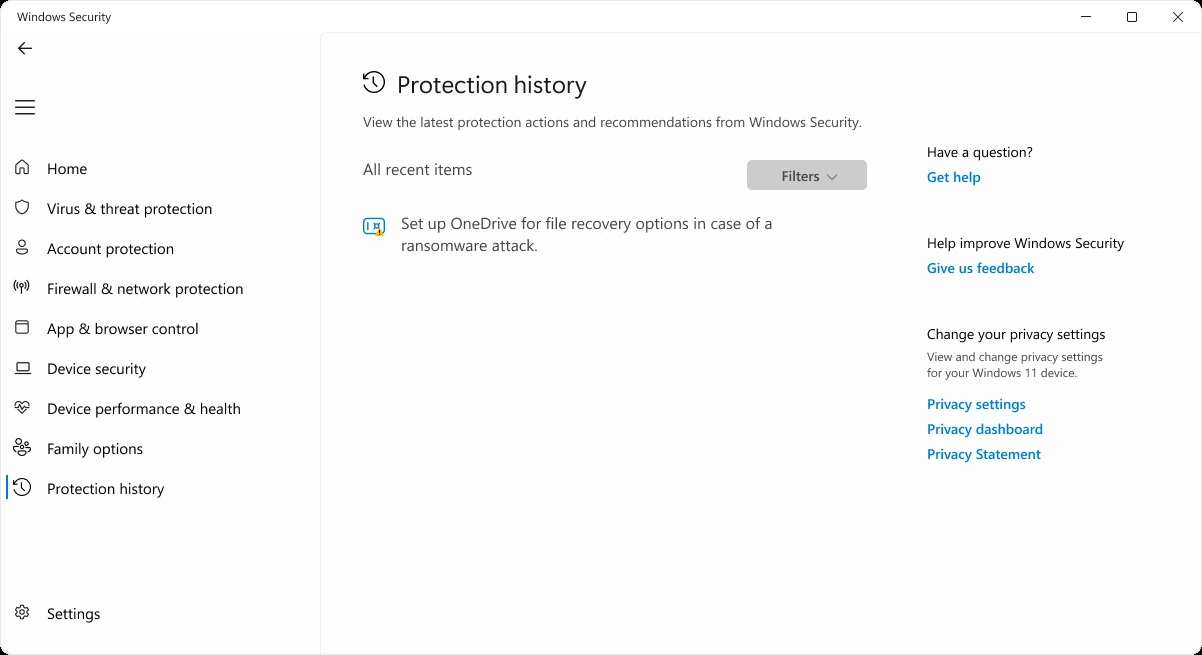
Open Windows Security → Protection history from Start. Expand events around the relevant time and record the detection name, file path and action taken. Microsoft says this history retains events for only two weeks; reviewing threat details may require an administrator account.
Do not select Allow just because the download page says a warning is a false positive. Check whether any event is waiting for your action. An empty history does not establish that an installer is safe: the event may be older than the retention period, or the antivirus may not have detected anything.
| What to record | Example note |
|---|---|
| The initial action | Plugin installer, approximately 6:40 p.m. |
| Protection result | Detection name, full path, quarantined or awaiting action. |
| Changes on the PC | Unfamiliar application, installation date and listed publisher. |
| Next step | Antivirus scan and a record of its result. |
Scan without adding exclusions
If Microsoft Defender protects your PC, open Virus & threat protection, check for protection updates and choose Scan options → Full scan. Microsoft Defender Offline is another option when suspicion persists, and it restarts the PC. Save open documents before starting it and review its result in Protection history.
If another antivirus is installed, use its scan and log; some Defender controls may be unavailable. Do not exclude the entire Downloads folder to get one installer running. Record the scan date and result so that you have more to go on than the impression that the fan seems quieter.
Check unwanted-app blocking
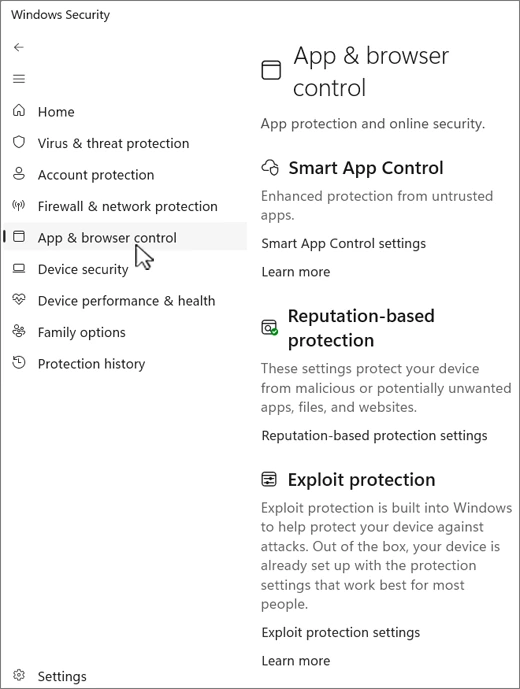
In Windows Security → App & browser control, open Reputation-based protection settings. Check potentially unwanted app blocking. Where the controls are offered, app blocking checks the PUA itself, while download blocking works in Microsoft Edge. Using a different browser does not remove the need to check a file already on your PC.
If your organization manages these settings, send the administrator the filename, launch time and log details. Do not install an “optimizer” to unlock the switches. On a personal PC, establish which product is currently providing protection instead of relying on the presence of a shield icon.
Check what remains after the scan
Open Settings → Apps → Installed apps and review unexpected installations from that day. Microsoft’s report also names legitimate distributed-computing tools installed deceptively. The presence of BOINC or VirtualBox alone does not mean an application is malicious. What matters is who installed it, where it came from and whether you agreed.
Avoid deleting system files or scheduled tasks solely because their names resemble an indicator in a report. If an unfamiliar component returns or protection keeps switching off, retain the results and ask a qualified technician to investigate. Where there is a substantiated concern, temporarily disconnect the PC from the network and review important accounts from another trusted device.
If you entered a password on a suspicious page or see unfamiliar sign-ins, use our account checklist following a data breach. Changing a password addresses account access; the computer still needs its own examination. Finish with a concrete record of what was detected, what action was taken and whether any events remain unresolved.



Join the conversation
Stay on topic and respect other readers. Your first comment may appear after editorial review.