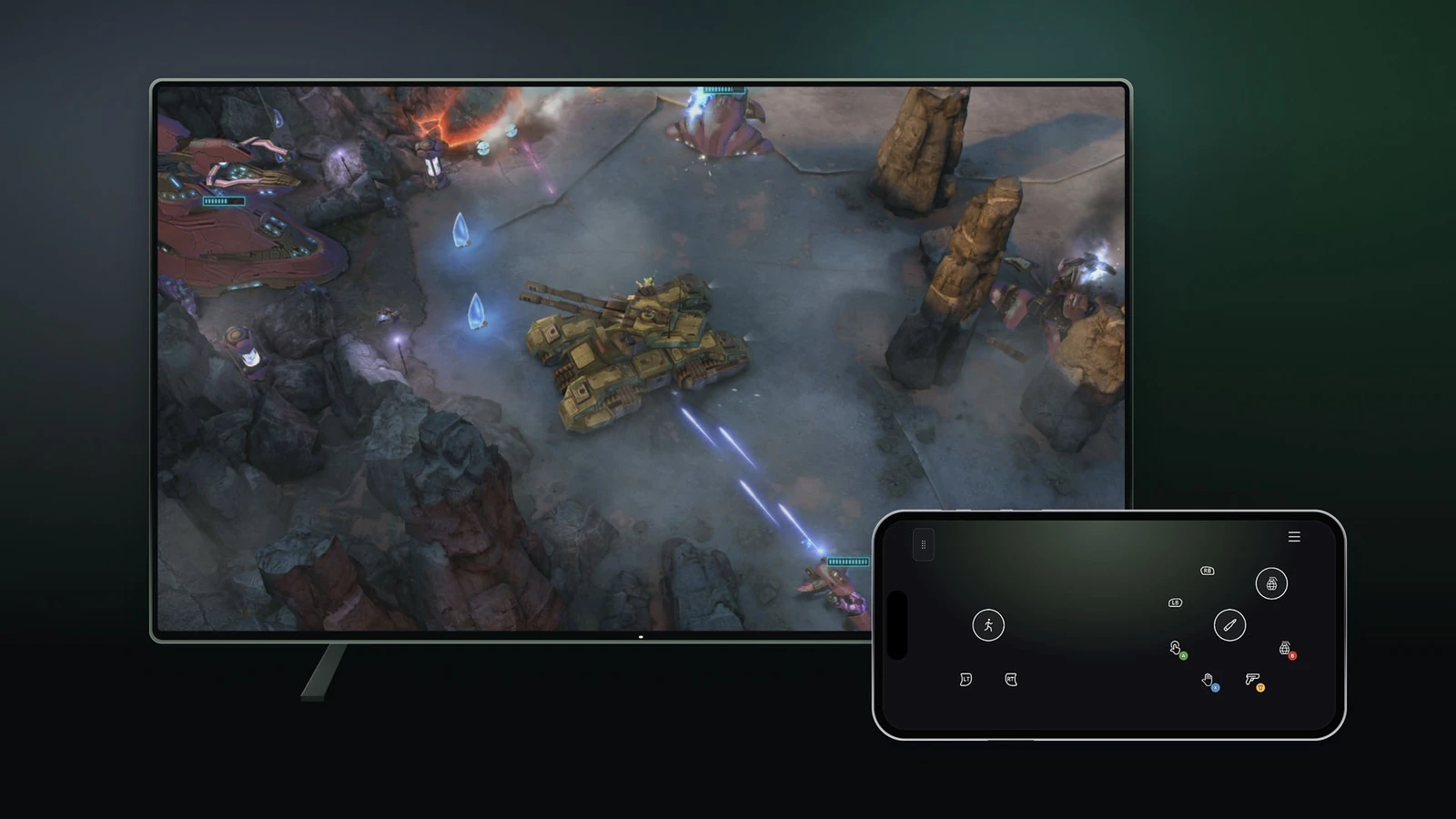
The Xbox app is on your TV, you have picked a game, and the controller is somewhere else. On November 4, Microsoft began previewing another option: run a cloud game on a supported smart TV and use a compatible iPhone or Android phone as the controller. The game stays on the TV. Only the controls open on the phone. You do not need to buy an Xbox Nano or install a separate phone app for this option.
This is still a preview. Three things have to line up: Xbox Cloud Gaming must be available in your region, your TV must support the app, and the phone option must be available for the session you are trying to start. Checking them in that order helps distinguish a missing feature from a problem with the phone.
Check the region, the TV and the game
Start with Xbox’s country and region list. Look for Xbox Cloud Gaming specifically. The fact that you can buy a console, a game or a subscription in a country does not, on its own, tell you that cloud streaming works there. Next, look up the exact TV model in the official device list. Xbox is on selected TVs from LG, Samsung and other brands; the name on the bezel is not enough.
Access to the game is a separate check. Some free-to-play titles, including Fortnite, can be streamed with a free Microsoft account in a supported region. Other games can require an eligible Game Pass plan. Seeing a subscription offer on a particular game’s page therefore tells you little about whether the phone controller works.
Make the QR code appear on the TV
- Open the current Xbox app on a supported smart TV and sign in. Use your remote to open the settings inside the Xbox app. The TV’s own system settings are a different menu.
- Go to Settings → Account → Preview Features and turn previews on. If the option is missing, check for an app update and verify the TV model. Microsoft is rolling out the experience gradually.
- Turn off or disconnect any physical controller connected to the TV. Launch a cloud game. The offer to use your phone appears when starting a game without a physical controller; you may not see a QR code on the app’s home screen.
- Choose the phone controller option and scan the code on your own TV. Your phone’s browser opens the controls for this session. There is no need to pair your phone to the TV as a Bluetooth gamepad.
For a quick check, move the selection in the game menu and confirm it. If the highlight moves on the TV, the connection is working. Then try a tutorial or another low-pressure scene. Can you reach two actions together without looking down at your thumbs? Some games have layouts tailored to them, so one title is not a good test of how every game will feel.
No game, no code, or awkward controls?
| What you see | What to check next |
|---|---|
| The game does not reach the launch screen. | Check cloud availability, sign-in and access to that title. A phone pairing code cannot help until the session can start. |
| The game is available, but there is no phone prompt. | Check Preview Features and make sure a physical controller is not still connected. If both look right, try another supported title: the preview is limited. |
| The buttons work, but running and aiming together is difficult. | Pairing has succeeded. Try a simpler scene; for precision movements you may prefer a physical pad. Rescanning the code will not give touch buttons a tactile edge. |
Why the Xbox Nano instructions are different
Microsoft announced two previews together. In the first, the phone is the controller. In the second, you hold a physical Xbox Nano Controller. Its cloud connect mode sends inputs over Wi-Fi directly to the server running the game, instead of the controller connecting to your TV over Bluetooth. Microsoft says that can reduce input latency. It is not a promise of a measured improvement on your own network.
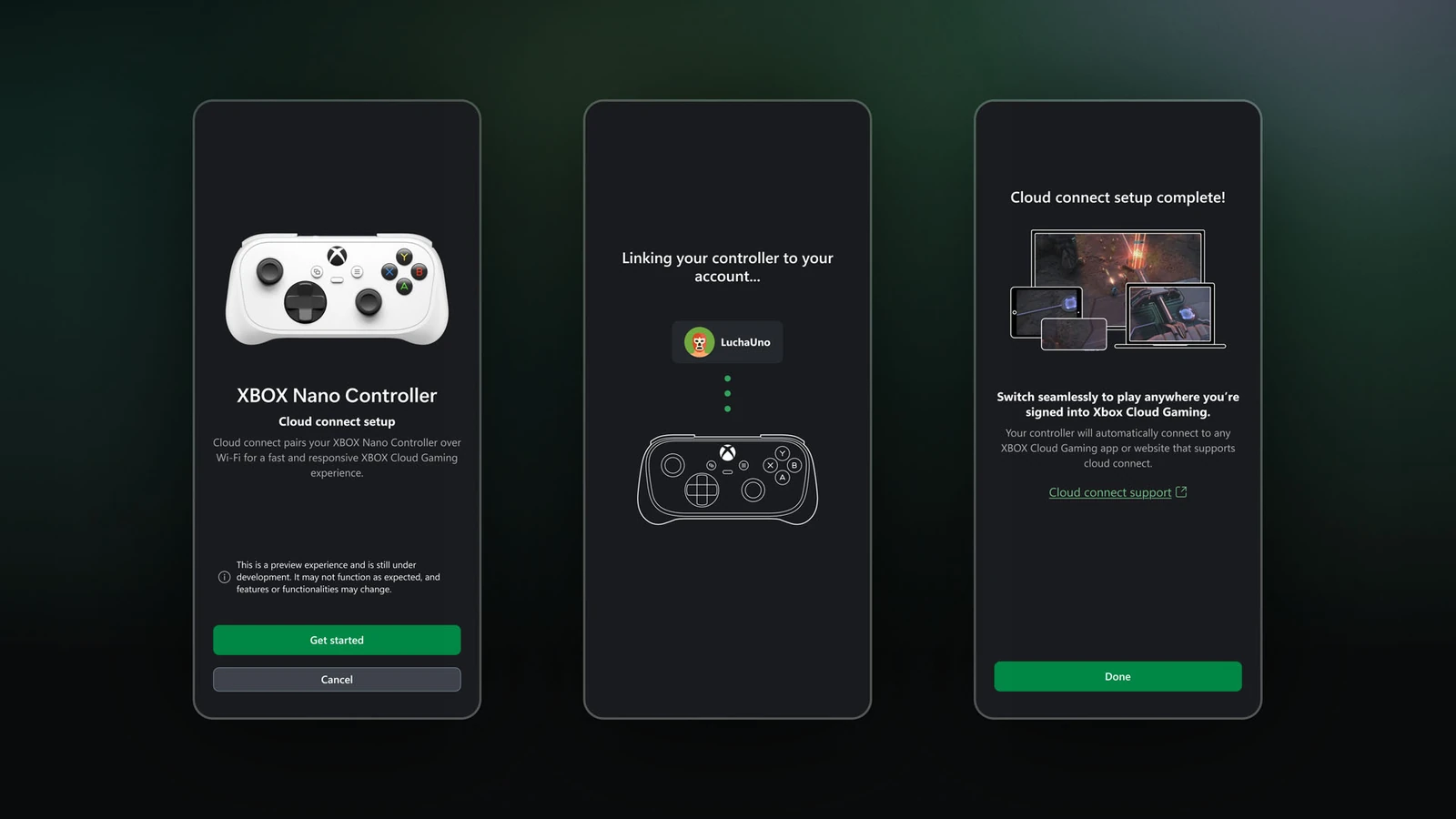
The Nano preview is US-only and works on supported smart TVs and the web. Setup uses the Xbox beta app on Android or Xbox Accessories on a PC; the PC setup route requires Xbox Insider enrolment. Those are instructions for the physical Nano, not for the QR-code phone option. If you simply want to try cloud gaming on the TV without buying a controller, start with Preview Features.
Adding a streaming box to an older TV? Match the box itself against Xbox’s list before buying. A generic “Android TV” label does not establish compatibility. If it is an unfamiliar brand, our guide to checking a TV box’s origin and updates covers a separate question worth settling first.


Join the conversation
Stay on topic and respect other readers. Your first comment may appear after editorial review.