
Deleting cookies does not remove every way to recognize a browser. Websites can combine technical characteristics available to them, such as screen information, fonts or graphics-rendering behavior. Together, these form a browser fingerprint. On November 10, Mozilla published an explanation of research that helps Firefox reduce distinguishing differences between users.
The news concerns research and protections already introduced into Firefox. It does not mean a separate new switch appeared on November 10. The useful step is checking your current configuration and understanding the difference between blocking known scripts and limiting the information exposed to websites.
Two protections that are easy to confuse
Known fingerprinters protection blocks identified scripts using a list. That helps against recognized sources, but a list cannot cover every possible way to collect distinguishing characteristics. Suspected fingerprinters protection additionally limits information available to a webpage, including cases where a script cannot simply be blocked.
One example from Mozilla’s research is reporting a generalized processor-core count instead of the exact number. This does not disable your computer’s cores or turn it into a less powerful machine. It changes the information available to a webpage so that a particular hardware configuration is less distinctive.
Check protection in desktop Firefox
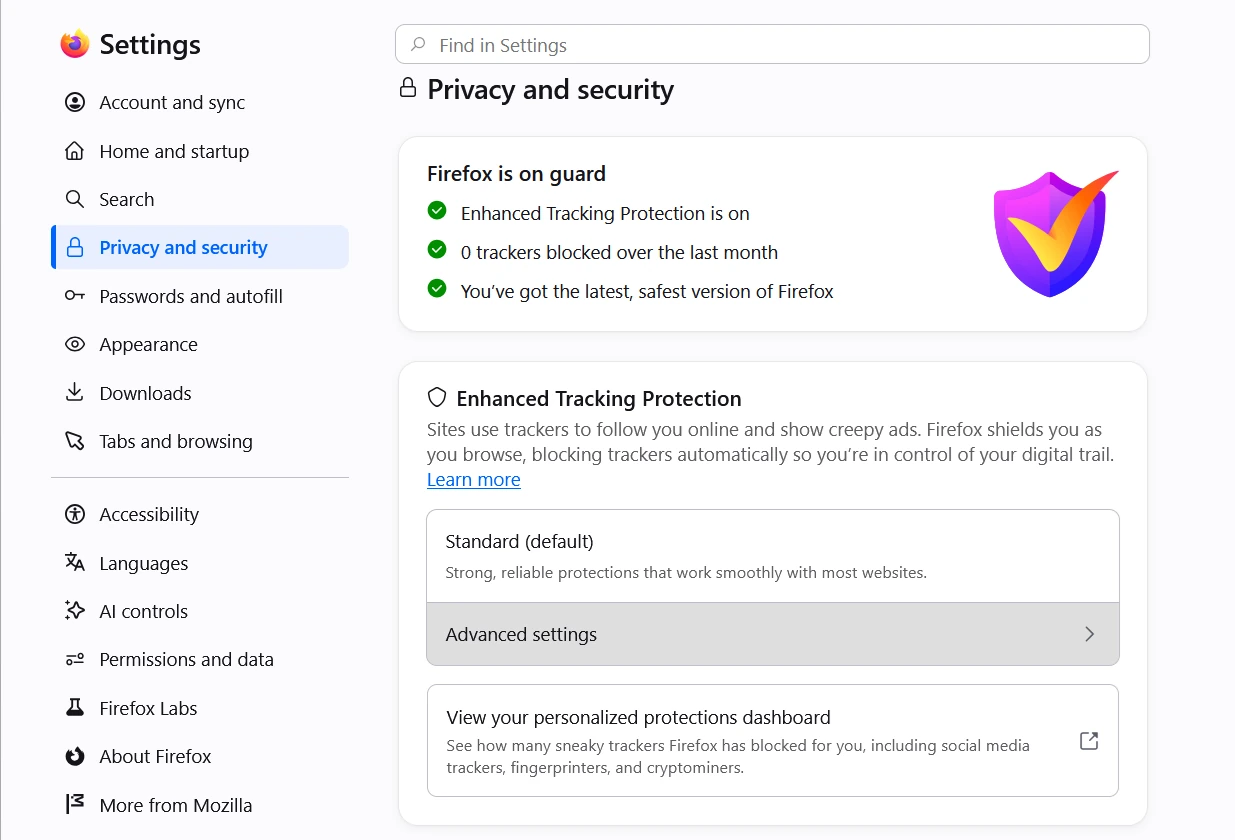
- Update Firefox through its usual Help menu. Open its privacy and security settings and find Enhanced Tracking Protection.
- Note the current mode. Standard already includes protections. Mozilla’s help guide says known fingerprinters are blocked during normal browsing, while protection against suspected fingerprinters is also enabled in private windows and Strict mode.
- To try Strict mode in ordinary tabs, open the protection’s advanced settings and select it. Reload the tabs when Firefox offers to apply the change.
In the English interface, use Settings → Privacy and security → Enhanced Tracking Protection → Advanced settings. The modes are named Standard, Strict and Custom. The section’s appearance depends on your Firefox version.
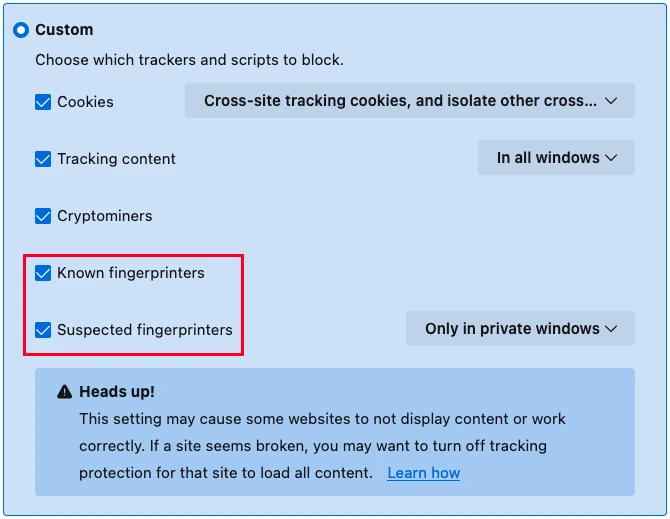
Under Custom, check both the suspected-fingerprinter checkbox and its scope. The official example above selects private windows only. That configuration does not mean the same additional restriction applies in every ordinary tab.
Check compatibility without changing everything together
Choose two or three sites you use regularly. Before changing modes, record one specific action on each, then repeat it after reloading. Here is an original example of a comparison record:
| Scenario | Compare before and after the change |
|---|---|
| A news page | Can you read the article and use its menus and search? |
| Signing in | Does the form open, and does your usual sign-in method complete? |
| An embedded video | Does the player start, with the controls you need? |
If something breaks, open the protection icon beside the address and check whether temporarily disabling protection for that particular site changes its behavior. This tests a possible cause instead of assuming one. Restore protection after the attempt when an exception is unnecessary. If the connection is confirmed, use Firefox’s broken-site reporting option.
What the research browser test shows
The authors published a research site with a browser test. It compares individual characteristics with the published aggregate dataset. According to its authors, testing and comparison run locally in your browser without sending them your measured values.
If you choose to compare two modes, record your Firefox version, operating system and selected mode. Change one setting at a time. A result is not an anonymity certificate and does not establish that a particular site has already tracked you. A figure from one measured population does not describe everyone on the internet.
Private windows and account sign-ins are separate questions
Private Browsing limits saved local history and session data, but does not make someone anonymous by itself. Signing into your account still gives the service information associated with that sign-in. Fingerprinting protection does not replace checking what you deliberately submit.
For a different everyday browser problem, our Edge scam-notification guide covers fake warnings. Notification permissions and fingerprinting protection address different tasks.


Join the conversation
Stay on topic and respect other readers. Your first comment may appear after editorial review.